Hello,
I’m sorry to hear that your featured image is not showing when sharing. To ensure that your featured image displays correctly when sharing, you need to set the Open Graph/Social Preview Image using Rank Math. Here’s how you can do it:
-
Set the Default Open Graph Image Using Rank Math:
- Go to your WordPress Dashboard.
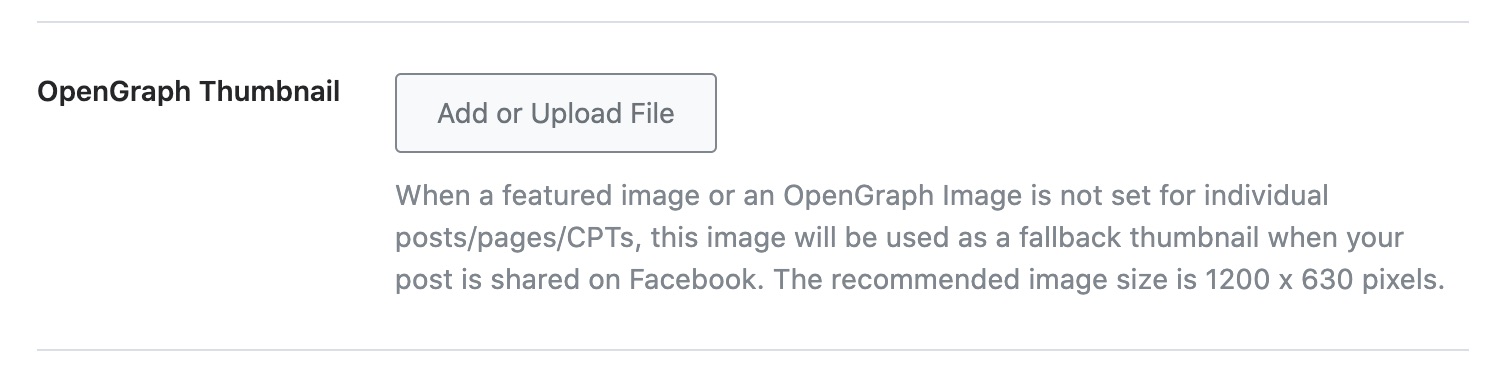
- Navigate to Rank Math > Titles & Meta > Global > OpenGraph Thumbnail.
- Click on the Add or Upload File button to set your image.
- Finally, click on Save Changes.
-
Set Open Graph Image for Individual Posts/Pages:
- You can set a custom Open Graph/Social Preview image by uploading a featured image for each post/page.
- In the WordPress Block Editor sidebar, open Rank Math and add an image through the Social tab.
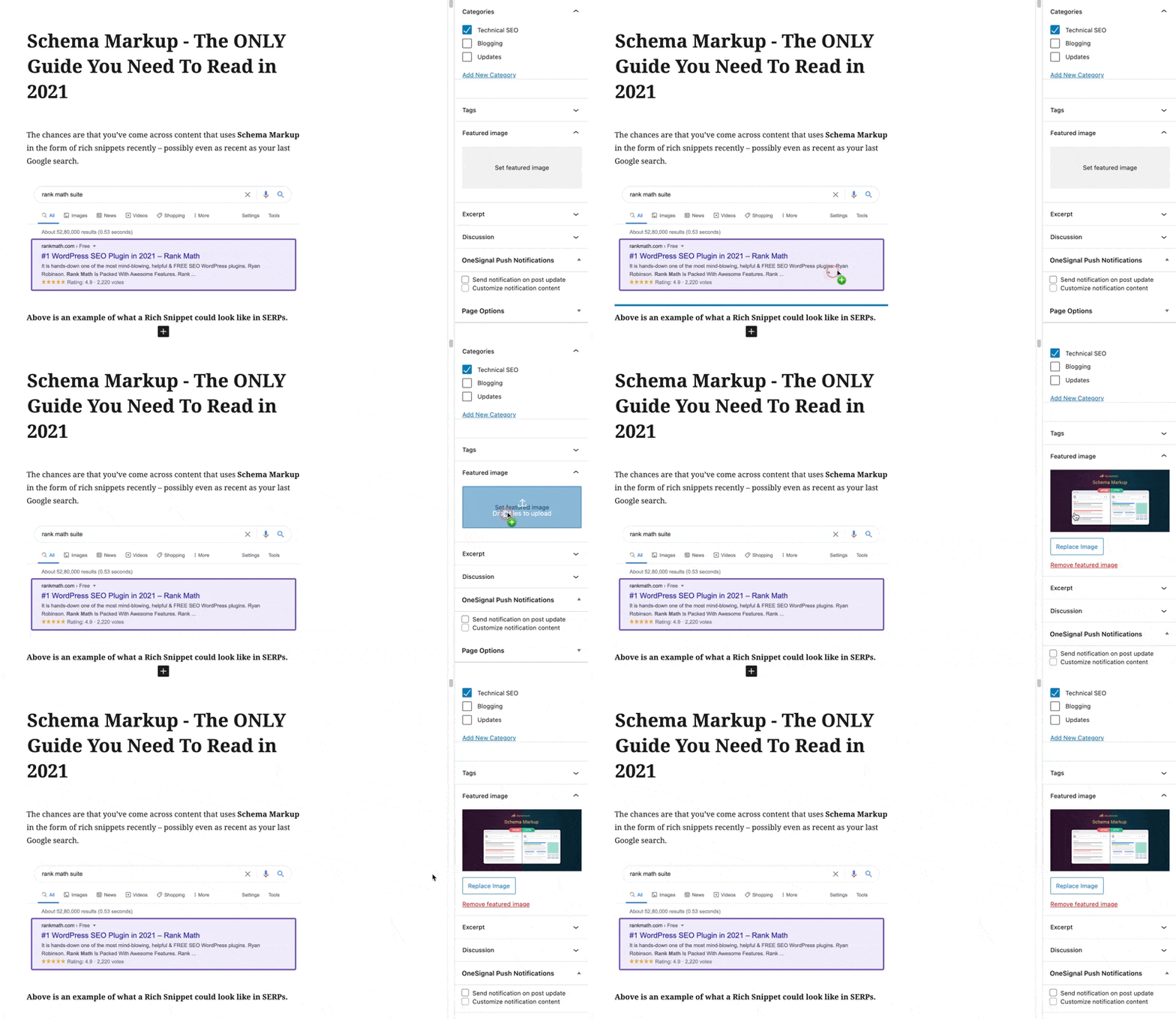
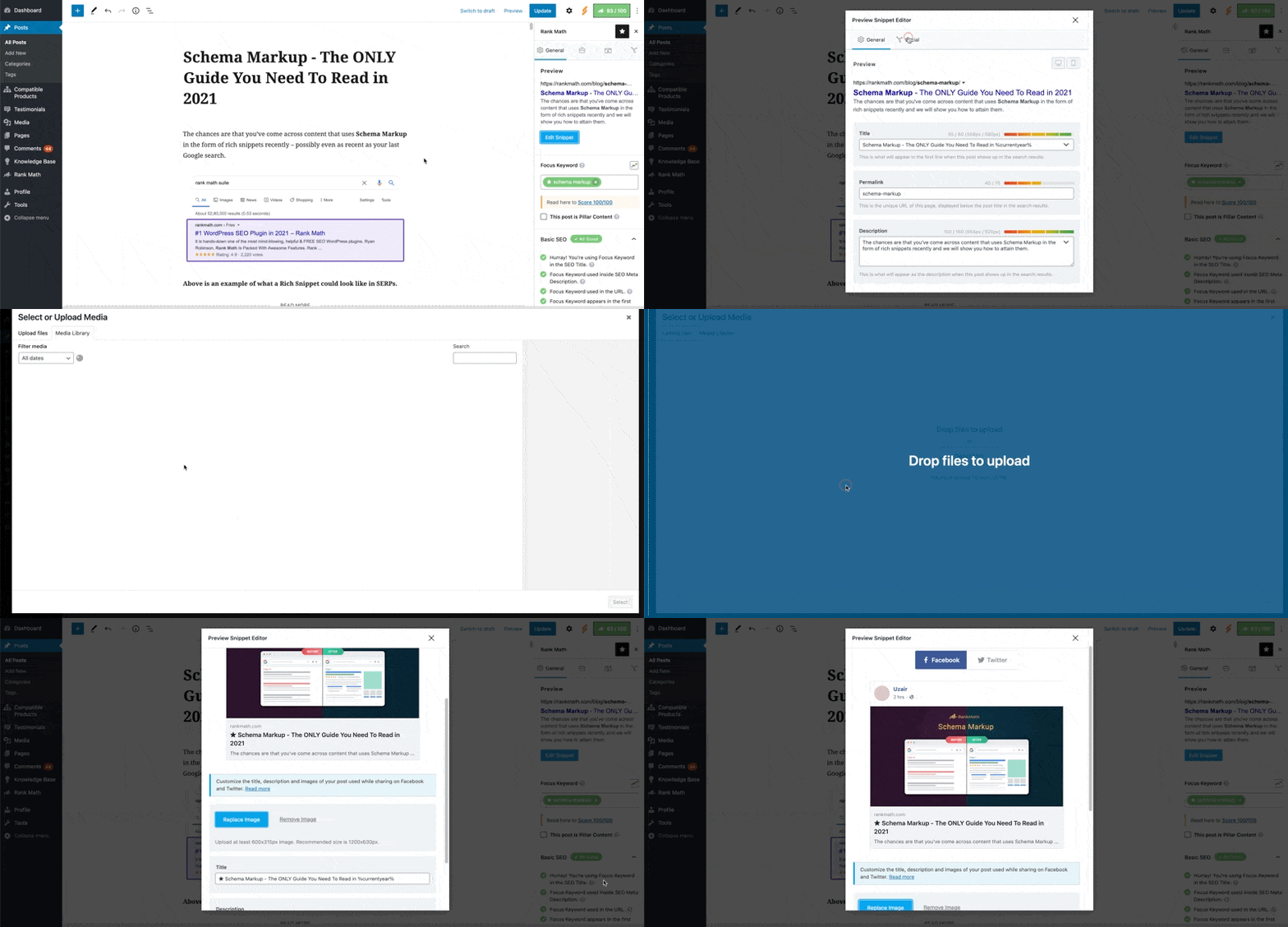
By following these steps, you can ensure that your featured image displays correctly when sharing your content. If you need further assistance, feel free to ask.
Thank you for reaching out!
Sources:
Open Graph/Social Preview Image Is Not Displayed » Rank Math
Social Media Options in Rank Math
How to Show Images in the Search Results » Rank Math
Hello,
Thank you for contacting us and sorry for any inconvenience that might have been caused due to that.
Could you please share any affected URLs with us so that we can check the issue further for you?
Meanwhile, please try to follow the steps from this guide and see if that works for you: https://rankmath.com/kb/open-graph-image-not-displaying/
Let us know how it goes. Looking forward to helping you.
Thank you.
Hello,
Since we did not hear back from you for 15 days, we are assuming that you found the solution. We are closing this support ticket.
If you still need assistance or any other help, please feel free to open a new support ticket, and we will be more than happy to assist.
Thank you.



