
-
Hi, tried all possible stuff still getting this error or note – Data import will not work for this service as sufficient permissions are not given.
please guide….

-
Hello,
I’m sorry to hear that you are facing issues connecting Google for data import in Rank Math. To resolve this, please follow these steps:
-
Navigate to your Google Account and remove the Rank Math app under Third-party apps with Account access by clicking the Remove Access button. You can find detailed instructions in this guide.
-
After removing access, reconnect Rank Math with your Google account by going to Rank Math SEO → General Settings → Analytics and clicking on the Reconnect button. Make sure to allow all permissions as shown in this guide.
-
Once you reconnect, select all values in the drop-down list to configure Analytics properties and then click on Save Changes.
If you continue to face issues after following these steps, please reply to this ticket, and a human agent from the Rank Math Support team will assist you further.
Thank you for reaching out, and we appreciate your patience.
Sources:
How to Delete Old Analytics Data & Start a Fresh Import
Resolving Rank Math Analytics Related Issues » Rank Math
How to Install Google Analytics With Rank Math SEO » Rank Math
How to Setup Rank Math SEO Plugin Properly
Sorry, You Are Not Allowed to Access This Page » Rank MathAny updates…..??
Hello,
Thank you for contacting us and sorry for any inconvenience that this issue might have caused.
Please follow the steps below to see if it helps you.
A.
Pre-check List
#1. You should not be using any other Google Analytics plugin.
#2. Update to the latest versions of Rank Math Free & PRO
#3. Ensure that you are logged in to your account:
https://rankmath.com/my-account/
#4. Disconnect and reconnect your account from WordPress dashboard > Rank Math > Dashboard > Help
B
#1. Please delete RankMath’s app from here:
https://myaccount.google.com/permissions
#2. Re-create tables by clicking WordPress Dashboard > Rank Math > Status & Tools > Database Tools and click the
Re-create database Tablebutton.
#3. Reconnect the account inside Rank Math by clicking here and ensure that you approve all the permission notices that show up:
WP Dashboard >> Rank Math >> General Settings >> Analytics tab, and click theReconnectlink
Allow all the permissions on the next screen.
https://rankmath.com/wp-content/uploads/2021/01/Allow-Permissions-to-Google-App-1.jpg#4. Let the process complete, which might take around 30 minutes.
#5. Now head over to WordPress Dashboard > Rank Math > Status & Tools > Database Tools and click theRebuild Index for Analyticsbutton.
#6. Please check if the data shows up here:
https://yourwebsite.com/wp-admin/admin.php?page=rank-math-analytics#/
If that does not help, please paste the data from here:
WP Dashboard > Rank Math > Status & Tools > System Status and click the Copy System Info to Clipboard button
https://i.rankmath.com/BJ3RCN+Let us know how it goes.
We are really looking forward to helping you.
Thank you.Tried most of the actions that you have mentioned dear……..but it did’nt worked for me
This 2 actions I’m taking rn as I have not taken this earlier, before procceding please clear this….
Re-create database tables
Rebuild index for AnalyticsAfter taking this two action my plugin and keywords that I have set for my posts, blogs, pages, products…etc, will stay of will be removed. means I will loose my data or it will stay. It is safe to do so…..
Please Guide dear ASAP
Thank You
Hello,
Yes, your keywords for your whole site will stay and will not be affected by those actions.
There shouldn’t be any data loss upon doing so as they fix the Analytics issues on your site.
Let us know how this goes.
Still not connected
(Error – Data import will not work for this service as sufficient permissions are not given.)
What to do, please guide…. I’m getting late for indexing
Also, This page is not loading SYSTEM STATUS says – This site can’t be reached. sitename unexpectedly closed the connection.
If that does not help, please paste the data from here:
WP Dashboard > Rank Math > Status & Tools > System Status and click the Copy System Info to Clipboard buttonOk page opened this is system status…… please check
Hello,
To help you investigate this issue further, we might need to take a closer look at your website and settings. Please follow these steps:
- Edit the first post on this ticket and include your WordPress and FTP logins in the Sensitive Data section. This is a secure section that only our support staff can access.
- Make sure you take a complete backup of your website before sharing the information with us.
- If you prefer, you can use this plugin to generate a temporary login URL to your website and share that with us instead: https://wordpress.org/plugins/temporary-login-without-password/
- You can also use this plugin to monitor what changes our staff might make on your website (if any): https://wordpress.org/plugins/wp-security-audit-log/
We appreciate your cooperation and patience.
Thank you for choosing Rank Math.
Please guide me how to connect google console analytics manually instead of direct method.
In addition I found that when I’m connecting google this 3 popup permissions are not appearing in my case as shown in this video – https://www.youtube.com/watch?v=49gYr5tUy0I
although I am just selecting the check mark list for giving access for connecting to google which later connects me with google but due to this popup permissions stage is missing out in my case that’s why it shows this error – (Data import will not work for this service as sufficient permissions are not given)
I don’t know why, this is Rank math issue or google issue, please sort out this for me ASAP
and can’t give my access to you guy’s due to some my side restrictions and confidential #classified
Please guide and help ASAP……..ASAP………ASAP
Hello,
1) Please make sure you have the latest version of the Rank Math plugin installed on your site. You can check the latest version here: https://rankmath.com/changelog/free/
2) Check to make sure that you have verified Google Search Console, if not, follow this guide: https://rankmath.com/kb/google-site-verification/
3) Please make sure that you are not connecting to Google Search Console via a domain property but rather a URL prefix and that you have verified the correct version of your website on the Google Search Console (HTTP or HTTPS, www or non-www).
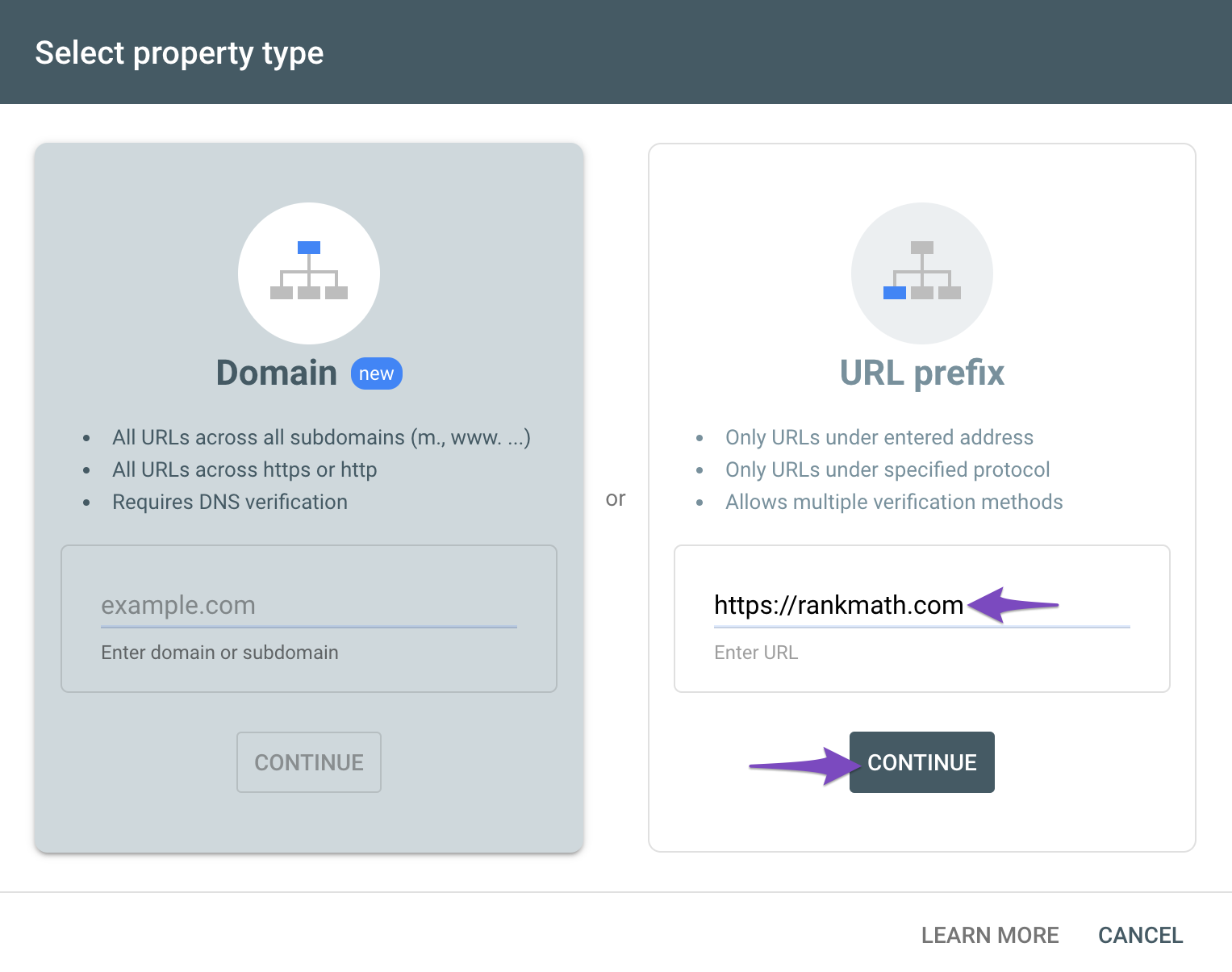
4) Then remove Rank Math’s access from Google. Please remove RankMath’s app from your Google apps permissions: https://myaccount.google.com/permissions
5) Reconnect the Google account again to regenerate the auth token from Google, by going to WordPress Dashboard > Rank Math > General Settings > Analytics and configure the Search Console and Analytics settings again.
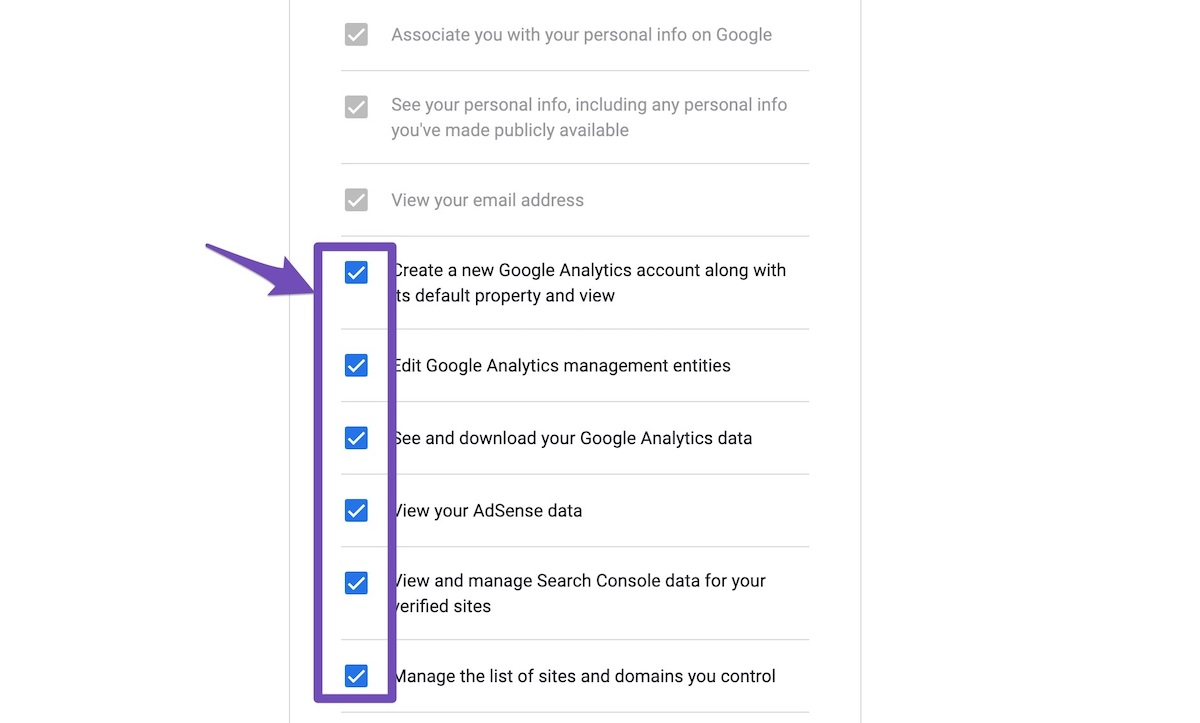
6) Grant all necessary permissions
Kindly check all necessary checkboxes to allow Rank Math to access some of the Google Services. Please check the screenshot below for reference:
7) Follow the instructions to sign in with your Google account and allow Rank Math to access your data. https://rankmath.com/kb/connect-your-google-account/
You can also refer to this guide for more details: https://rankmath.com/kb/analytics-issues/#expired-google-oauth-token
We hope this resolves the issue for you.
If you still face any problems or have any questions, please let us know. We’re always here to help.
Thank you.
Hello,
Since we did not hear back from you for 15 days, we are assuming that you found the solution. We are closing this support ticket.
If you still need assistance or any other help, please feel free to open a new support ticket, and we will be more than happy to assist.
Thank you.
-



The ticket ‘Unable to connect google’ is closed to new replies.