Hello,
We apologize for the issue you are facing with the sitemap indexing in Google Search Console. It seems like you’re encountering the "Couldn’t fetch" error for your sub-sitemaps, which can be frustrating.
Here are some steps you can take to troubleshoot and resolve this issue:
1. Validate Your Sitemap
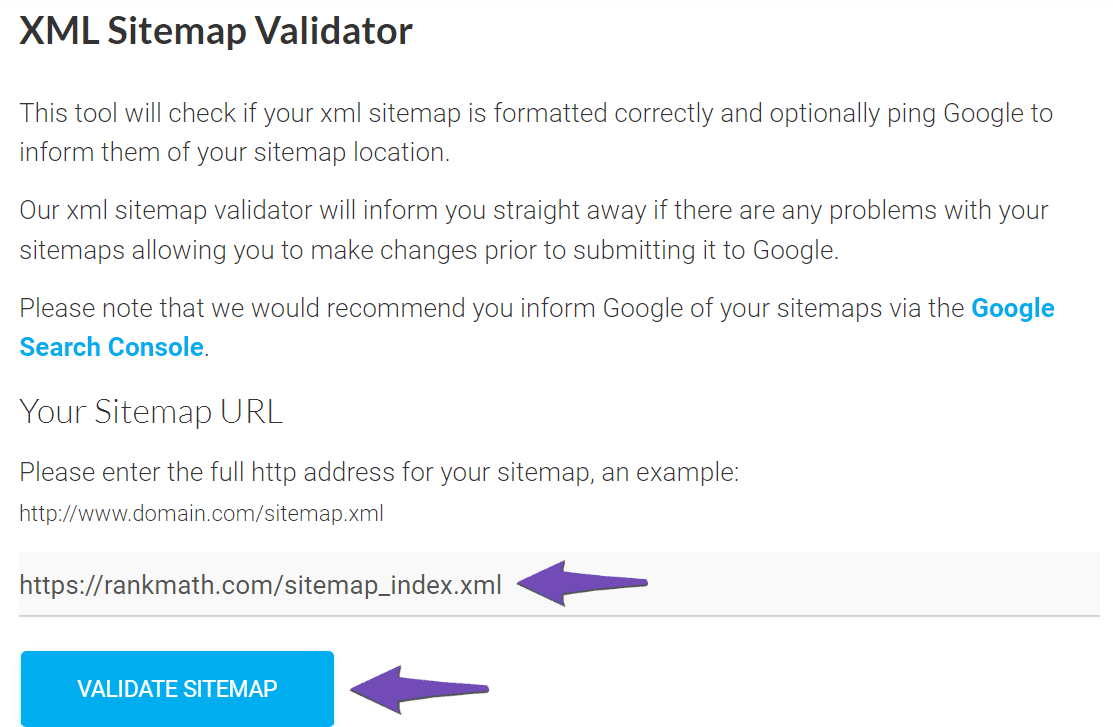
Make sure your sub-sitemaps are correctly configured. You can use the Validate XML Sitemap tool to check for any issues. Enter your sub-sitemap URL and click VALIDATE SITEMAP.
2. Ensure the Sitemap is Located in the Root Folder
If you manually created the sitemap, ensure it is installed in the root folder of your WordPress installation. The URL should look like this:
https://yourdomainname.com/sitemap_index.xml
3. Flush the Cache
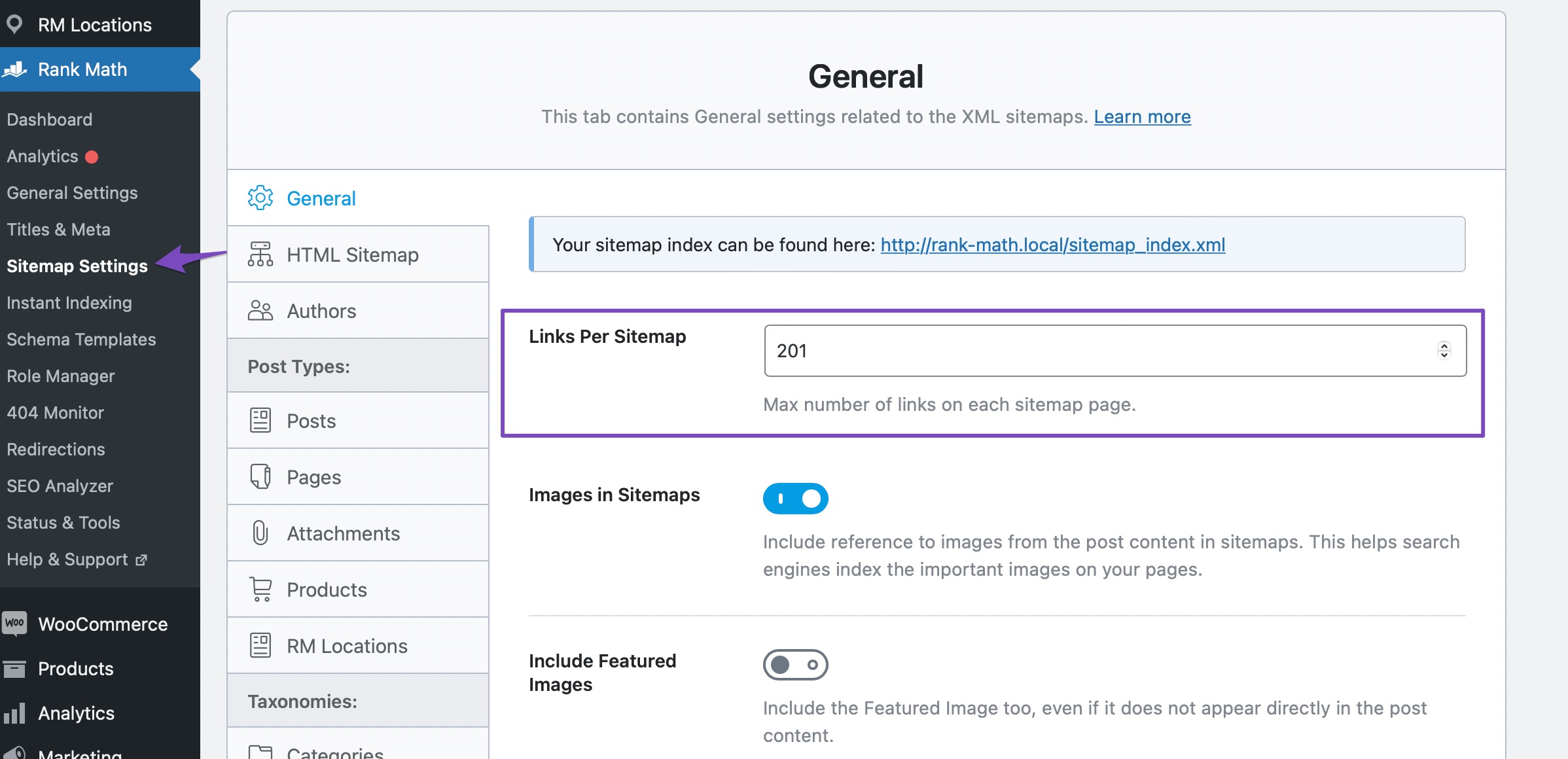
If your sitemap appears outdated, you may need to flush the sitemap cache. Go to Rank Math SEO → Sitemap Settings, increase the value of Links Per Sitemap by one, and save your settings.
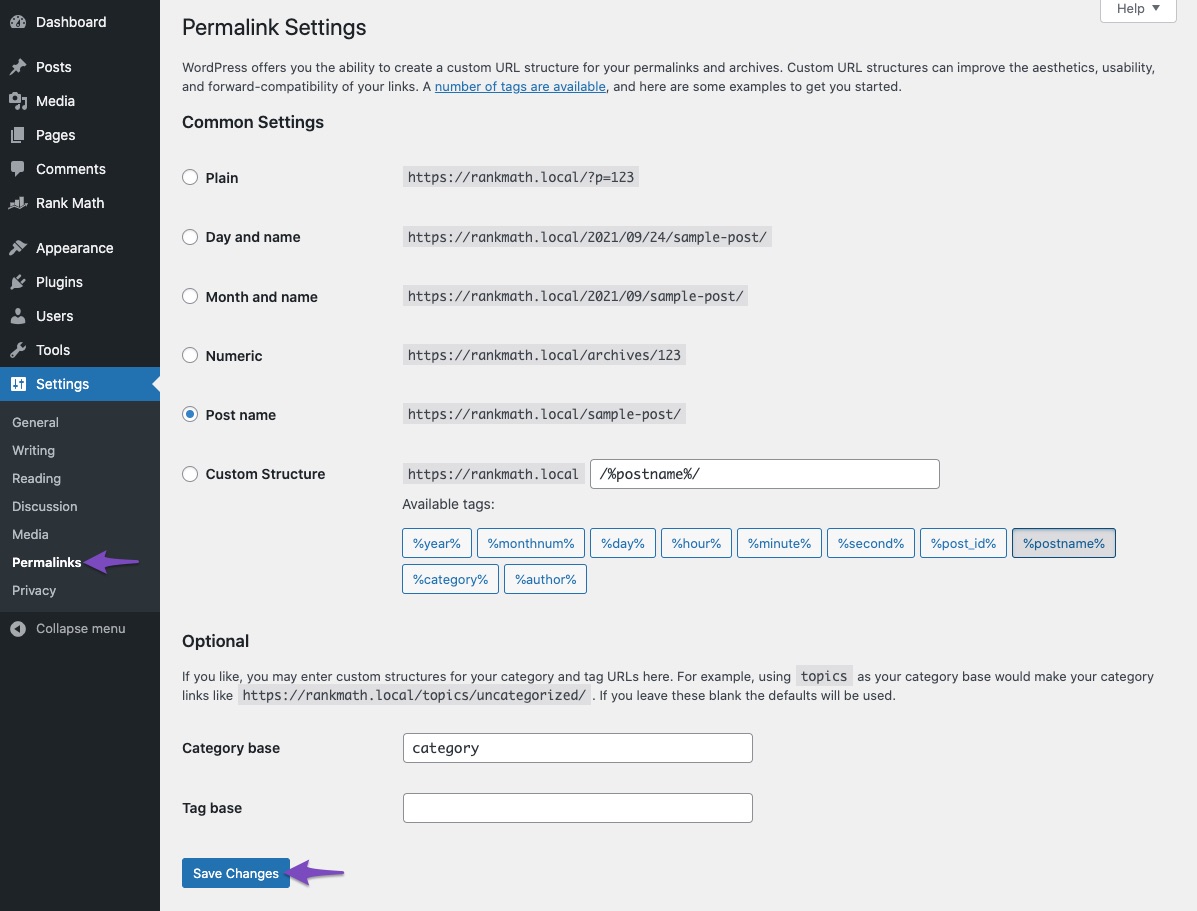
Then, navigate to Settings → Permalinks and click Save Changes to ensure the current settings are applied.
4. Exclude the Sitemap From Caching
Ensure that your sitemaps are excluded from caching. You can refer to this knowledgebase article on ensuring that your sitemaps are excluded from caching.
5. Add the Correct Version of Your Sitemap to Google Search Console
Make sure you have added the correct version of your sitemap to Google Search Console. Check that there are no spaces in the sitemap URL when submitting it.
If you continue to experience issues after following these steps, it may be necessary to wait for Google to fetch the sitemap again, as sometimes it can take time for Google to process changes.
If you have any further questions or need additional assistance, please feel free to reply to this ticket, and a human agent from our support team will assist you further.
Thank you for raising this concern!
Sources:
Troubleshooting the “Couldn’t Fetch” Error in Google Search Console » Rank Math



