Hello,
We apologize for the issue you are facing with the Analytics section in the setup wizard. The red dot indicates that there is a problem with the connection to your Google Analytics account. Here are some steps you can take to troubleshoot this issue:
-
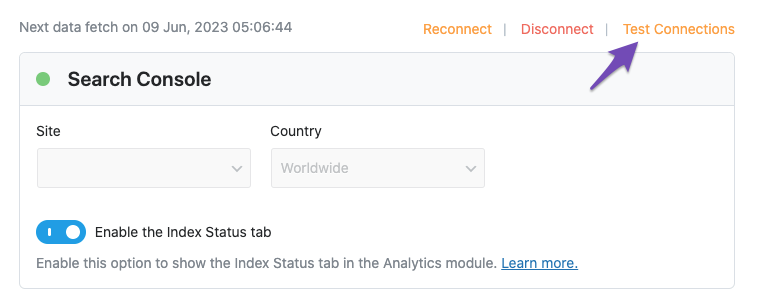
Test Connections: Go to Rank Math SEO → General Settings → Analytics and click on the Test Connections option at the top right. This will validate your existing connections. A green signal indicates a valid connection, while a red signal indicates an issue.
-
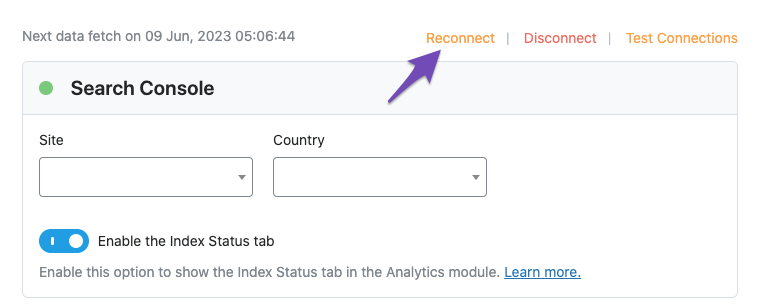
Reconnect Your Google Account: If you see a red signal, try reconnecting your Google account. You can do this by clicking on the reconnect option when prompted.
-
Browser Issues: If the options are still grayed out or unclickable, try switching to Google Chrome or another Chromium-based browser, as this can sometimes resolve issues with settings not saving.
If the problem persists after trying these steps, please reply to this ticket, and a human agent from the Rank Math Support team will assist you further. Thank you for raising this concern!
Hello,
Thank you for your query, and we are so sorry about the trouble this must have caused.
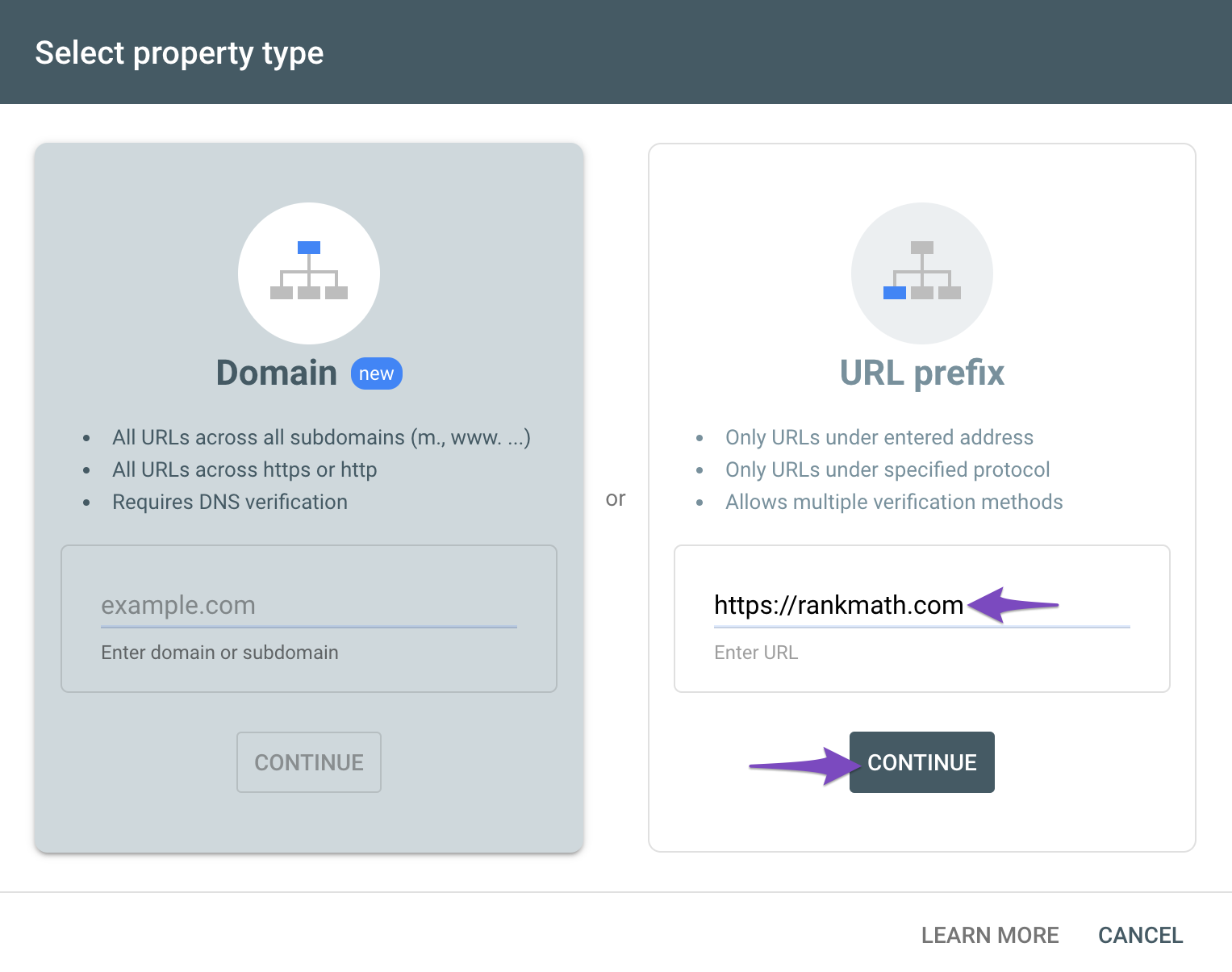
Please make sure that you’ve connected the correct Google account and not connecting to Google Search Console via a domain property but rather a URL prefix and that you have verified the correct version of your website on the Google Search Console (HTTP or HTTPS, www or non-www).
Please note that you may need to choose the property https://domain.com/ and not the sc:domain.com upon connecting your site.
The URL-prefix property also helps keep your sitemap in sync with Google Search Console as we submit it automatically for you. In addition, the domain property won’t work correctly on some sections of the Analytics module such as the IndexStatus.
In this case, please follow our guide here to create the URL Prefix property
https://rankmath.com/kb/google-site-verification/#num-1-1-open-google-search-console
Concerning the Google Analytics section, please ensure you have already signed up for Google Analytics or own an existing Google Analytics property on the Google Account you are connecting to.
You can also sign up for Google Analytics here.
After that, please try reconnecting your Google Account again from WordPress Dashboard > Rank Math > General Settings > Analytics, and don’t forget to check all the necessary permission.

We hope this helps. Please let us know if you have further questions or concerns.
Thank you.
Hello,
Since we did not hear back from you for 15 days, we are assuming that you found the solution. We are closing this support ticket.
If you still need assistance or any other help, please feel free to open a new support ticket, and we will be more than happy to assist.
Thank you.



