
-
I have a wordpress site in which I installed the rankmath plugin, and when I want to launch rankmath, it does not connect to my Google Search Console and Google Analytics, and when I upload the logos during startup, unfortunately, it has no effect and is still in When searching on Google search engine, our site still does not have a logo. what should i do

-
Hello,
We apologize for the issue you are facing with connecting Rank Math to Google Search Console and Google Analytics. To resolve this, please ensure that you have followed these steps:
-
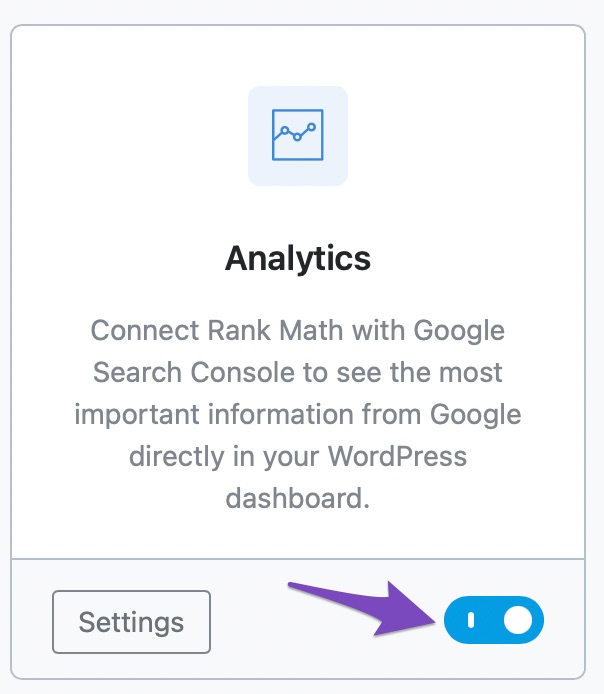
Enable the Analytics Module: Go to Rank Math SEO → Dashboard → Analytics and make sure the Analytics module is enabled.
-
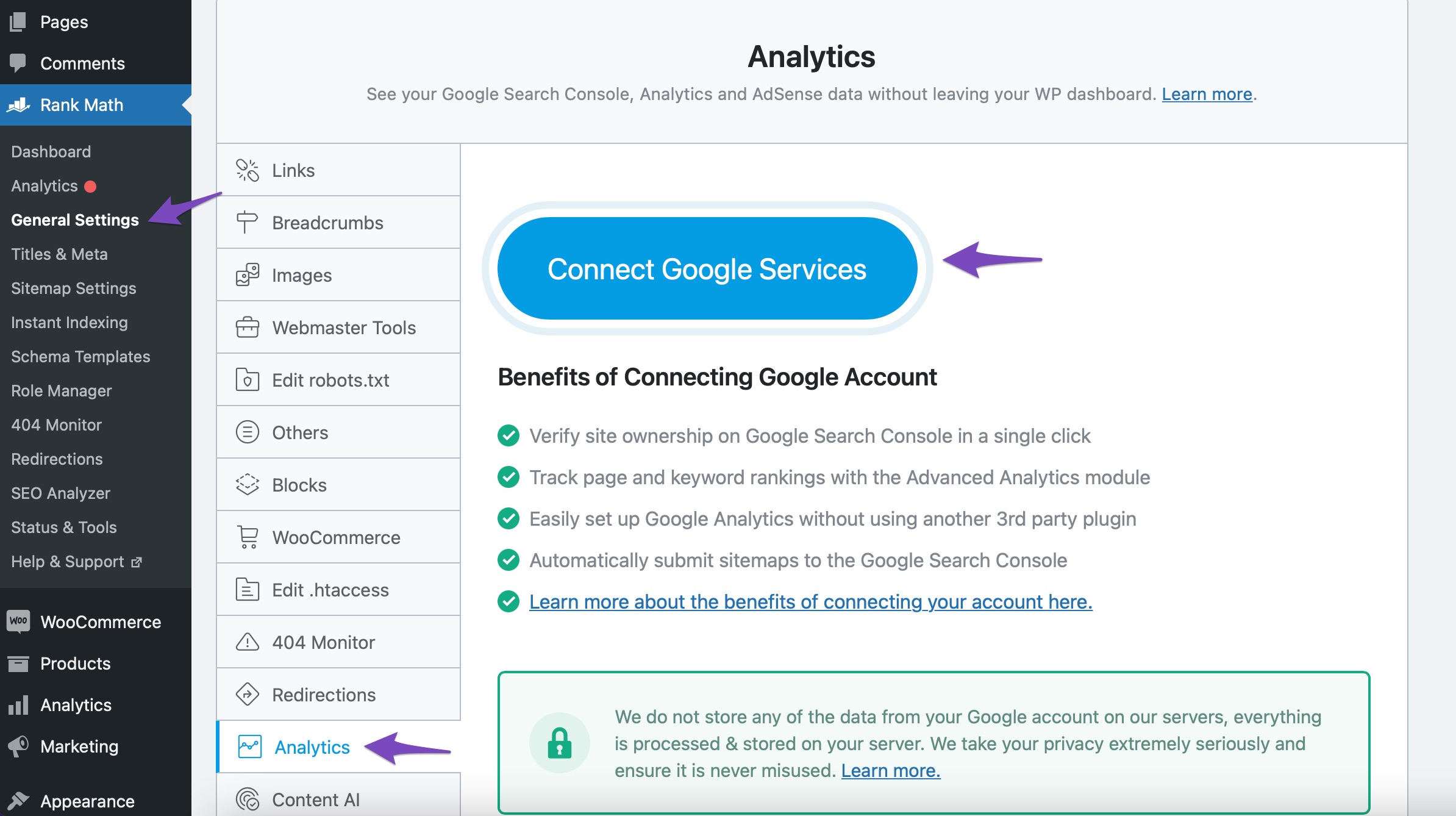
Connect Your Google Account: Navigate to Rank Math SEO → Analytics → Connect Your Rank Math Account. Choose the email account you want to connect and grant all necessary permissions.
-
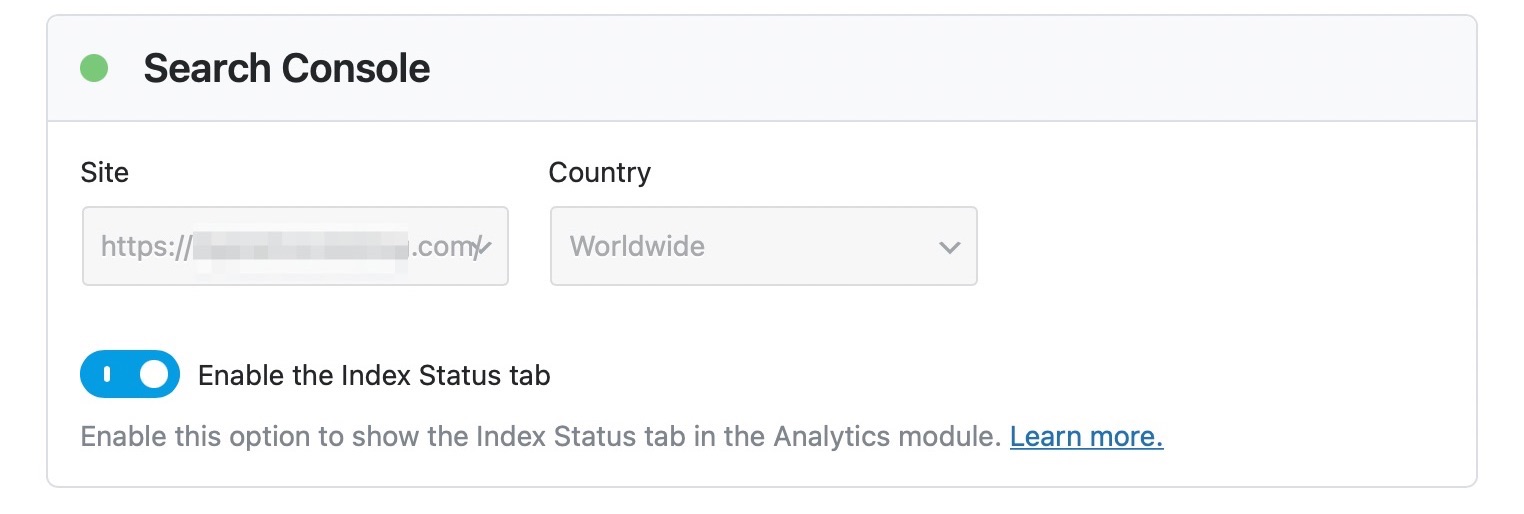
Connect to Search Console: Go to Rank Math SEO → General Settings → Analytics. If you haven’t created and verified your website property in Google Search Console, Rank Math can do this for you automatically. Select your site from the drop-down list and click on Save Changes.
If you have completed these steps and are still experiencing issues, please check for any errors in the connection process or permissions that may not have been granted.
Regarding the logo not appearing in Google search results, ensure that you have set up your logo correctly in the Rank Math settings under Rank Math SEO → General Settings → Logo. It may take some time for changes to reflect in search results after making updates.
If the problem persists, please reply to this ticket, and a human agent from the Rank Math Support team will assist you further. Thank you for raising this concern!
Sources:
How to Setup Rank Math SEO Plugin Properly
How to Connect Your Google Account With Rank Math SEO » Rank Mathi follow this steps but the problem not solved
also the circles of search Console and Google Analytics is red and not green
Hello,
Please verify using the URL prefix and ensure that you have verified the correct version of your website on the Google Search Console (HTTP or HTTPS, www or non-www).
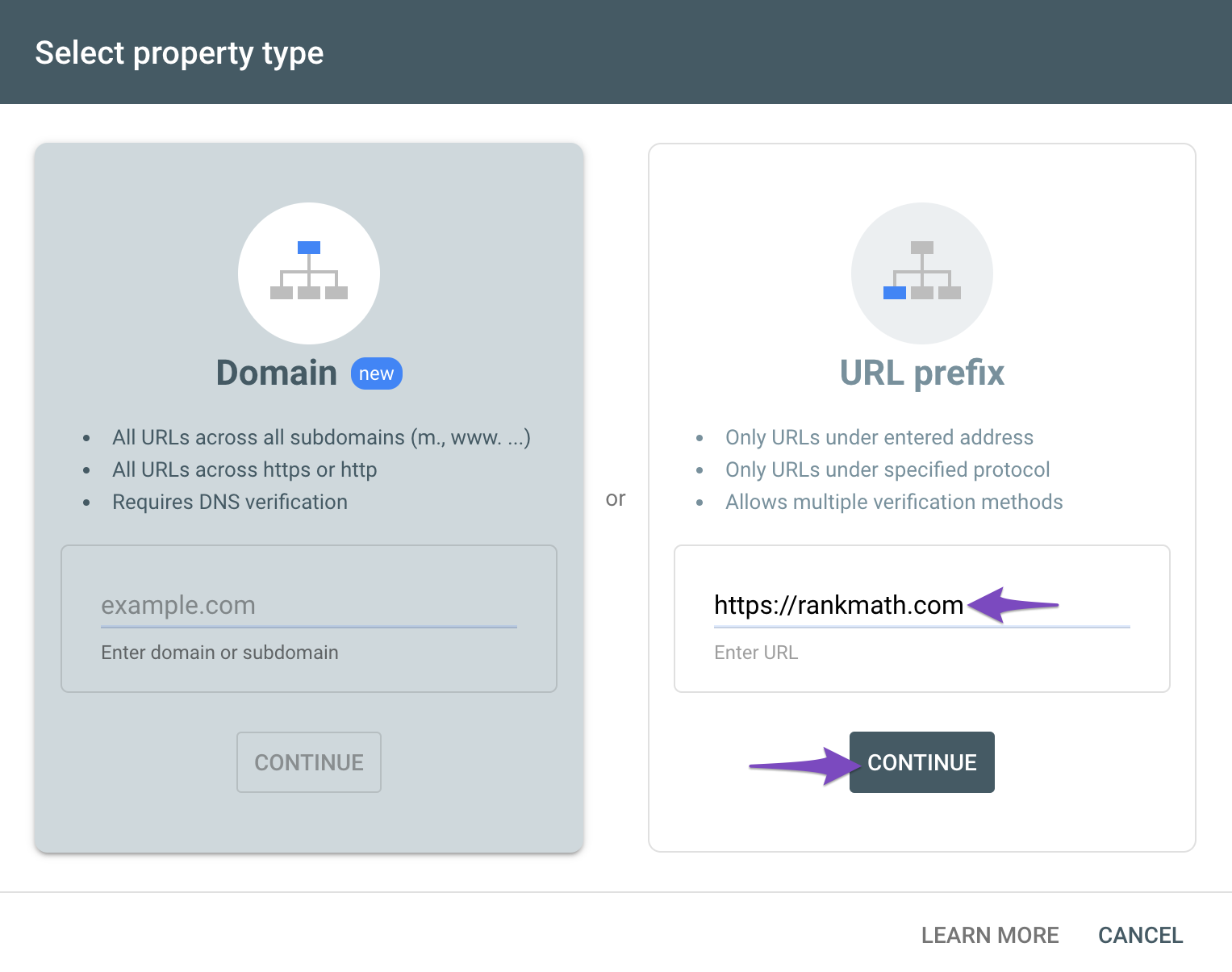
You can follow our guide here to create the URL Prefix property:
https://rankmath.com/kb/google-site-verification/#num-1-1-open-google-search-consoleThe URL-prefix property also helps keep your sitemap in sync with Google Search Console as we submit it automatically for you. In addition, the domain property won’t work correctly on some sections of the Analytics module such as the IndexStatus.
Regarding the Analytics drop-down, could you please confirm if you have already created a GA4 property for your website?
If not yet, please visit this page (https://analytics.google.com/analytics/web/) and sign up for a Google Analytics account and property, then reconnect your Google Account so the new Analytics account will reflect in that section.
Hope that helps.
I encountered the same issue with the logo not appearing through Rank Math. What worked for me was adding the logo directly through the WordPress customization options. That should help your site logo show up in Google searches.
As for the connection issues with Google Search Console and Google Analytics, you might want to double-check your permissions and make sure the right accounts are linked. Sometimes, disconnecting and reconnecting can also resolve the problem.
Hope this helps!
I followed this steps and also google analytics and search console don’t connect to rank math.search console doesn’t show our domain site
Hello,
Please share the screenshot of your Google Search Console property so we can check as well. You can upload screenshots using this tool and add the link here.
You can add it to the sensitive data section by editing your first post
It is completely secure, and only our support staff has access to that section.
Looking forward to helping you.
this is the image from property if you mean this.https://imgur.com/XdJYOSM
Hello,
For further troubleshooting, please follow the below steps:
<h2>A.</h2> Pre-check List
#1. You should not be using any other Google Analytics plugin.
#2. Update to the latest versions of Rank Math Free & PRO
#3. Ensure that you are logged in to your account:
https://rankmath.com/my-account/
#4. Disconnect and reconnect your account from WordPress dashboard > Rank Math > Dashboard > Help
<h2>B</h2>
#1. Please delete RankMath’s app from here:
https://myaccount.google.com/permissions
#2. Re-create tables by clicking WordPress Dashboard > Rank Math > Status & Tools > Database Tools and click the
Re-create database Tablebutton.
#3. Reconnect the account inside Rank Math by clicking here and ensure that you approve all the permission notices that show up:
WP Dashboard >> Rank Math >> General Settings >> Analytics tab, and click theReconnectlink
Allow all the permissions on the next screen.
#4. Let the process complete, which might take around 30 minutes.
#5. Now head over to WordPress Dashboard > Rank Math > Status & Tools > Database Tools and click theRebuild Index for Analyticsbutton.
#6. Please check if the data shows up here:
https://yourwebsite.com/wp-admin/admin.php?page=rank-math-analytics#/
If that does not help, please paste the data from here:
WP Dashboard > Rank Math > Status & Tools > System Status and click the Copy System Info to Clipboard button
https://i.rankmath.com/BJ3RCN+Let us know how it goes.
We are really looking forward to helping you.
Thank you.I followed this steps and there is no data for google search console in rank math again and both of them(search console and google analytics) show red circle on top of their sections but google analytics shows the data fortunately.search console is important to me.https://imgur.com/a/Wk2aZMo
Sorry for answering lateHello,
In this case, we might need to take a closer look at the settings. Please edit the first post on this ticket and include your WordPress logins in the designated Sensitive Data section.
Please do take a complete backup of your website before sharing the information with us.
It is completely secure and only our support staff has access to that section. If you want, you can use the below plugin to generate a temporary login URL to your website and share that with us instead:
https://wordpress.org/plugins/temporary-login-without-password/
You can use the above plugin in conjunction with the WP Security Audit Log to monitor what changes our staff might make on your website (if any):
https://wordpress.org/plugins/wp-security-audit-log/
We really look forward to helping you.
can i know why we have a backup?
i can not get backup nowcan i know why we have a backup?
i can not get backup now
which rules do you need to access from temporary-login-without-password plugin?Hello,
First, please install the Temporary Login Without Password plugin. This plugin will allow you to create a temporary login link for your website that you can share with us. You don’t need to share your username or password, just the link.
To install the plugin, go to Plugins > Add New and search for Temporary Login Without Password. Then, click Install Now and Activate. You can also download the plugin from here: https://wordpress.org/plugins/temporary-login-without-password
Next, go to Users > Temporary Logins and click on Create New. Fill in the details as follows:
– Email: s******@r***********
– Role: Administrator
– Expiry: 1 weekThen, click on ‘Submit’. You will see a temporary login link generated for your website. Copy that link and paste it into the Sensitive Data Section of this ticket.
That’s it! Once we have the temporary login link, we will be able to access your websites and fix the problem for you.
Thanks.
Hello,
I have updated the sensitive data as requested. Can you please check further?
Thank you.
Can you tell me before change something that maybe sensitive for my web site?
Hello,
Since we did not hear back from you for 15 days, we are assuming that you found the solution. We are closing this support ticket.
If you still need assistance or any other help, please feel free to open a new support ticket, and we will be more than happy to assist.
Thank you.
-



The ticket ‘search Console & Google Analytics’ is closed to new replies.