Hello,
We apologize for the issue you are facing with Rank Math showing zero keywords, impressions, and clicks. Here are some steps you can take to troubleshoot this problem:
1. Check if Rank Math SEO Account is Connected
Ensure that your website is connected with the Rank Math account that has a PRO license. You can do this by logging into your Rank Math account and navigating to the My Account area, then clicking on the Websites tab.
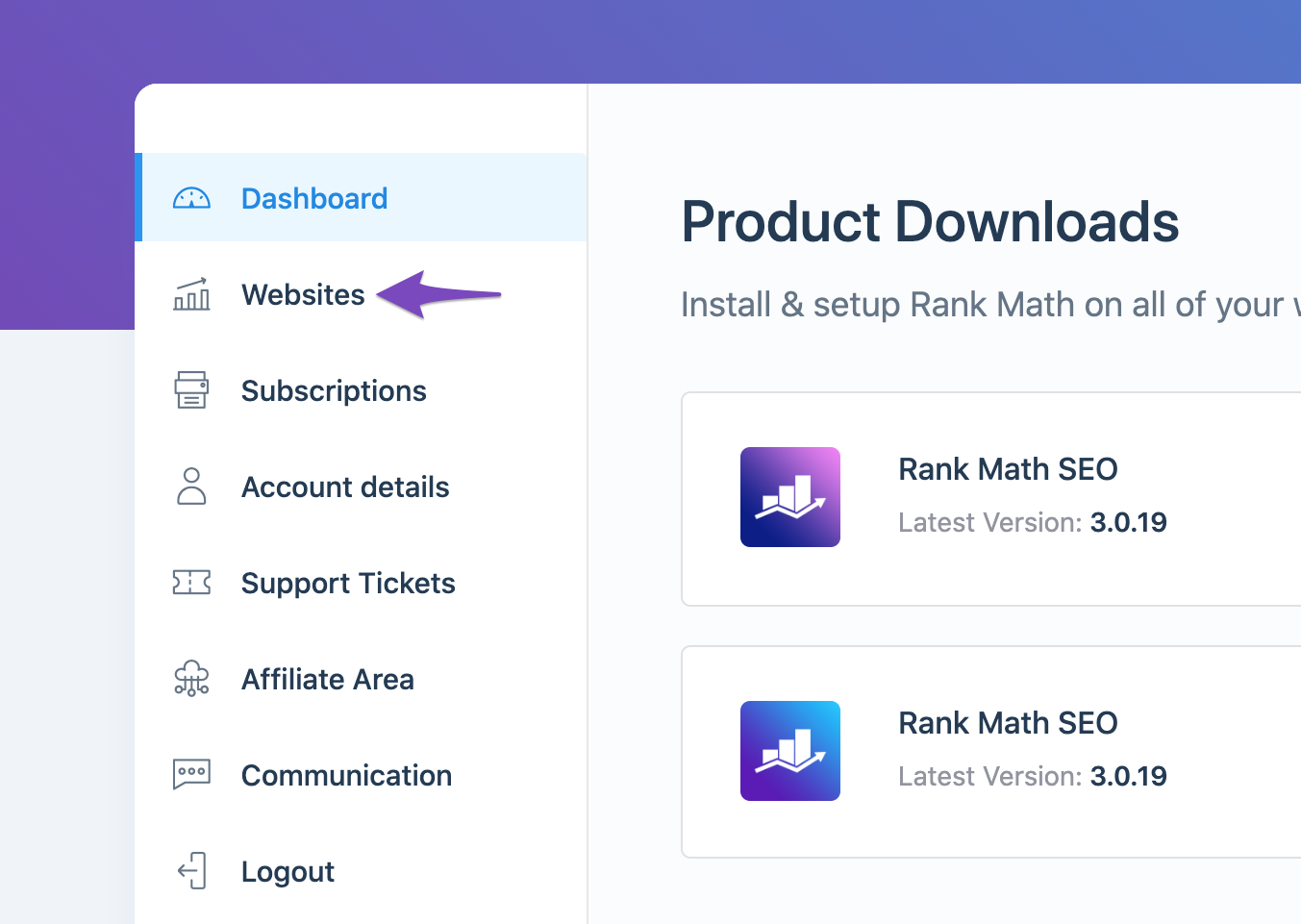
If your website is not listed, you will need to reconnect it by going to Rank Math SEO → Dashboard → Help and clicking Disconnect Account.
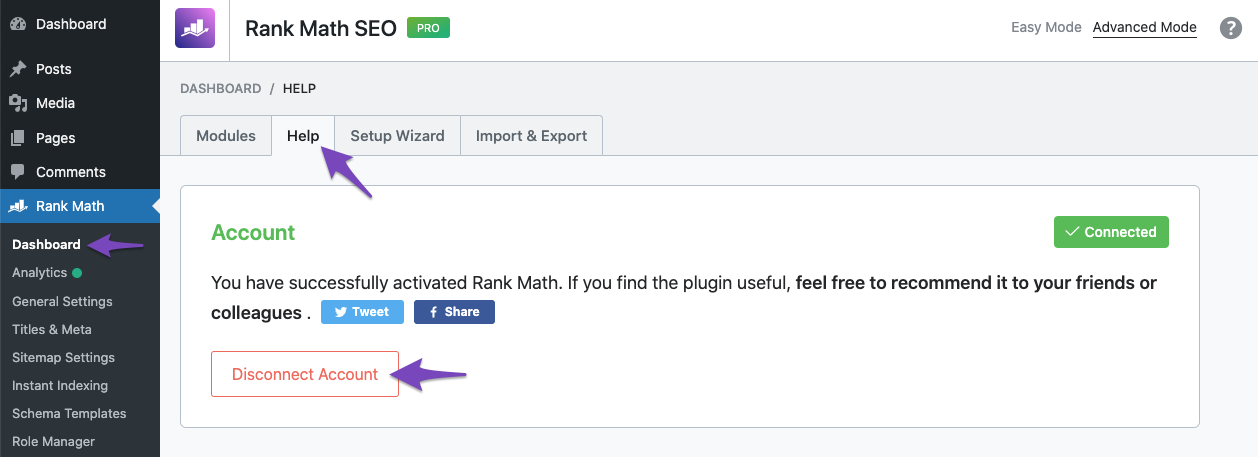
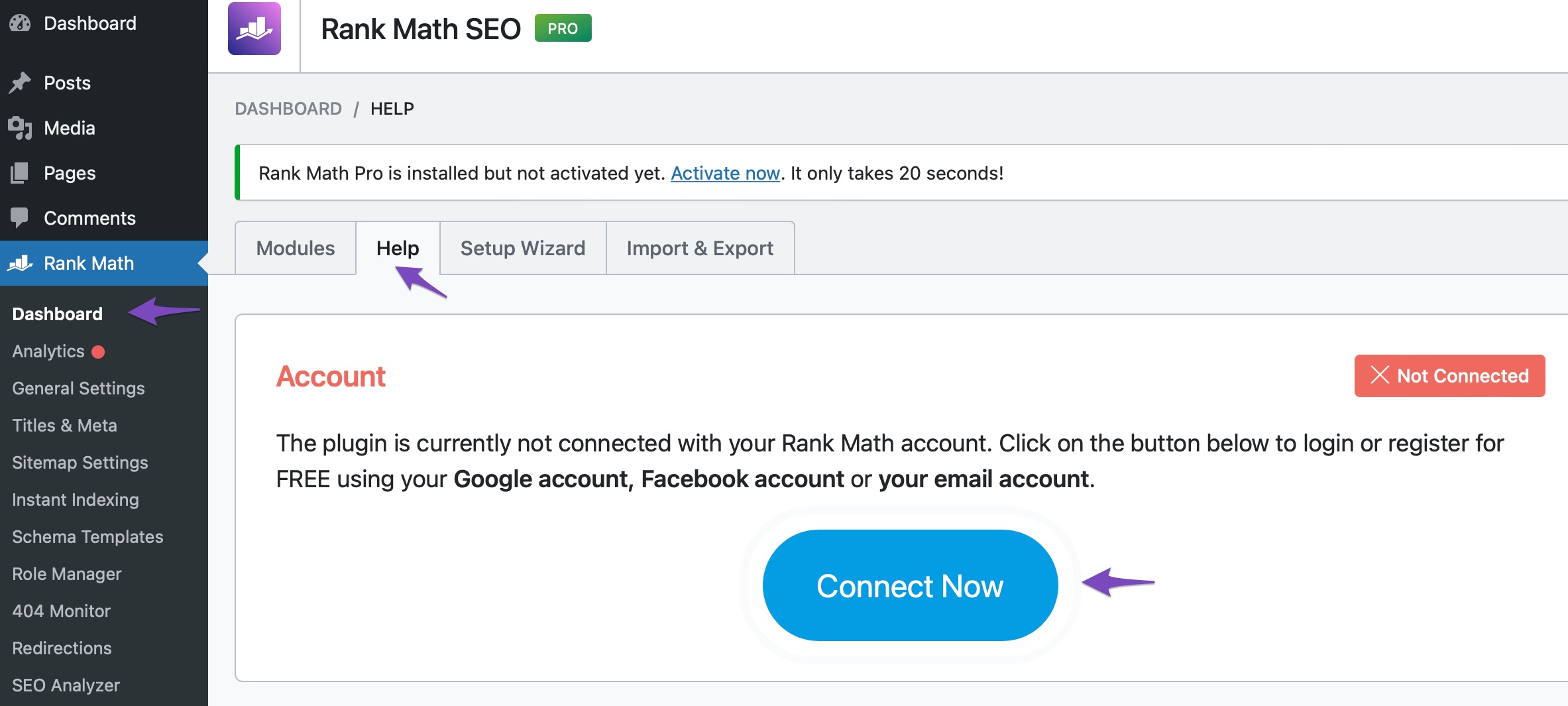
Then click Connect Now to reconnect your account.
2. Recreate Database Tables
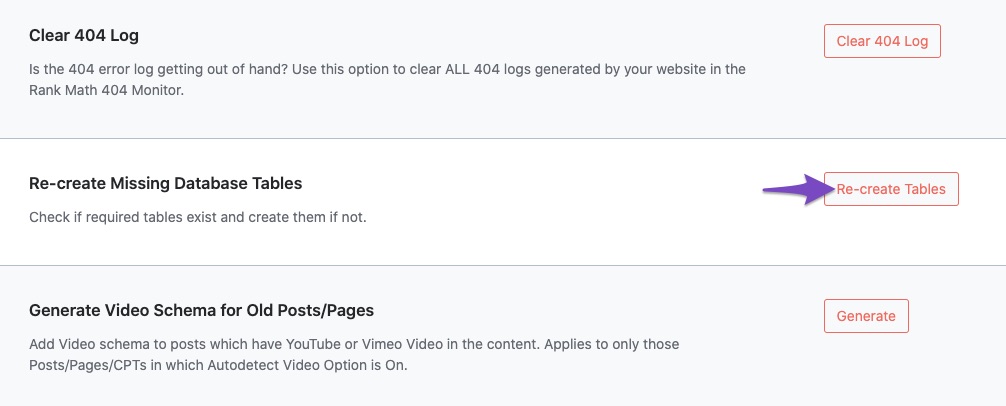
Navigate to WordPress Dashboard → Rank Math SEO → Status & Tools → Database Tools and scroll down to find the Re-create Missing Database Tables option. Click the Re-create Tables button.
3. Reconnect Your Google Account
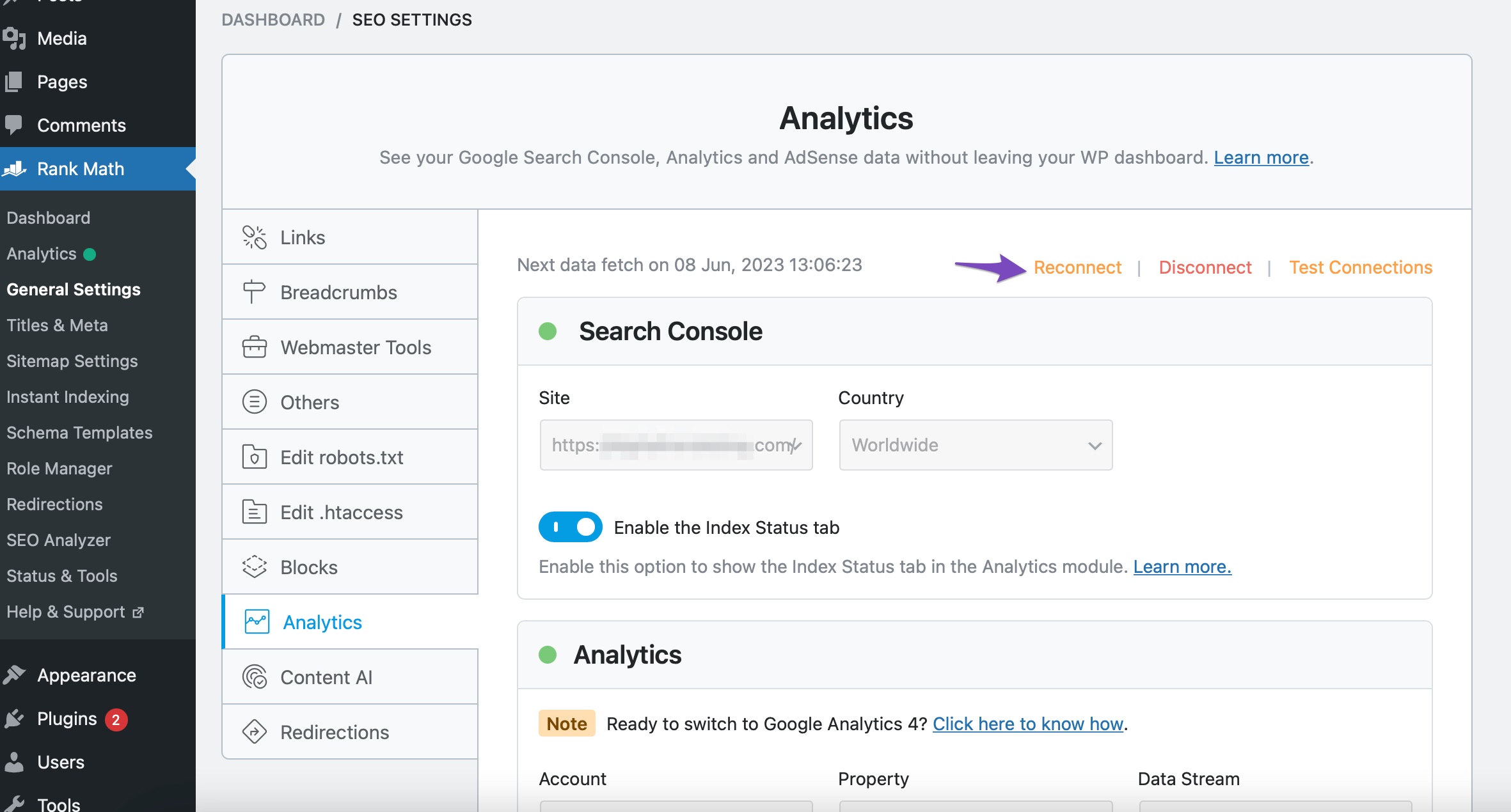
Go to Rank Math SEO → General Settings → Analytics and click the Reconnect link to disconnect and reconnect your Google Account with Rank Math.
4. Refresh Tokens
If the data still appears as zero, it may be due to expired authorization tokens. To refresh them, delete the Rank Math app from your Google Account permissions here.
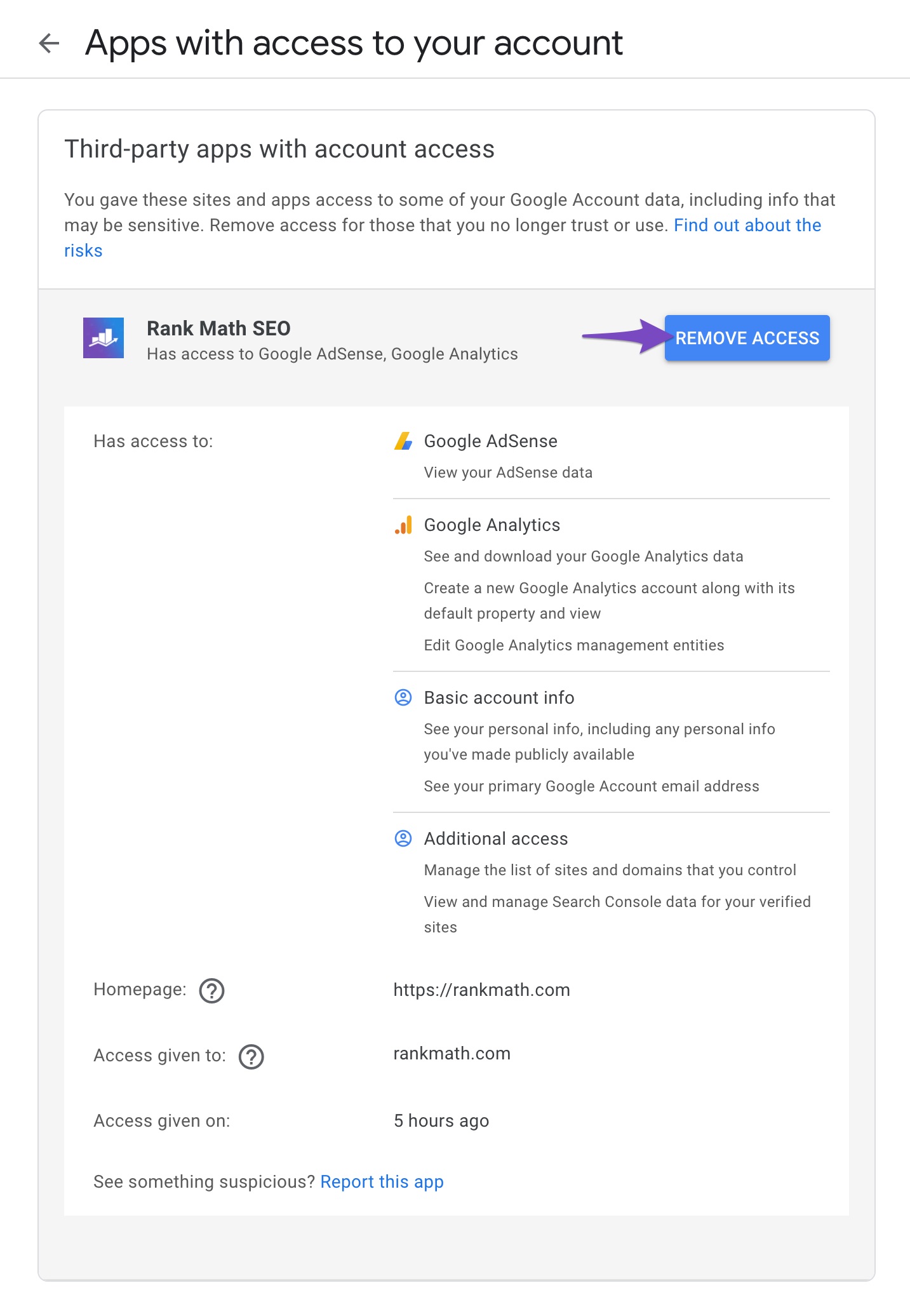
After deleting, reconnect your Google services for your website to regenerate the token.
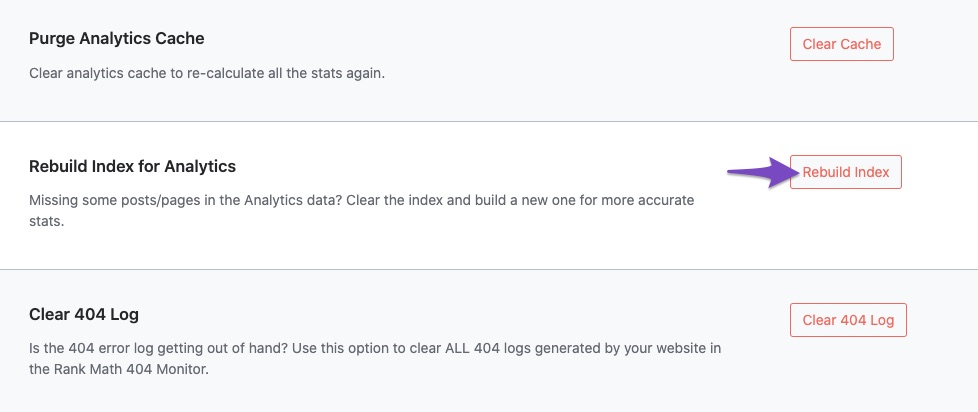
5. Rebuild Index for Analytics
Return to Database Tools and click Rebuild Index for Analytics.
6. Check if Data is Present
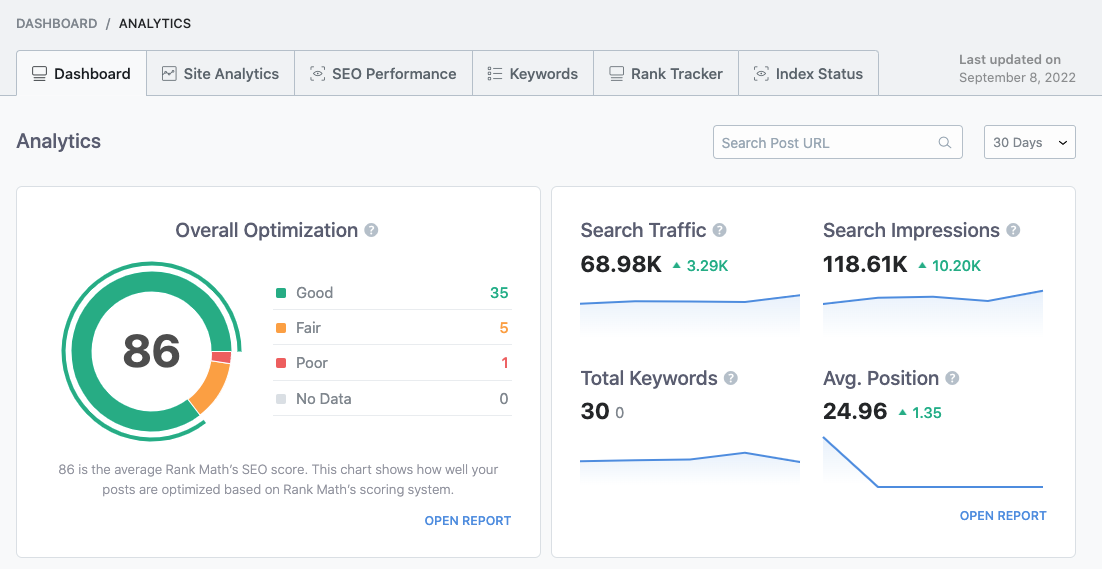
Finally, check the Analytics dashboard by navigating to Rank Math SEO → Analytics to see if the data is now present.
If you have followed all these steps and still see zero data, please copy your system info by going to Rank Math SEO → Status & Tools → System Status and clicking Copy System Info to Clipboard. You can then reply to this ticket with that information, and a human agent from our support team will assist you further.
Thank you for raising this concern, and we hope this helps resolve the issue!
Sources:
What to Do When Rank Math Analytics Shows Zero Search Traffic » Rank Math



