Hello,
We apologize for the issue you are facing with your product sitemap appearing empty and generating an error in Google Search Console. Here are some steps you can take to troubleshoot and resolve this issue:
1. Ensure Your Posts Are Set to Index
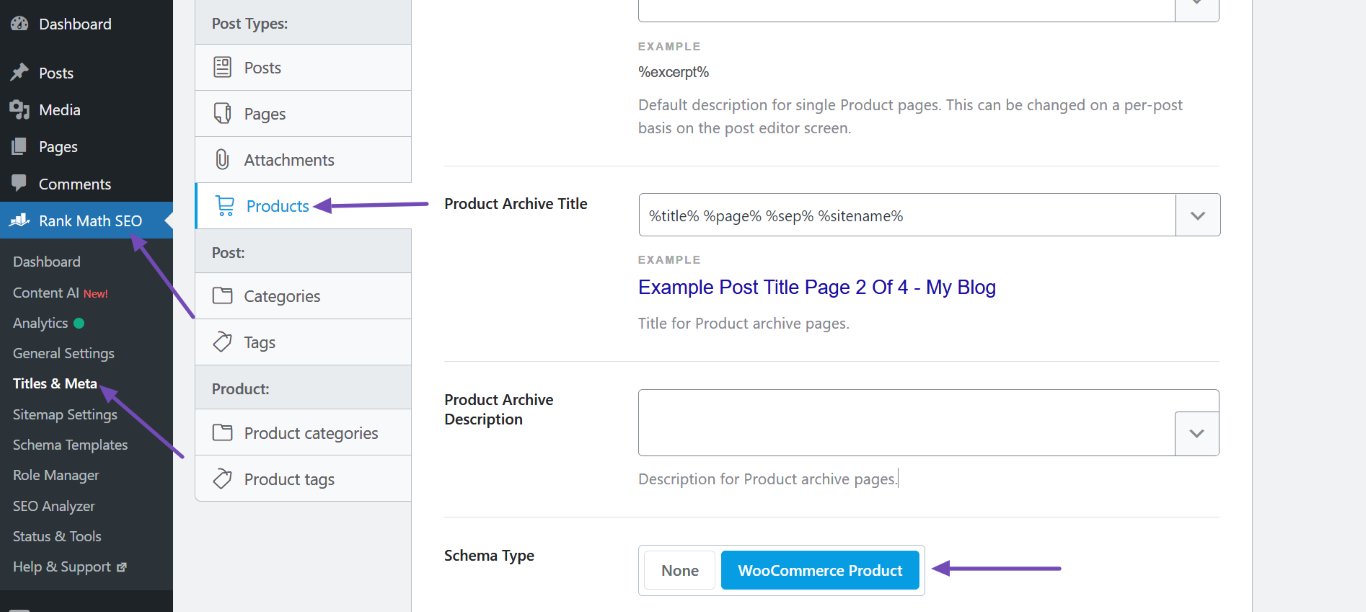
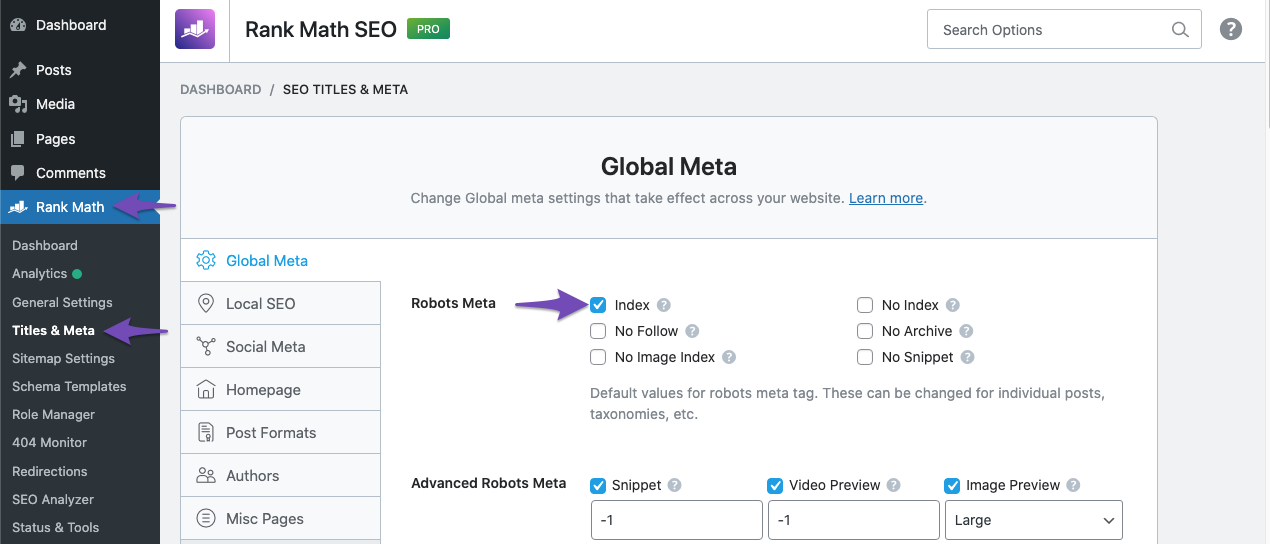
Your sitemap may be empty if all your posts are set to noindex. To check this, navigate to Rank Math SEO → Titles & Meta. In the Robots Meta settings, ensure the Index checkbox is enabled for your products.
2. Validate Your Sitemap
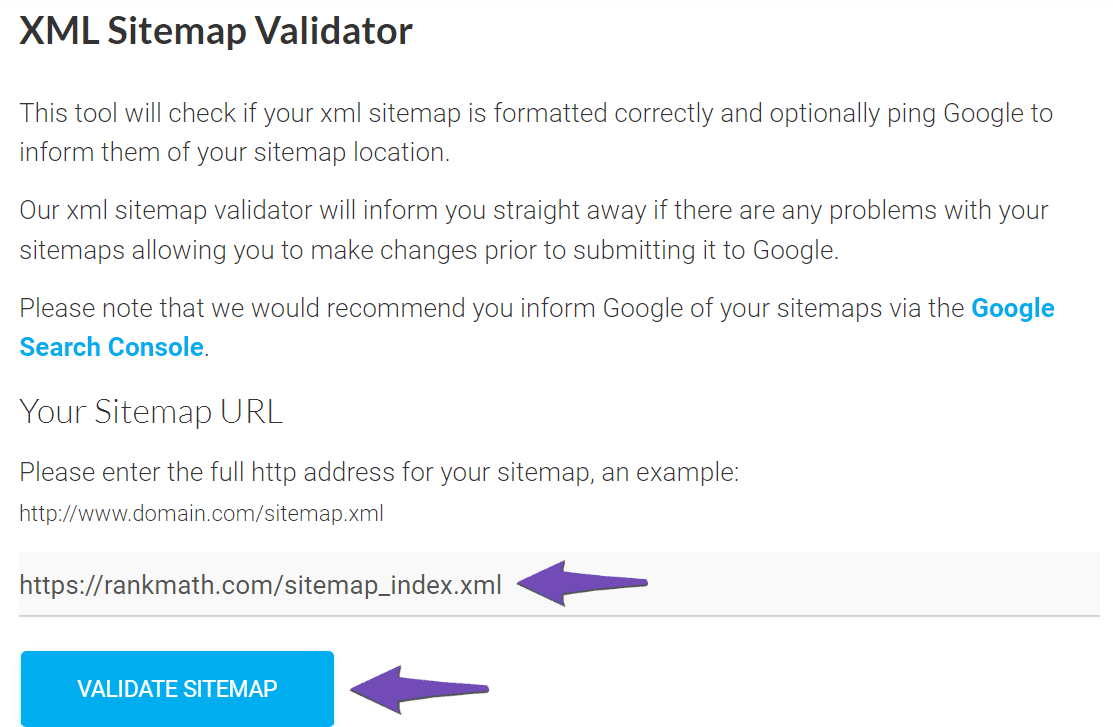
You can validate your sitemap using the Validate XML Sitemap tool. Enter your sitemap URL and click VALIDATE SITEMAP to check for any issues.
3. Flush Permalinks
If you are getting a 404 error, try flushing your permalinks. Go to the Permalinks page in your WordPress dashboard and click Save Changes even if you didn’t make any changes. This can often resolve sitemap access issues.
4. Check Your Sitemap Location
Ensure that your sitemap is located in the root folder of your WordPress installation. The correct URL should look like this:
`https://rankmath.com/wp-content/uploads/2023/10/Set-the-Schema-Type-to-WooCommerce-Product.png
5. Add the Correct Site URL to Google Search Console
Make sure you have added the correct site URL as a property in Google Search Console and that it is verified.
6. Submit Your Sitemap Again
After ensuring everything is set up correctly, go to Indexing → Sitemaps in Google Search Console, paste your sitemap URL, and click SUBMIT.
If you continue to experience issues after following these steps, please reply to this ticket, and a human agent from the Rank Math Support team will assist you further. Thank you for raising this concern, and we’re here to help!
Sources:
Troubleshooting the “Couldn’t Fetch” Error in Google Search Console » Rank Math
Rank Math Sitemap Issues and Their Fixes » Rank Math
Hello,
Thank you for your query and we are so sorry about the trouble this must have caused.
We see this error in your sitemap: XML Parsing Error: not well-formed pointing to this image path:
https://i0.wp.com/shroomschocolatebars.com/wp-content/uploads/2022/04/51s8frcIVS._AC_UF350350_QL80_.jpg?fit=350%2C263&ssl=1
Can you please confirm if you have an image optimization plugin on your website? This may cause an issue with the sitemap as it invalidates the XML format.
One way to fix this is to head over to your WordPress Dashboard → Rank Math → Sitemap Settings and disable the option “Images in Sitemaps”.
Looking forward to helping you.
Hello,
Glad that helped.
If you have any other concerns, please don’t hesitate to contact us anytime so we can assist you further.
Looking forward to helping you.