Hello,
We apologize for the issue you are facing with the obsolete image reference in your schema data. Since you’ve already cleared the cache and requested re-indexing in Google Search Console, here are some additional steps you can take to remove the image:
-
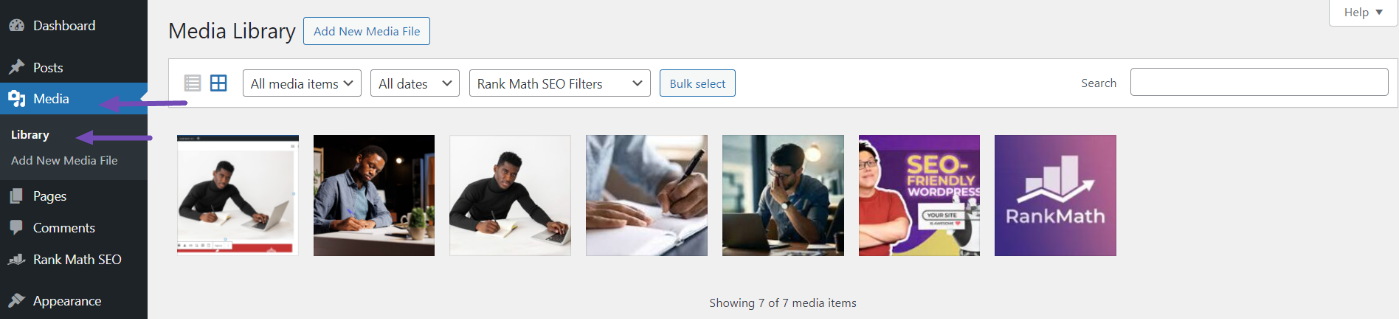
Check Your Media Library: Ensure that the image is not present in your WordPress Media Library. If it is, delete it permanently. You can do this by navigating to Media → Library, finding the image, and selecting Delete Permanently.
-
Remove References in Posts/Pages: If the image was used in any posts or pages, make sure to remove any references to it to avoid broken links.
-
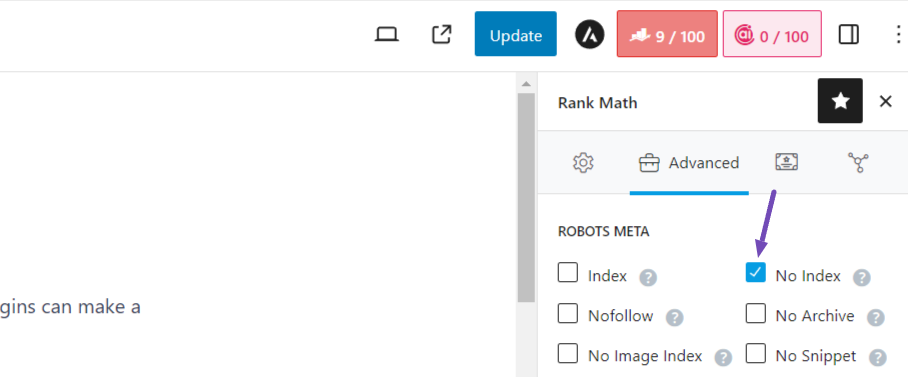
Use Noindex Meta Tag: If the image is on a page that you want to keep but not index, you can set a noindex meta tag using Rank Math. Go to the page where the image was located, and in the Rank Math meta box, set the ROBOTS META to No Index. This will prevent Google from indexing that page.
-
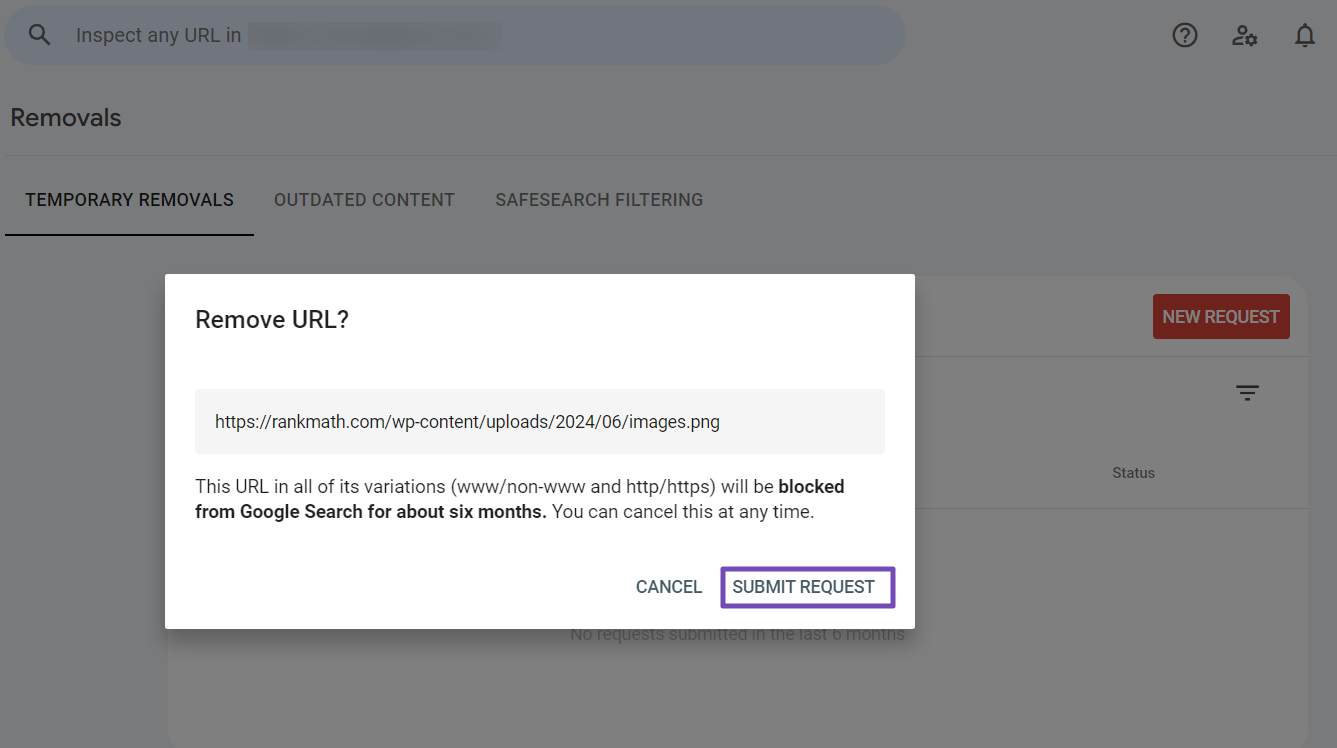
Google Removals Tool: If you are the verified owner of the site where the image is hosted, you can use the Google Removals Tool for a quicker removal. In Google Search Console, navigate to the Removals section and submit a request for the image URL.
-
Wait for Google to Update: After taking these steps, it may take some time for Google to reflect these changes in its search results. Be patient as Google regularly crawls and updates its index.
If you continue to experience issues, please reply to this ticket, and a human agent from the Rank Math Support team will assist you further. Thank you for raising this concern!
I’ve already tried what the AI tells me, I can’t find this image ANYWHERE in media, it’s an image I deleted months ago! It’s nowhere on my site, but it’s still indexed on my home page only when I search it on a web navigator, I can’t find it anywhere on my my wordpress backend.
And also I want to delete it permanently, not with Google removals that is only 6 months.
Hello,
Thank you for contacting support.
That is an image that Google found on your page under the name RawdaJewelleryIcon.png. Even though that is no longer on the source code of the page, it’s still showing because Google hasn’t updated the results on SERPs.
In this case, you just need to be patient and wait for the data to be updated on SERPs.
Don’t hesitate to get in touch if you have any other questions.
Hello,
Since we did not hear back from you for 15 days, we are assuming that you found the solution. We are closing this support ticket.
If you still need assistance or any other help, please feel free to open a new support ticket, and we will be more than happy to assist.
Thank you.



