Hello,
We apologize for the issue you are facing with Google Search Console and Analytics not showing your website. To resolve this, please ensure that you have connected your Google account properly in Rank Math. Here are the steps to follow:
-
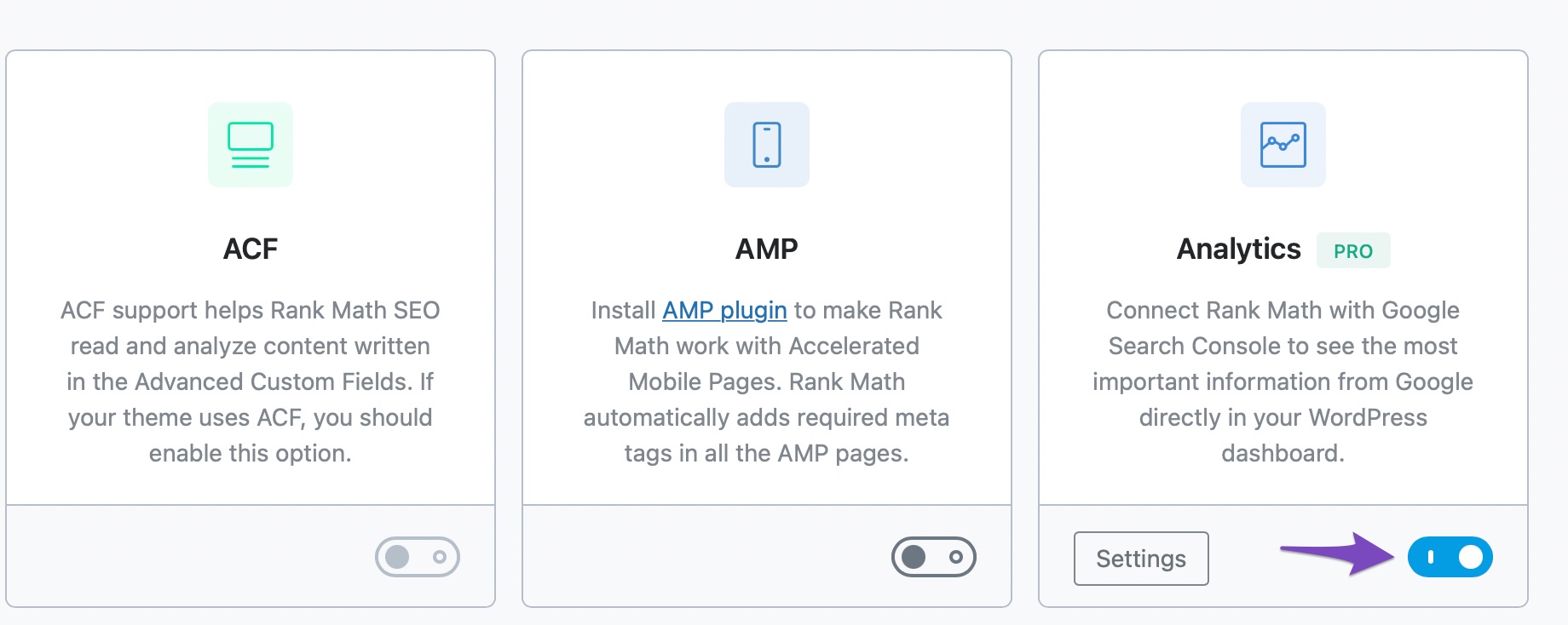
Enable the Analytics Module: Make sure the Analytics module is enabled in Rank Math by navigating to WordPress Dashboard → Rank Math SEO → Dashboard.
-
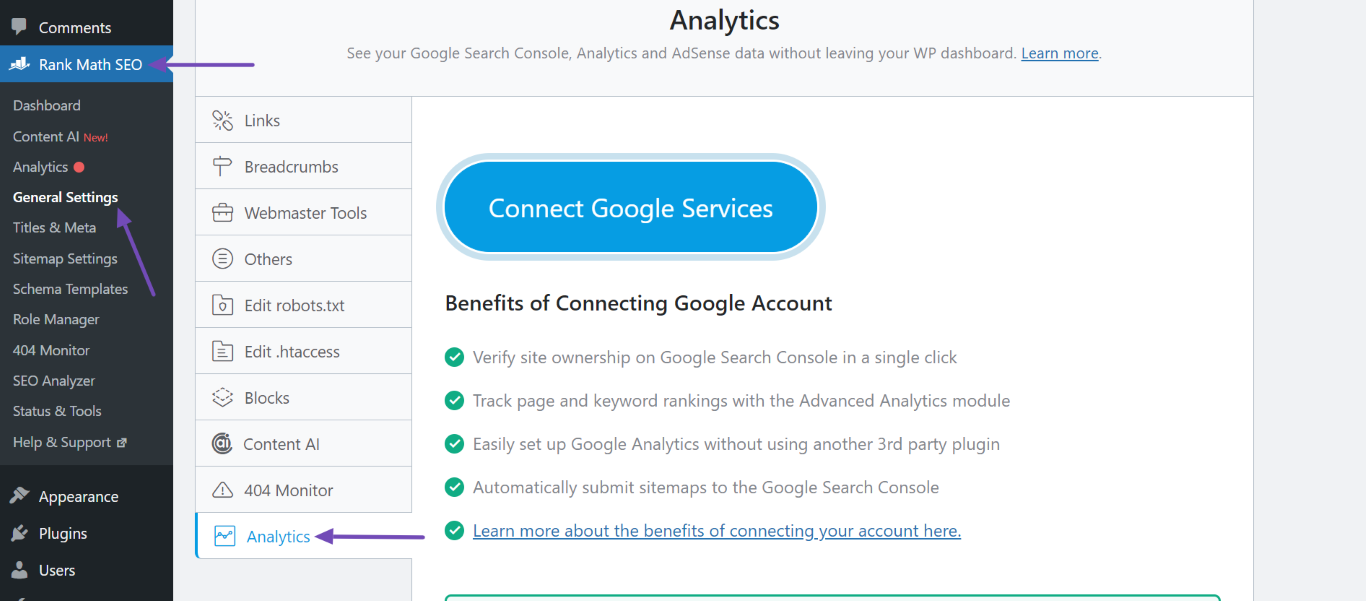
Open Analytics Settings: Go to Rank Math SEO → General Settings → Analytics.
-
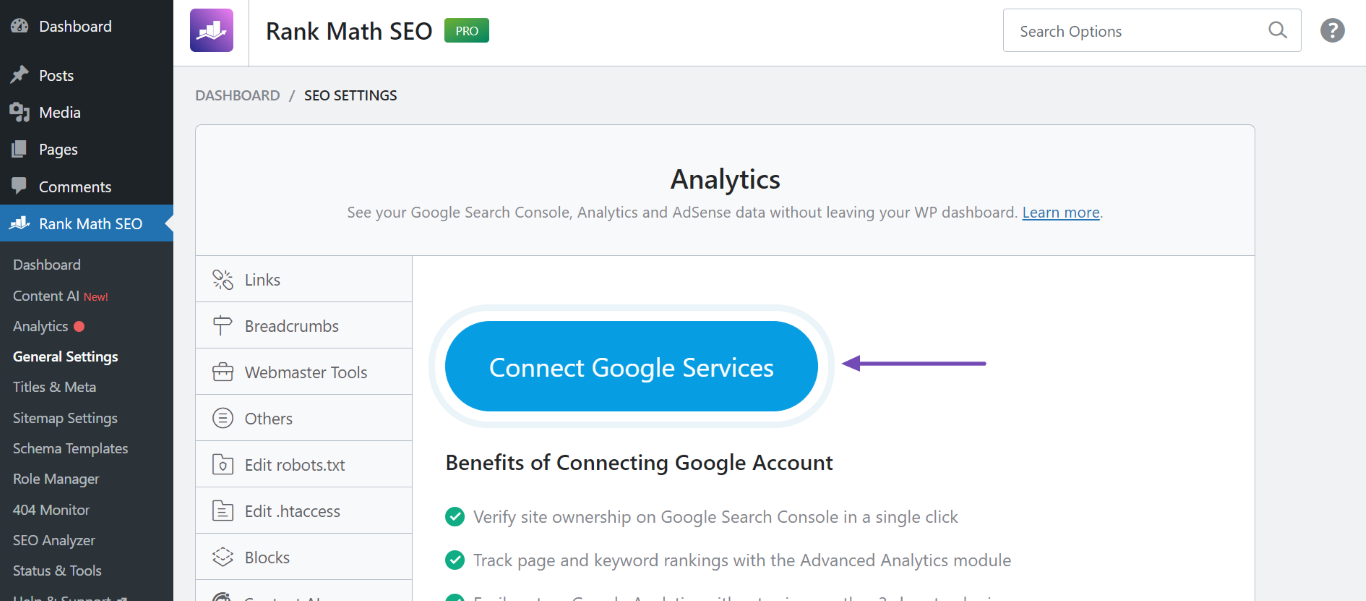
Connect Google Account: If you haven’t already connected your website with a Google account, click on the Connect Google Services button and follow the prompts to log into your Google account and grant permissions.
-
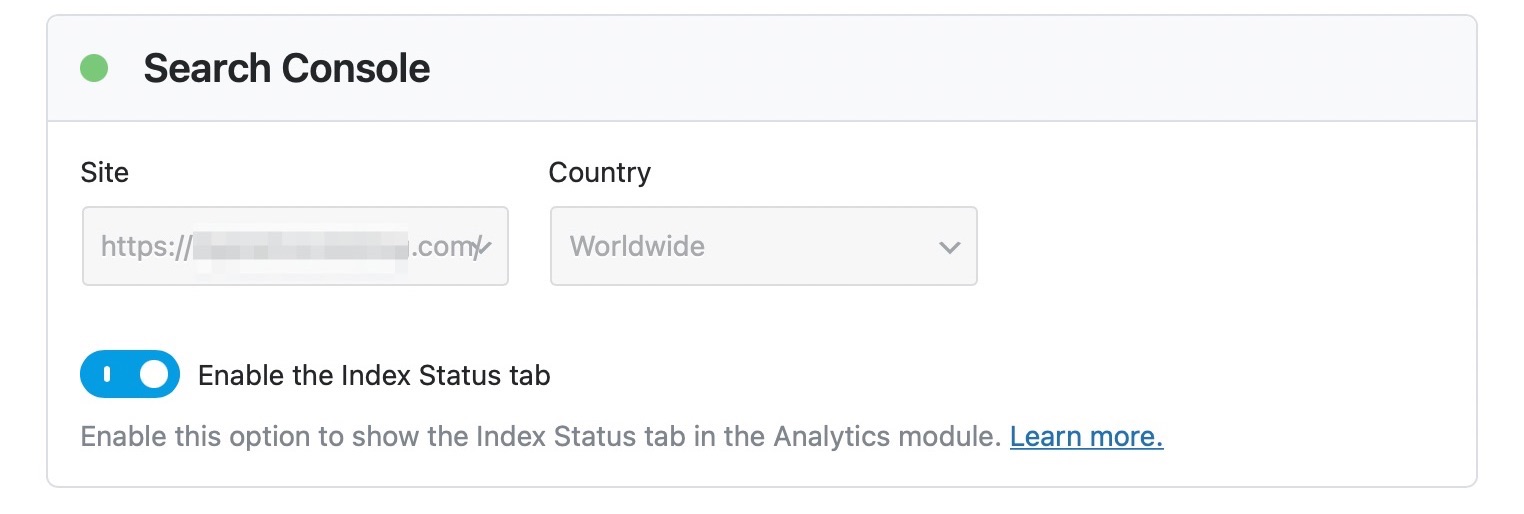
Select Your Website: After connecting, check the Search Console section in the Analytics settings. You should see your verified website listed in the Site drop-down list. If it’s not appearing, ensure that the property is correctly set up in Google Search Console.
-
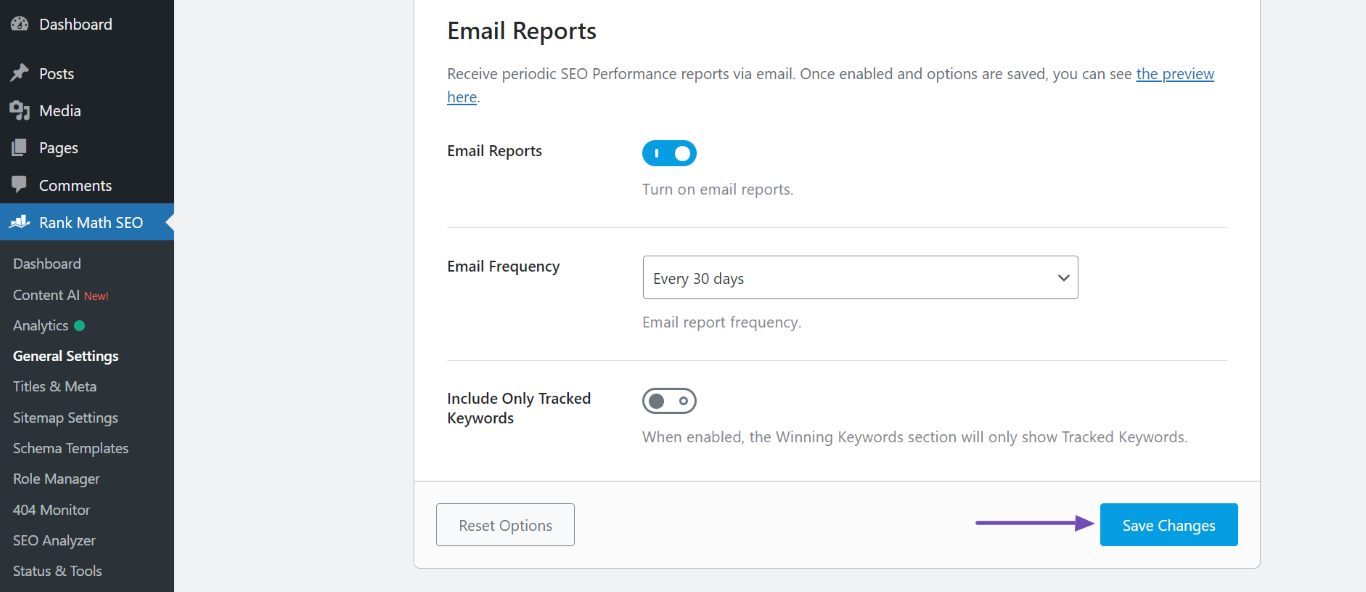
Save Changes: Once you select your website, make sure to click on Save Changes at the bottom of the page.
If you still cannot see your website after following these steps, please reply to this ticket with your site URL so we can assist you further. Thank you for raising this concern, and we’re here to help!
Sources:
Rank Math General Settings
How to Connect Your Google Account With Rank Math SEO » Rank Math
How to Verify Your Website on Google » Rank Math
website already provided thanks
Hello,
We apologize for the inconvenience that might have been caused by that.
Please follow this guide to remove the Rank Math App from your Google account: https://rankmath.com/kb/analytics-issues/#expired-google-oauth-token
After that, please reconnect your Google account from WP Dashboard > Rank Math > General Settings > Analytics with all the required permissions and see if that works for you.
Let us know how it goes. Looking forward to helping you.
Thank you.
Hi Rechard. I faced the same issue but delinking the RankMath app from Google account and then reconnecting it fixed it for me.
Hello @distile-borf,
Thank you for sharing your feedback on this and we are glad that you’re able to sort it out by reconnecting the Google service.
@mrp1,
Kindly let us know if the issue persists after following the guide we shared here.
Looking forward to helping you with this one.
I’ve seen this issue happen when the property is verified in Google Search Console but not under the same Google account RankMath is connected to. Double-check that both Search Console and Analytics are using the exact same email, then remove RankMath access in Google permissions and reconnect with full access — that usually forces the property to appear. If it’s still not showing, re-verifying the property in GSC (URL prefix is more reliable) often fixes the sync.
Hello @Sahar-ullah,
If your Google Analytics account is on another email address, then you can follow this URL to transfer the property to the same email address: https://support.google.com/google-ads/answer/44500?hl=en
We hope this helps. Please let us know if you have further questions or concerns.
Thanks for the feedback and help, I hadn’t set up GTM, hence not seeing the options in Rankmath. After setting that up and reconnecting Rankmath it now shows.
Hello,
We are glad that the issue has been sorted out.
Please feel free to reach out to us again in case you need any other assistance.
We are here to help.
Thank you.





