Hello, we apologize for the issue you are facing with connecting your Google account to Rank Math. It seems like there might be a glitch in the connection process.
To troubleshoot this, please follow these steps:
-
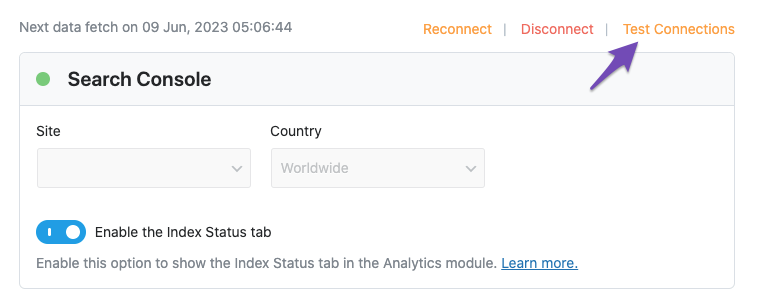
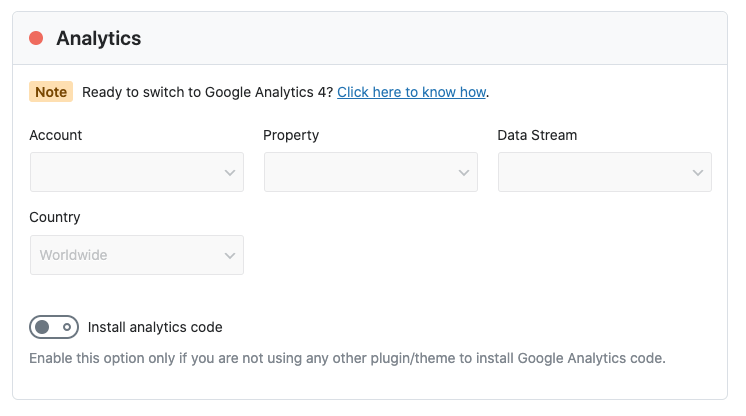
Test Connections: Go to Rank Math SEO → General Settings → Analytics and click on the Test Connections option at the top right. This will help you validate the existing connections. A green signal indicates a valid connection, while a red signal indicates an issue.
-
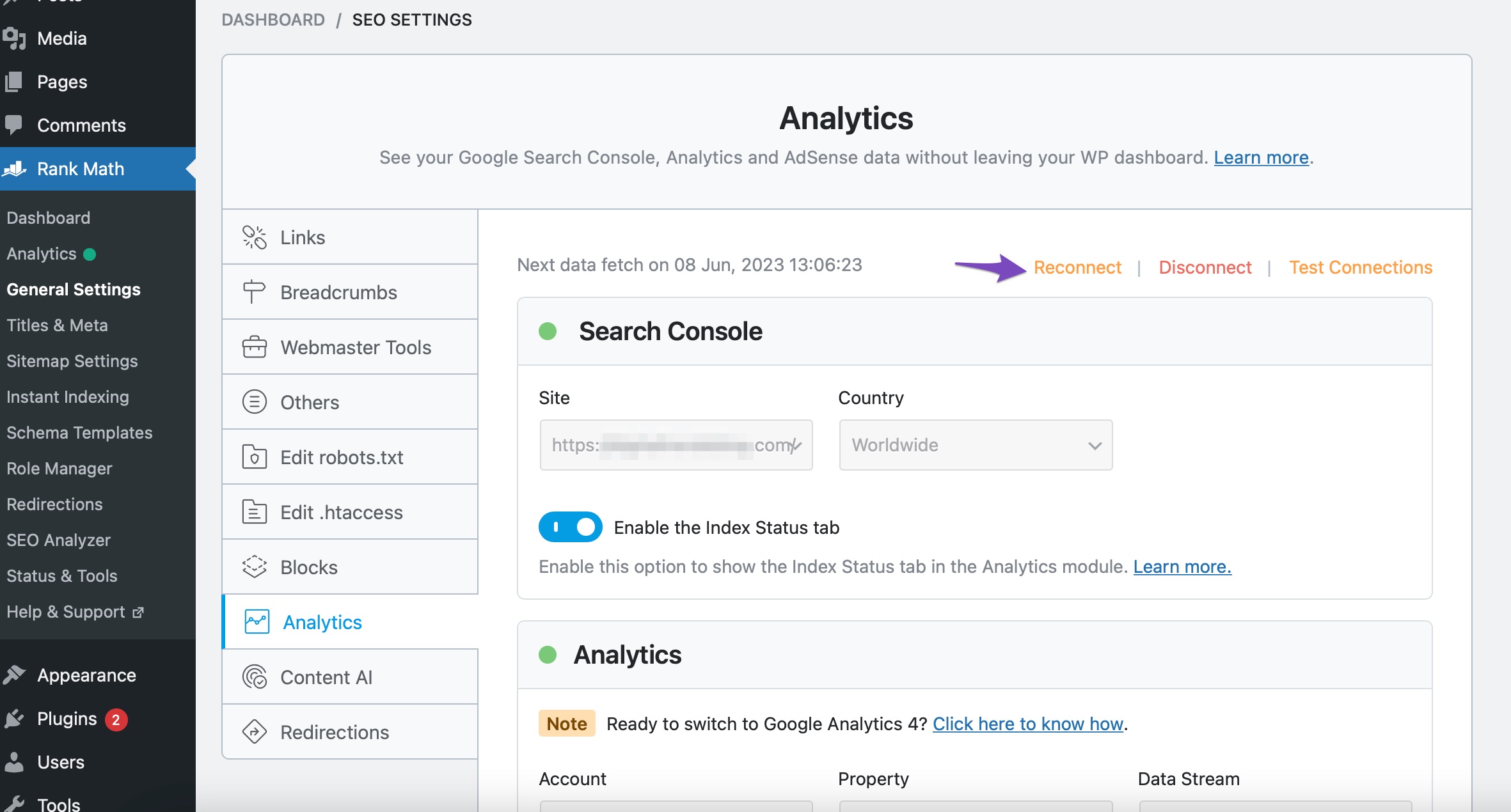
Reconnect Your Google Account: If you see a red signal, try reconnecting your Google account by clicking the Reconnect button in the Analytics settings.
-
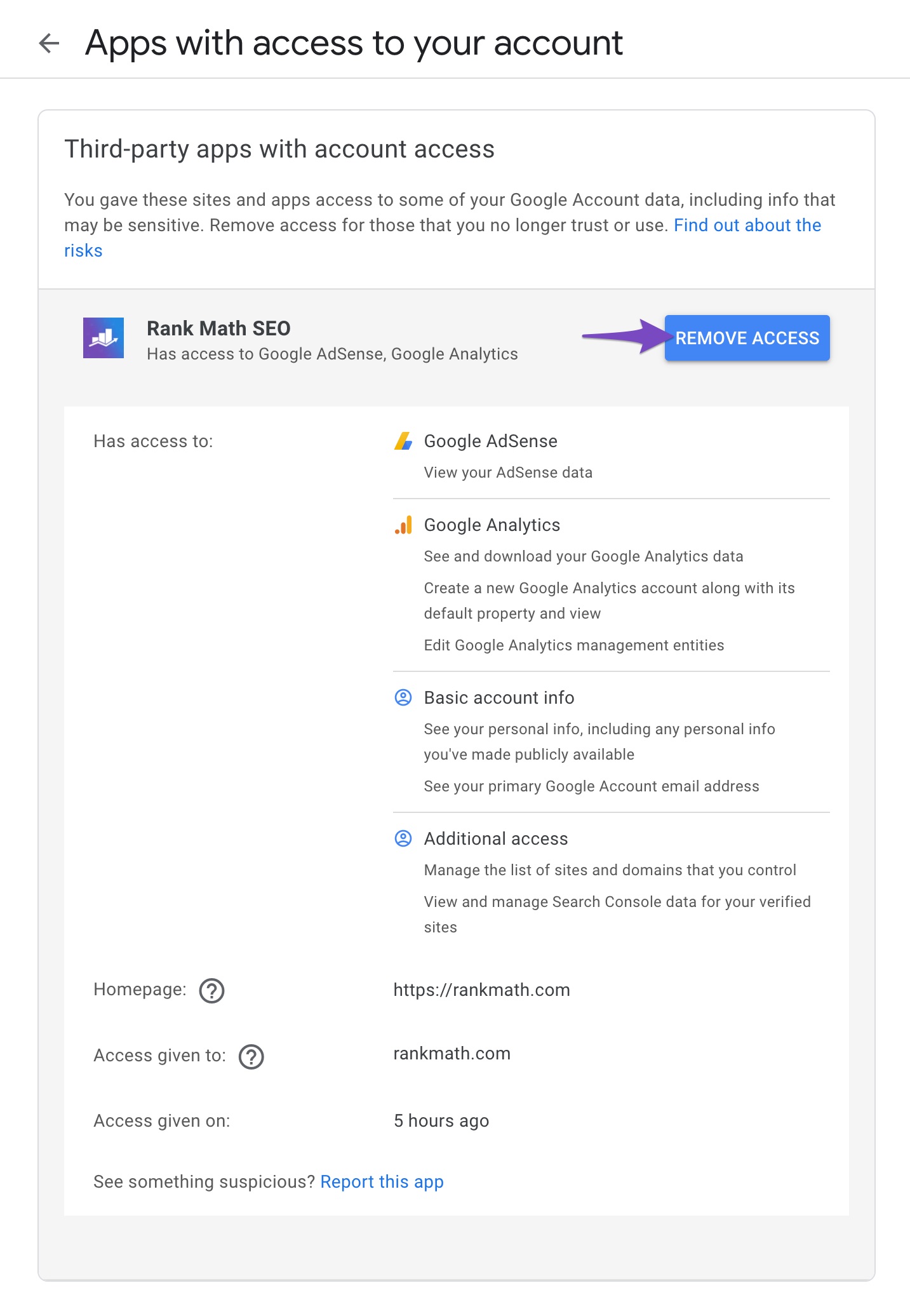
Remove and Reconnect: If the issue persists, navigate to your Google Account permissions and remove the Rank Math app under Third-party apps with Account access. After that, reconnect Rank Math with your Google account again.
-
Check for Expired Tokens: If you still encounter issues, it may be due to expired authorization tokens. Follow the steps above to remove and reconnect the Rank Math app to refresh these tokens.
If you continue to experience problems after trying these steps, please reply to this ticket, and a human agent from the Rank Math Support team will assist you further.
Sources:
Resolving Rank Math Analytics Related Issues » Rank Math
What to Do When Rank Math Analytics Shows Zero Search Traffic » Rank Math
Hello,
In this case, please follow the steps below to create a troubleshooting log so that we can check the issue further:
Step #1.
First, add the following filter to your website:
add_filter( 'rank_math/analytics/log_response', '__return_true' );
Here is a guide you can follow to add the filter:
https://rankmath.com/kb/wordpress-hooks-actions-filters/
Step #2.
After adding the filter, please run the pending Scheduled Action from your WordPress Dashboard > Tools > Scheduled Actions > Pending:
If in your case, you do not see the Scheduled Actions menu, then you can try visiting the following URL:
https://yourdomain.com/wp-admin/tools.php?page=action-scheduler&status=pending
Ensure that you replace yourdomain.com with your own domain in the above link.

Step #3.
When some actions have completed running, please check the Analytics log under /wp-content/uploads/rank-math and share that with us.
You can use a tool like Dropbox/Pastebin for debug log files and share the generated links here.
Looking forward to helping you.
Im having trouble with step 3, where and how do I view the log
and it shows my search console is active but not my analytics
Hello,
You can access the directory /wp-content/uploads/rank-math using FTP or Filemanager in cPanel.
As regards the Google Analytics connection, can you please confirm that you have a Google Analytics property on the Google account you connected?
You can sign up for Google Analytics here.
Looking forward to helping you resolve this issue.
Hey I just made a google analytics account and reconnected everything, everything is green now, does that mean my issue is now solved? I went ahead and deleted that snippet the previous staff member told me to run.
Hello,
Everything should be good.
If any issue arises or if you have further concerns you can always reach us here.
You can also access our knowledgebase articles for self-help: https://rankmath.com/kb/
Don’t hesitate to let us know if you need our assistance with anything else.
Thanks.
Hello,
Since we did not hear back from you for 15 days, we are assuming that you found the solution. We are closing this support ticket.
If you still need assistance or any other help, please feel free to open a new support ticket, and we will be more than happy to assist.
Thank you.




