Connecting analytics to RankMath

#869059
  • Hi, I’m moving my analytics over from Google Site Kit to Rankmath. I went through the setup wizard to try and do this. It seemed like Google Analytics moved across successfully, however Google Search Console displayed a red dot. I tried to add my Google Search Console Verification code to the Webmaster Tools page on WordPress. However following the instructions on this link: https://rankmath.com/kb/google-site-verification/ did not work. I got to stage 1.2 and it said “ownership auto verified” then would not let me proceed any further. Instead it just closes the window and doesn’t give me any code.

    Then I later checked Google Analytics and had 0 realtime views. Even when I tested by viewing my site from several devices, the views would not show up.

    Can you please help me set up my Google Search Console and Google Analytics with Rankmath so it all works smoothly and doesn’t break my site or analytics

    Thank you

Viewing 3 replies - 1 through 3 (of 3 total)
  • Hello,

    We apologize for the issue you are facing with connecting Google Search Console and Google Analytics to Rank Math. Thank you for raising this concern.

    To set up Google Search Console and Google Analytics properly, please follow these steps:

    For Google Search Console:

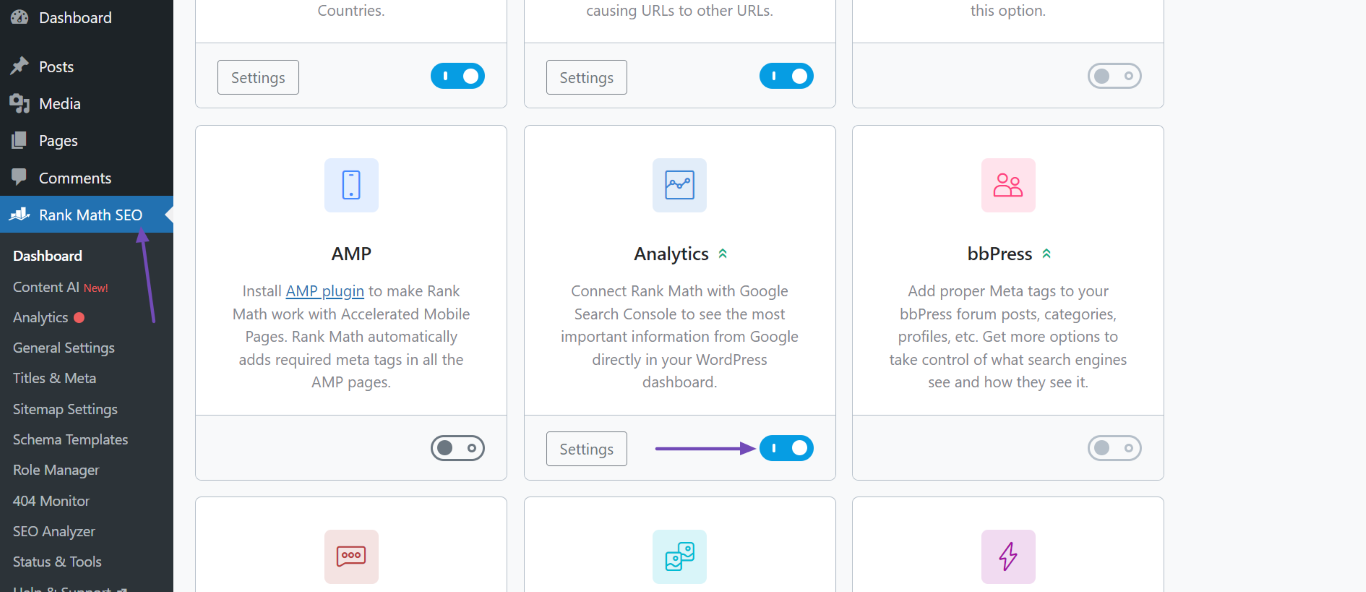
    1. Enable the Analytics Module: Ensure that the Analytics module of Rank Math is enabled by navigating to WordPress Dashboard → Rank Math SEO.
      Enable Analytics module

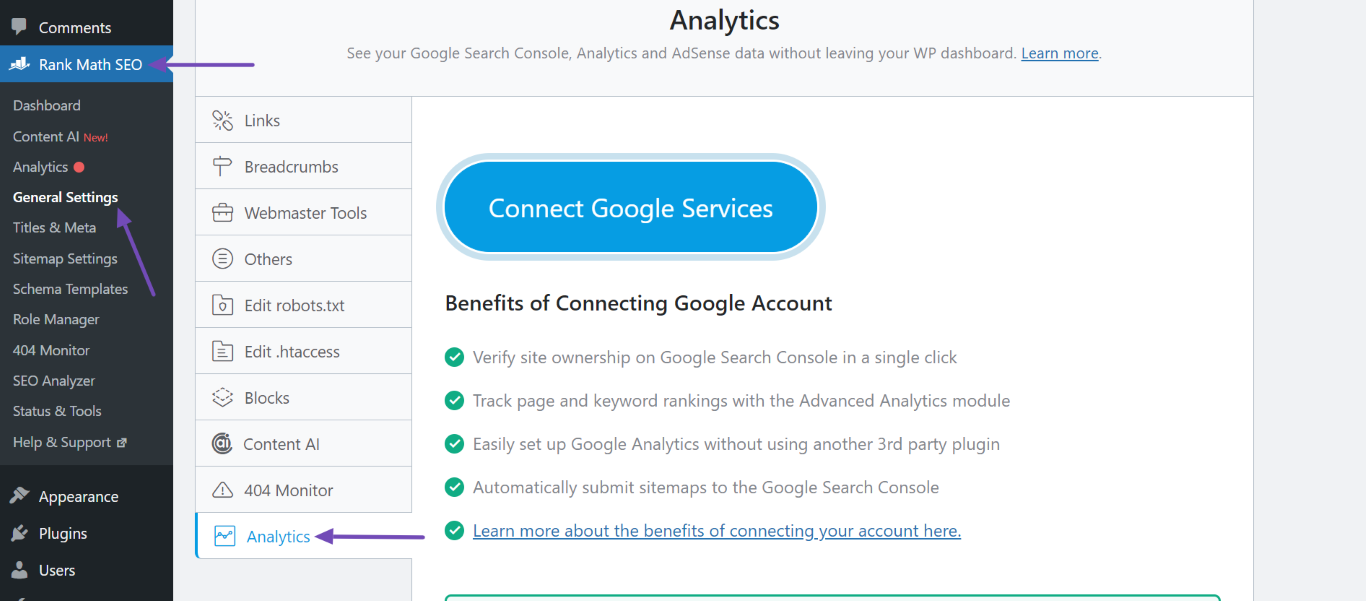
    2. Open Analytics Settings: Navigate to Rank Math SEO → General Settings → Analytics.
      Open Rank Math Analytics settings

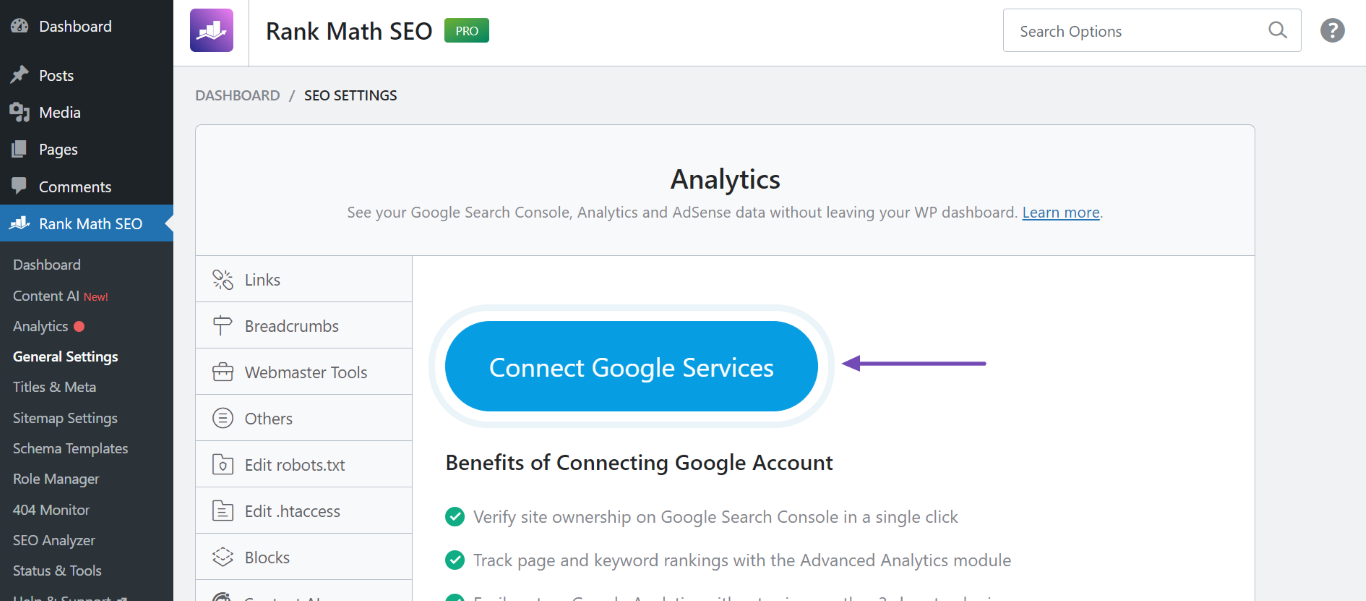
    3. Connect Google Account: If you haven’t already connected your website with a Google account, click the Connect Google Services button and follow the prompts to log in and grant permissions.
      Connect Google Services

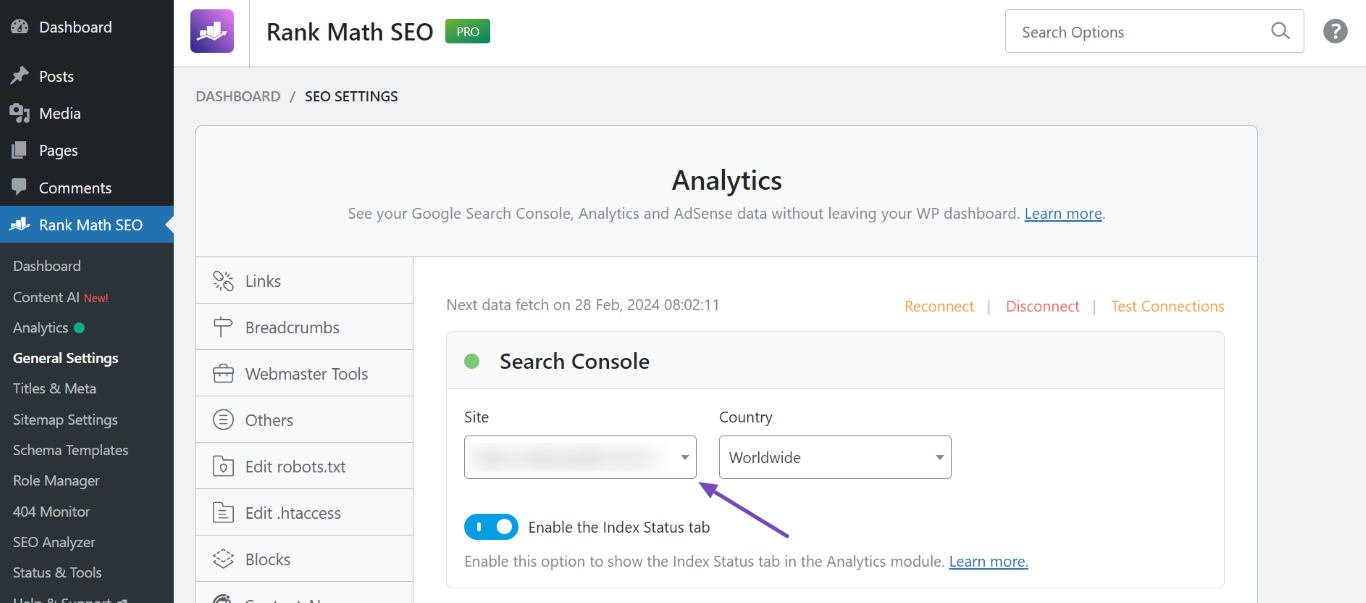
    4. Choose Property: After connecting, you should see that Rank Math has created a property for your website in the Search Console option. Make sure to select it from the drop-down list.
      Rank Math creates and selected Analytics property

    5. Save Changes: Scroll down and click Save Changes.
      Save Changes

    For Google Analytics:

    • After ensuring that the Analytics module is enabled and connected, check if your Google Analytics tracking code is correctly implemented on your site. You can verify this by using tools like Google Tag Assistant or checking the source code of your website.

    If you still encounter issues with the verification process or if the red dot persists in Google Search Console, please try clearing your website’s cache and then attempt the verification again. You can find instructions on how to clear your cache here.

    If you continue to experience problems, please reply to this ticket, and a human agent from the Rank Math Support team will assist you further.

    Thank you for your patience, and we hope this helps resolve your issues!

    Sources:
    How to Verify Your Website on Google » Rank Math

    Just tried this and it doesn’t seem to have worked

    Although GSC now shows a green dot, Google Analytics gives me no realtime data, and GSC never gave me any code to add to Rankmath

    Hello,

    Thank you for contacting Rank Math support, and sorry for the inconvenience this may have caused.

    To solve this issue, you need to fetch fresh data from Google. This is a simple process that you can do by following the steps below:

    1. Head over to WP Dashboard > Rank Math > Tools & Status > Database Tools and click the Rebuild Index button. This is the first process before you will update the data manually.

    Ensure that you have enabled advanced mode to see the Database Tools tab.

    2. After that, head over to WordPress Dashboard > Rank Math > General Settings > Analytics tab, click the Delete Data button and then click the Update Data Manually

    3. This will start the new data fetch from Google. You can reload the page to see the notice related to the import process.

    4. Once the process is complete. Please re-check the Analytics page and all the data should be showing up correctly.

    Following the above steps should fix the issue.

    You can refer to this guide for reference: https://rankmath.com/kb/zero-search-traffic-error/

    However, if it does not, please check if there is a pending Scheduled Action by heading over to WordPress dashboard > Tools > Scheduled Actions > Pending or you can try visiting the following URL:

    https://yourdomain.com/wp-admin/tools.php?page=action-scheduler&status=pending
    

    Then Run the rank_math/analytics/data_fetch scheduled action and wait for the data fetch to complete.

    This is how it should look like:

    Once done, please allow Rank Math a while to fetch data from Google and you should be able to see the updated data.

    You might see other actions that are scheduled to RUN as well, it is quite normal and you don’t have to worry.

    Let us know how that goes.

    Thank you.

    Hello,

    Since we did not hear back from you for 15 days, we are assuming that you found the solution. We are closing this support ticket.

    If you still need assistance or any other help, please feel free to open a new support ticket, and we will be more than happy to assist.

    Thank you.

Viewing 3 replies - 1 through 3 (of 3 total)

The ticket ‘Connecting analytics to RankMath’ is closed to new replies.