Hello,
We apologize for the issue you are facing with connecting Google Services in Rank Math. Thank you for raising this concern.
To troubleshoot the problem, please ensure that you have followed these steps:
-
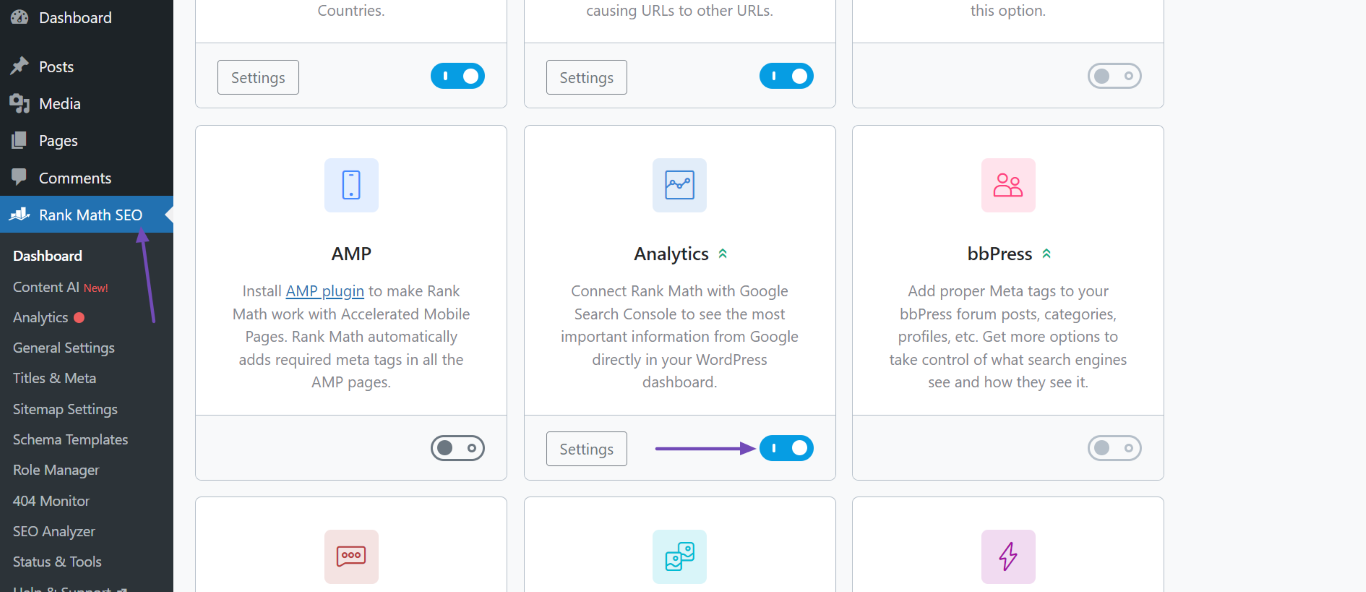
Enable the Analytics Module: Make sure the Analytics module is enabled by navigating to WordPress Dashboard → Rank Math SEO.
-
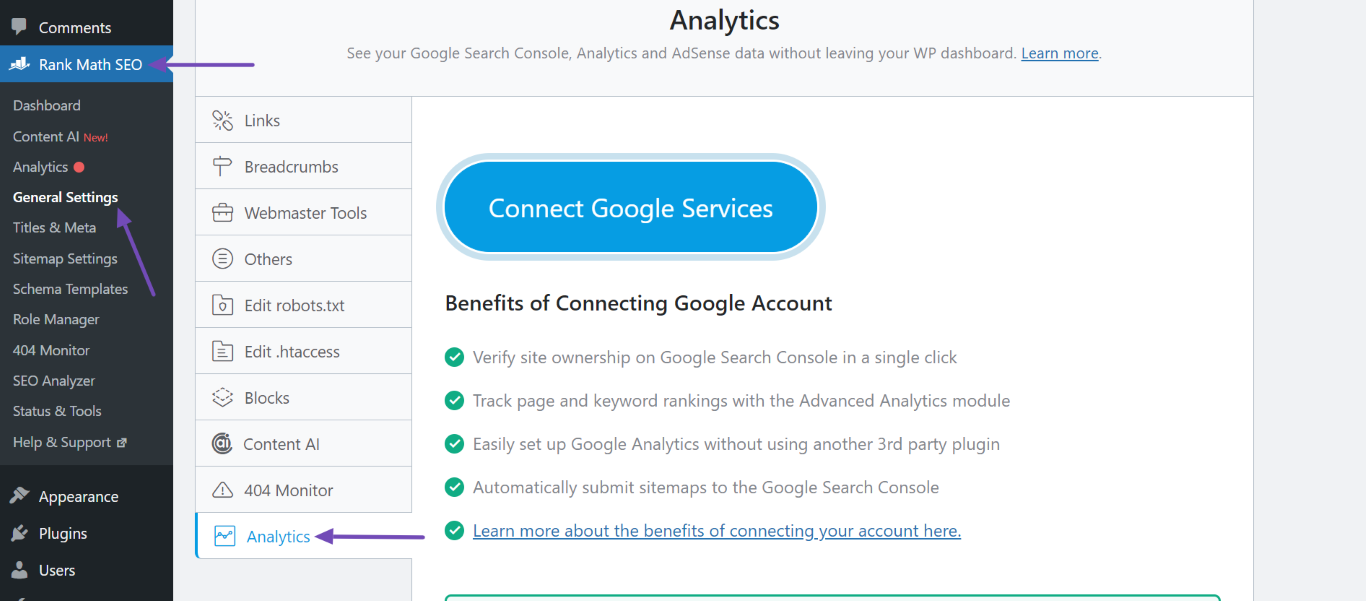
Open Analytics Settings: Go to Rank Math SEO → General Settings → Analytics.
-
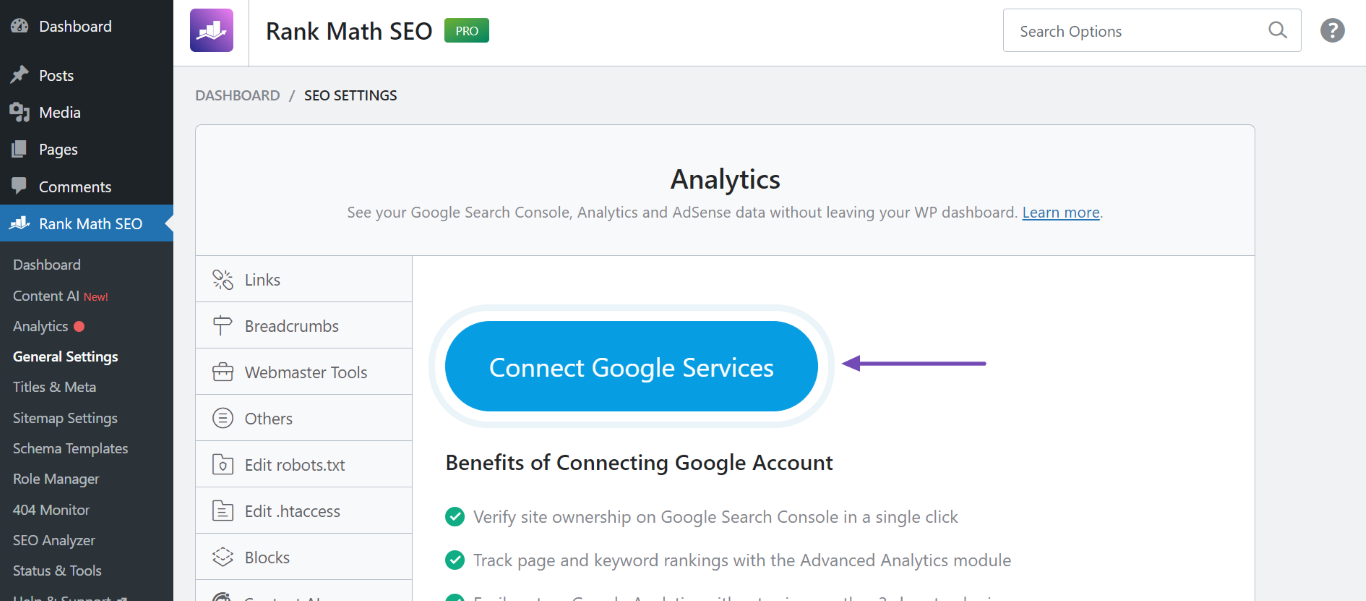
Connect Google Account: Click on the Connect Google Services button. If prompted, log into your Google account and grant the necessary permissions.
If you have already done all of this and your website still does not show up in the wizard, consider the following:
- Ensure that your Google account has the necessary permissions to access Google Search Console.
- Check if there are any restrictions on your Google account that might prevent it from accessing certain services.
- Try using a different browser or clearing your browser cache, as sometimes browser issues can interfere with the connection process.
If the issue persists, please reply to this ticket, and a human agent from the Rank Math Support team will take over and assist you further.
Thank you for your patience, and we hope to resolve this for you soon!
Sources:
How to Setup Rank Math SEO Plugin Properly
How to Verify Your Website on Google » Rank Math
How to Connect Your Google Account With Rank Math SEO » Rank Math
Hi,
I have done all that. Unfortunately, the issue still persists. My website does not show up in the wizard under the “Search Console” dropdown.
Thanks and best
Hello,
Please verify using the URL prefix and ensure that you have verified the correct version of your website on the Google Search Console (HTTP or HTTPS, www or non-www).
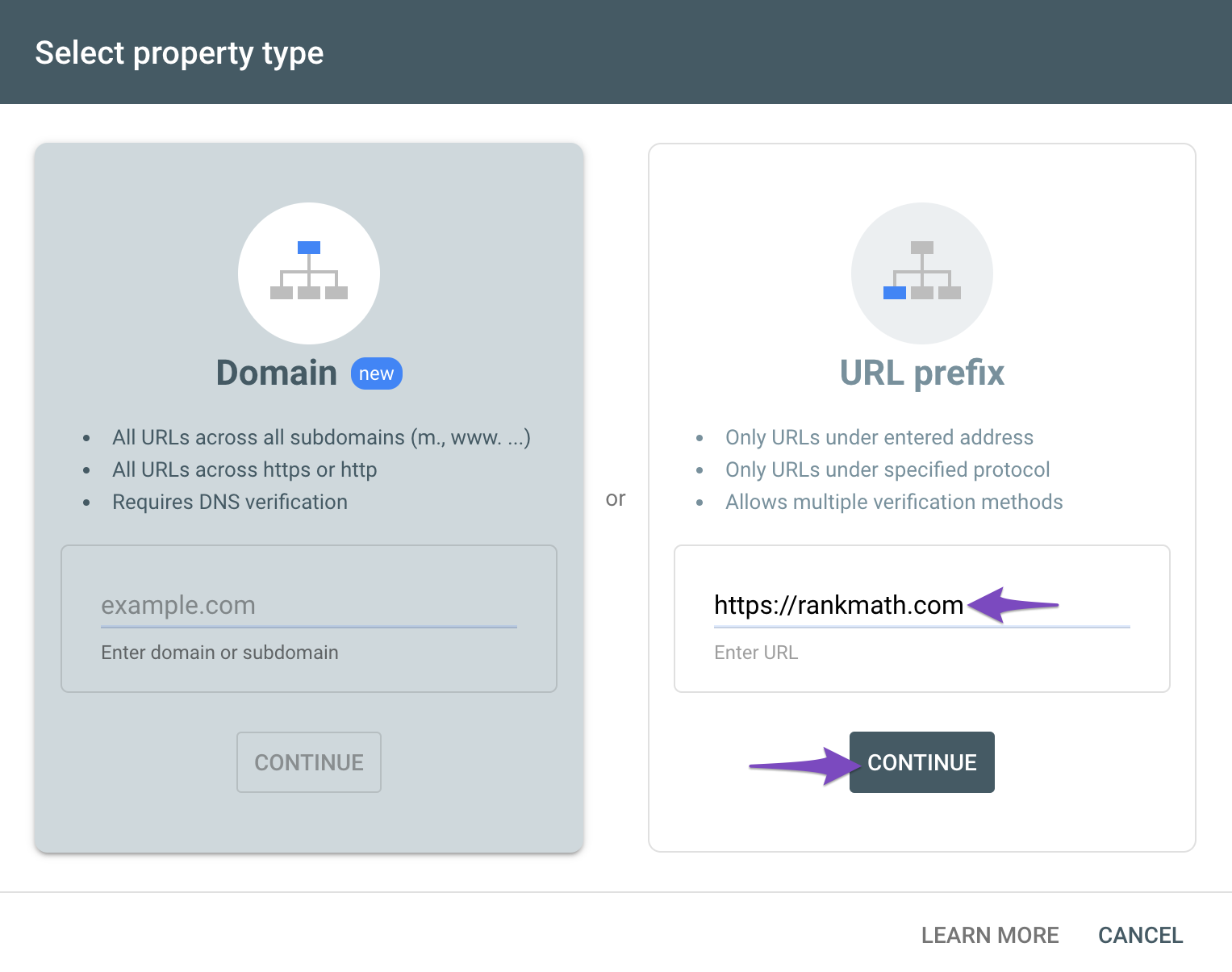
You can follow our guide here to create the URL Prefix property:
https://rankmath.com/kb/google-site-verification/
The URL-prefix property also helps keep your sitemap in sync with Google Search Console as we submit it automatically for you. In addition, the domain property won’t work correctly on some sections of the Analytics module such as the IndexStatus.
Looking forward to helping you.
Thanks for your help Reinelle. I will try the manual creation and verification process. Just out of curiosity: Why does the automatic creation and verification of my property via the Rank Math Installation Wizard not work?
Based on the step by step guide you linked in your comment (https://rankmath.com/kb/google-site-verification/), I followed step 2.1 to 2.3. This is working fine. However after accepting the permission rights for Google and clicking continue, I cannot choose my property (step 2.4).
Hello,
We recommend skipping the GSC property connection in the Setup Wizard as it won’t work with the automatic verification.
In this case, you may verify via the URL prefix method to ensure that the property will show in the dropdown section of Analytics in Rank Math settings.
Looking forward to helping you.
Hello,
Since we did not hear back from you for 15 days, we are assuming that you found the solution. We are closing this support ticket.
If you still need assistance or any other help, please feel free to open a new support ticket, and we will be more than happy to assist.
Thank you.



