Hello,
We apologize for the issue you are facing with the "Sitemap couldn’t fetch" error in Google Search Console. Since you’ve already tried the solutions mentioned in our knowledge base, let’s go through some additional troubleshooting steps that may help resolve this issue:
1. Rename the Sitemap File
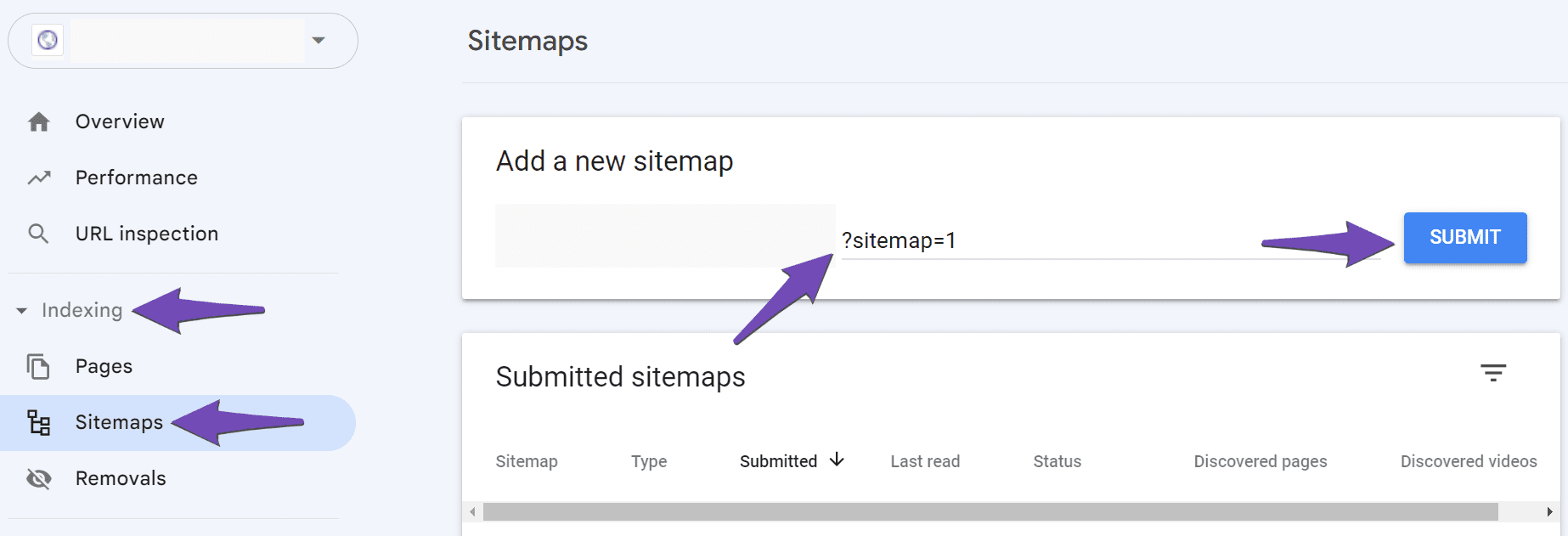
Sometimes, renaming the sitemap file can help. In Google Search Console, navigate to Indexing → Sitemaps and add a new sitemap using the following URL format:
`https://rankmath.com/kb/fix-sitemap-issues/
2. Validate Your Sitemap
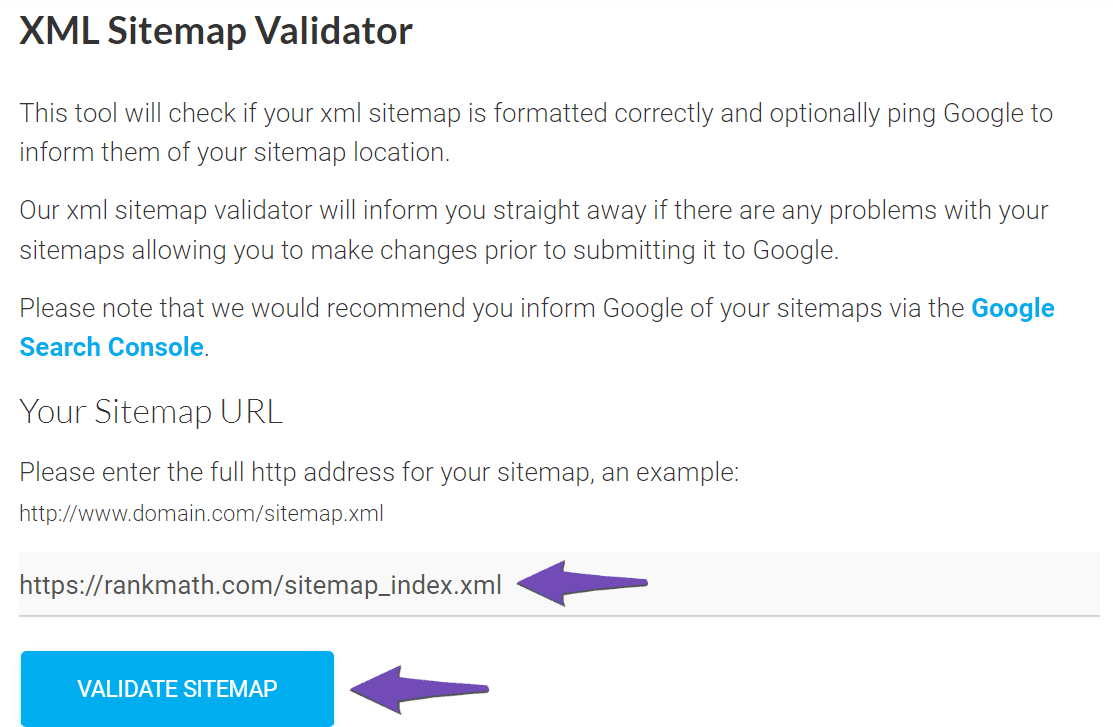
Make sure your sitemap is correctly configured by validating it using the Validate XML Sitemap tool. If there are any issues, they will be highlighted.
3. Ensure the Sitemap is Located in the Root Folder
Check that your sitemap is located in the root folder of your WordPress installation. The URL should look like this:
`https://rankmath.com/kb/fix-sitemap-issues/
4. Flush the Cache
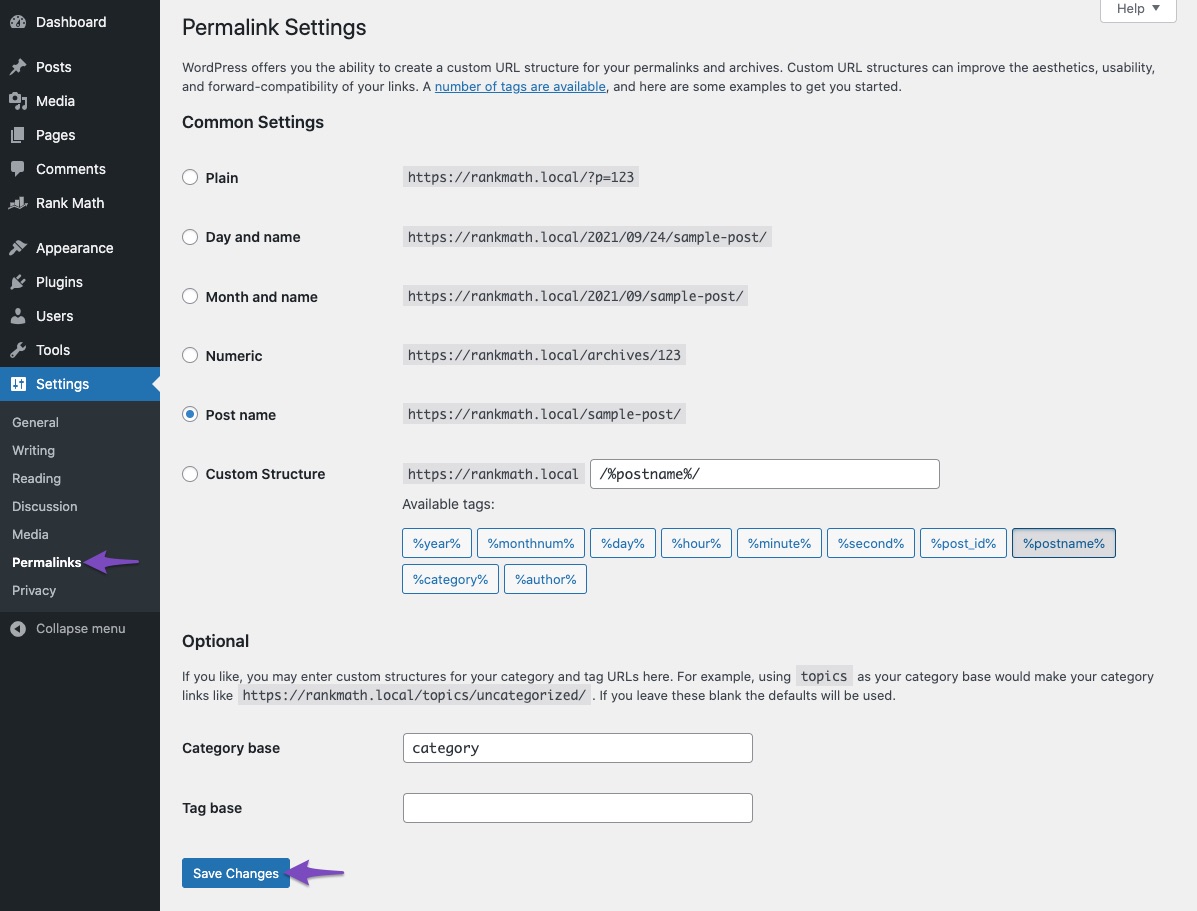
If your sitemap appears outdated, you may need to flush the sitemap cache. Go to Rank Math SEO → Sitemap Settings, increase the value of Links Per Sitemap by one, and click Save Changes. Then, navigate to Settings → Permalinks and click Save Changes again.
5. Check Index Settings for Pages
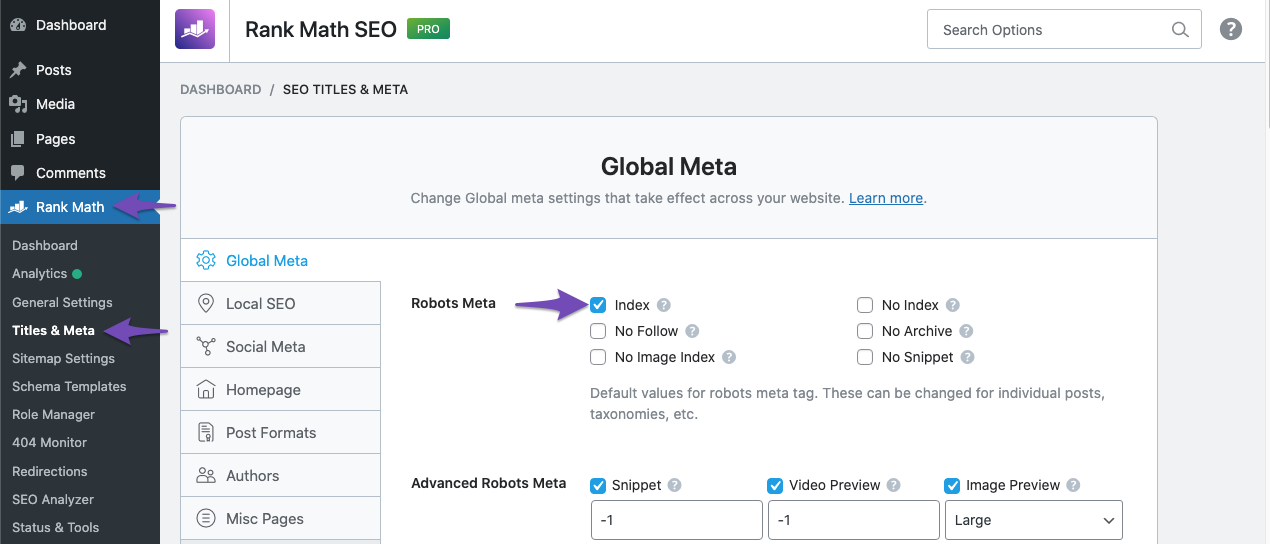
Ensure that your pages are set to index. Go to Rank Math SEO → Titles & Meta and check that the Index checkbox is enabled for your pages.
6. Add the Correct Site URL to Google Search Console
Make sure you have added the correct variation of your site URL in Google Search Console. You can refer to our article on adding a URL property to the Search Console.
7. Wait for Google to Fetch the Sitemap
If everything seems correct but the error persists, it might be that Google has not yet fetched your sitemap. Sometimes, it takes time for Google to process changes.
If you continue to experience issues after trying these steps, please reply to this ticket, and a human agent from our support team will assist you further.
Thank you for raising this concern, and we hope these steps help resolve the issue!



