Hello,
We apologize for the issue you are facing with connecting GA4 to your website. It seems like there might be a misunderstanding in the process of linking your GA4 property with Rank Math.
To connect your GA4 property correctly, please follow these steps:
-
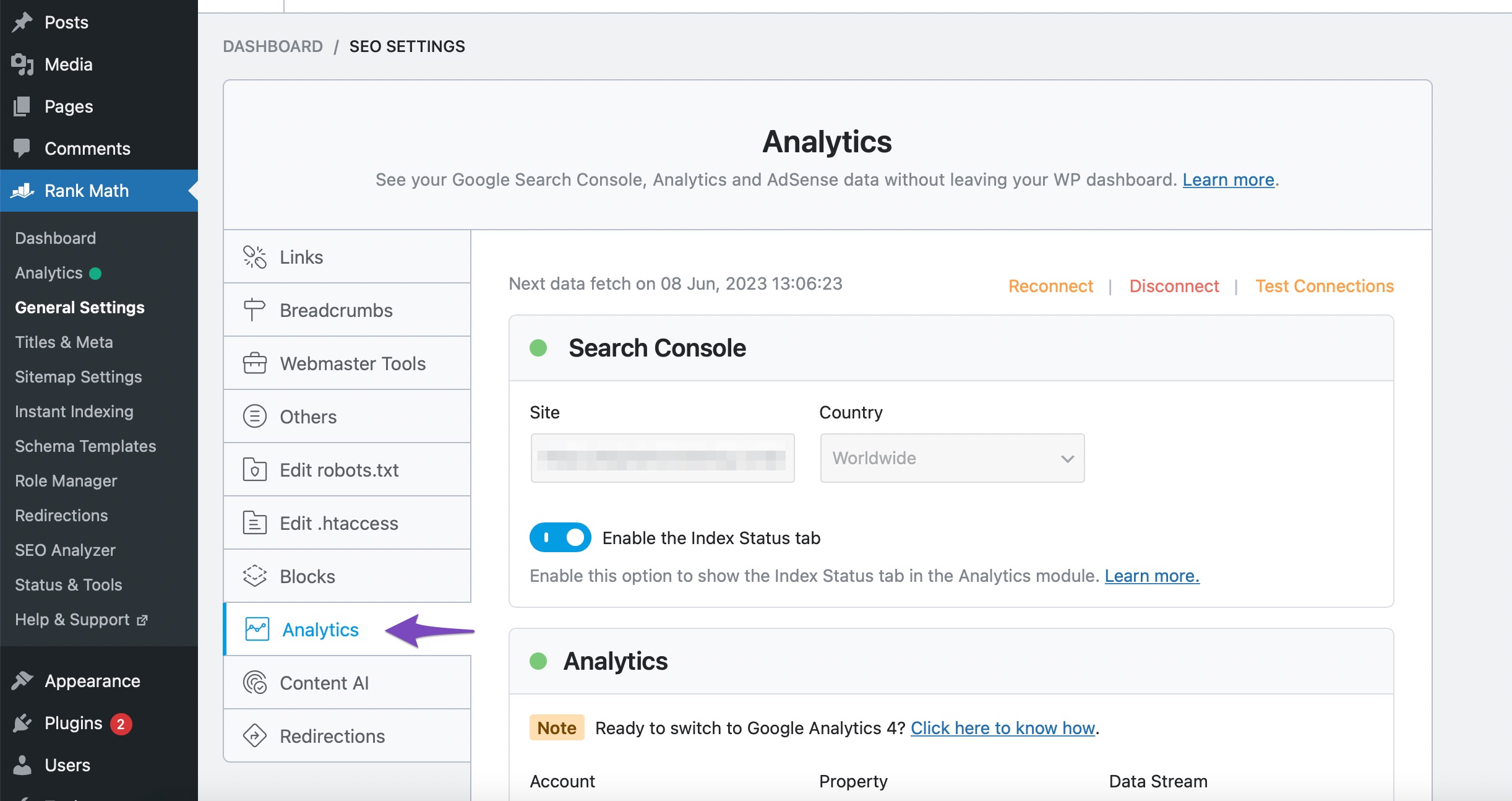
Navigate to Analytics Settings: Go to WordPress Dashboard → Rank Math SEO → General Settings → Analytics.
-
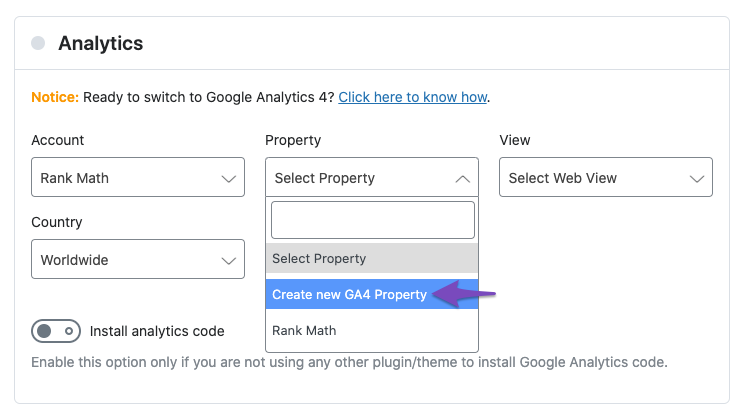
Create New GA4 Property: If you haven’t already created a GA4 property, you can do so by selecting the Create new GA4 Property option from the Property dropdown. However, if you already have a GA4 property created in your Google Analytics account, you should select that existing property instead.
-
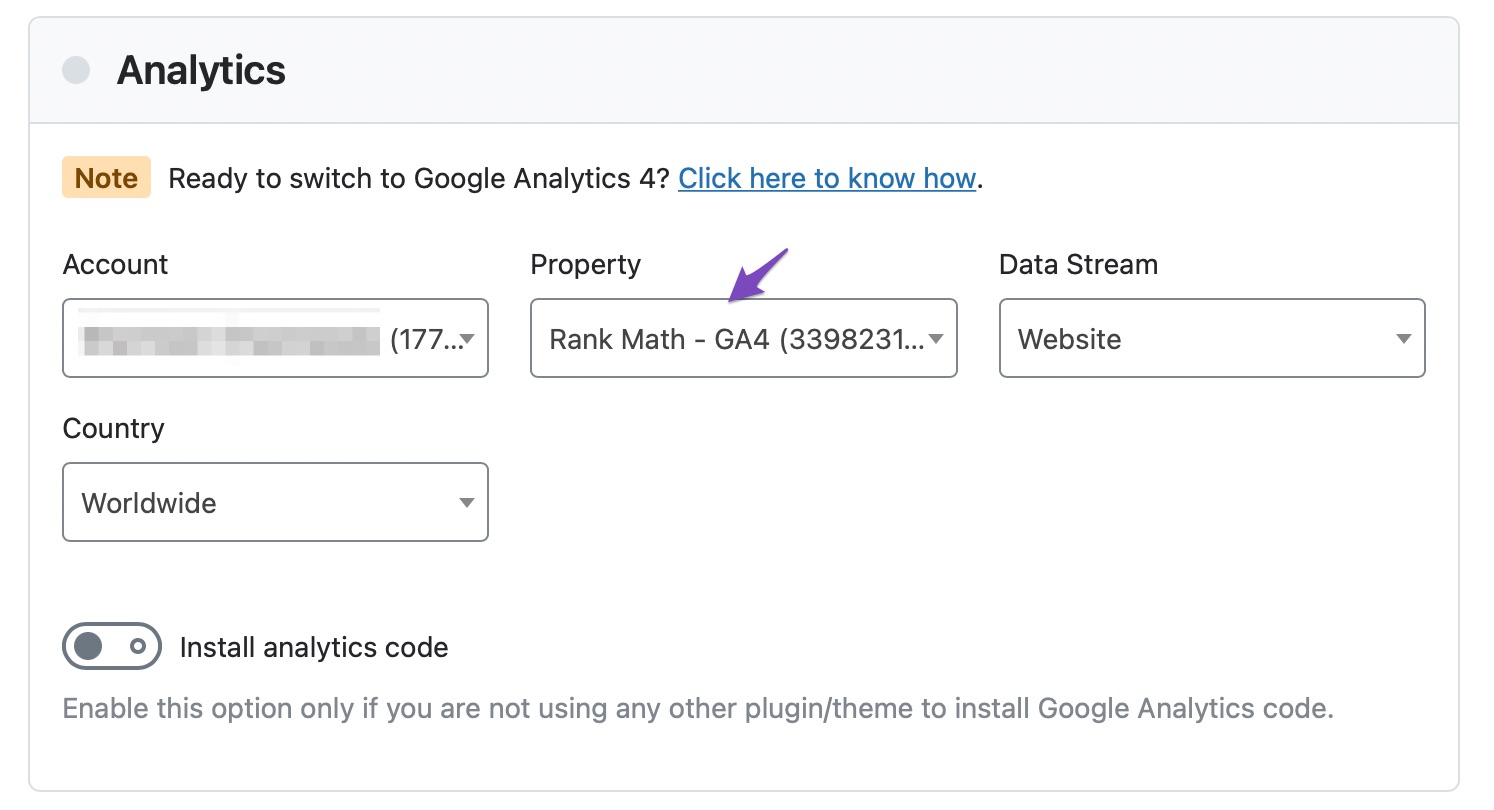
Select the Correct Property: After creating or selecting your GA4 property, ensure that it is correctly displayed in the Property dropdown. All GA4 properties will have a suffix -GA4 to help you identify them.
-
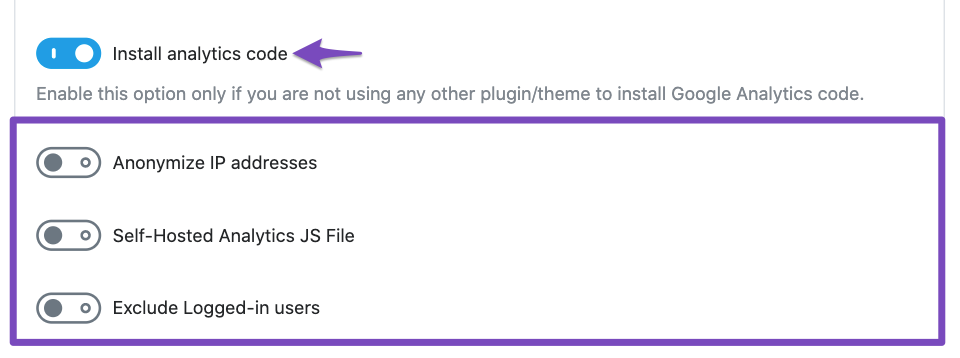
Install Analytics Code: If the tracking code is not added by any other means, enable the toggle for Install Analytics Code in the settings. This will allow Rank Math to automatically add the GA4 tracking code to your website.
-
Clear Cache: After making these changes, clear your site’s cache and check the front end of your website to see if the tracking code has been added.
-
Verify with Tag Assistant: Use Google’s Tag Assistant to verify if the correct Analytics code has been implemented on your site.
If you continue to experience issues or if the Measurement ID is still not being recognized, please reply to this ticket, and a human agent from the Rank Math Support team will assist you further.
Thank you for raising this concern, and we hope this helps resolve your issue!
Sources:
Using Google Analytics 4 Property With Rank Math Analytics » Rank Math
Already said – did that and nothing happened.
Hello,
Thank you for contacting Rank Math support.
Please share your website URL so we can check.
We look forward to hearing from you.
But I already installed a google plugin as your SEO thing doesn’t work for GA4
Hello,
That is fine.
Can you please confirm if you still need our assistance with this issue or anything else?
Looking forward to hearing back from you.
Thank you.
Hello,
Since we did not hear back from you for 15 days, we are assuming that you found the solution. We are closing this support ticket.
If you still need assistance or any other help, please feel free to open a new support ticket, and we will be more than happy to assist.
Thank you.



