Hello,
We apologize for the issue you are facing. To implement Schema markup separately for each variant using Rank Math, you can follow these steps:
-
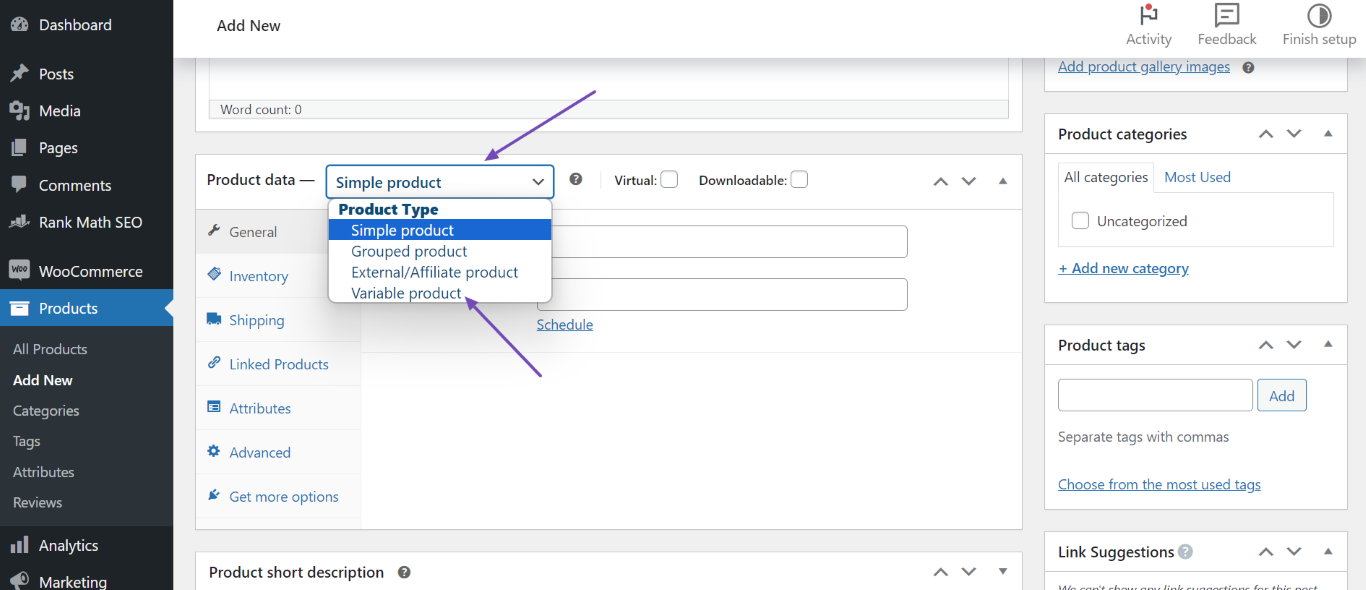
Edit Your WooCommerce Product: Start by editing the product for which you want to set up the variants. Click on Edit in the product data section.

-
Select Variable Product: In the Product data metabox, select Variable product from the dropdown menu.
-
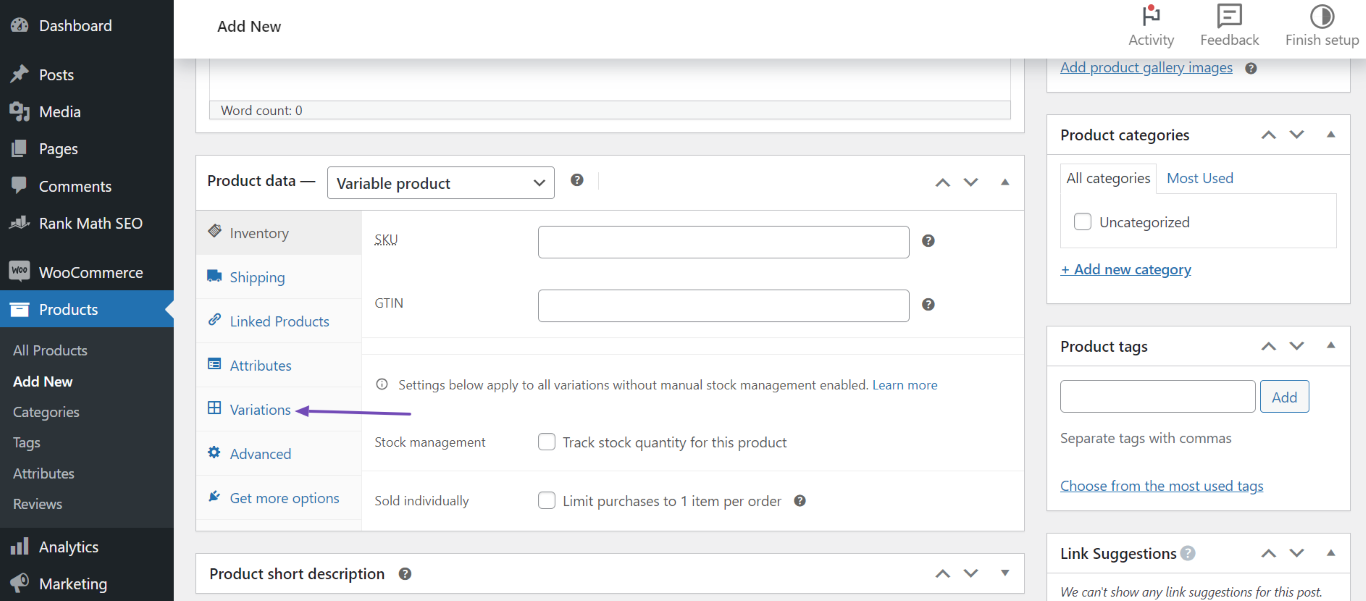
Create Variations: Go to the Variations tab and create your variants. If you haven’t created attributes yet, you will need to do so first in the Attributes tab.
-
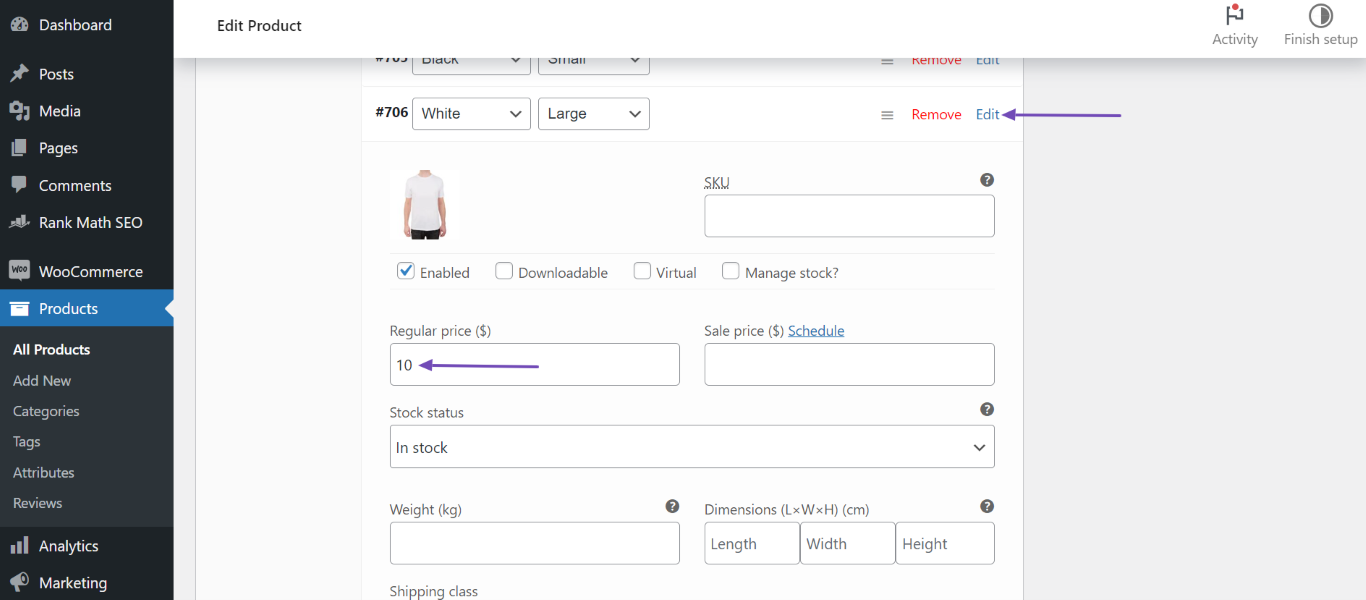
Fill in Variant Details: For each variant, click on Edit and fill in the required fields, including the Regular price ($) field for that specific variant.
-
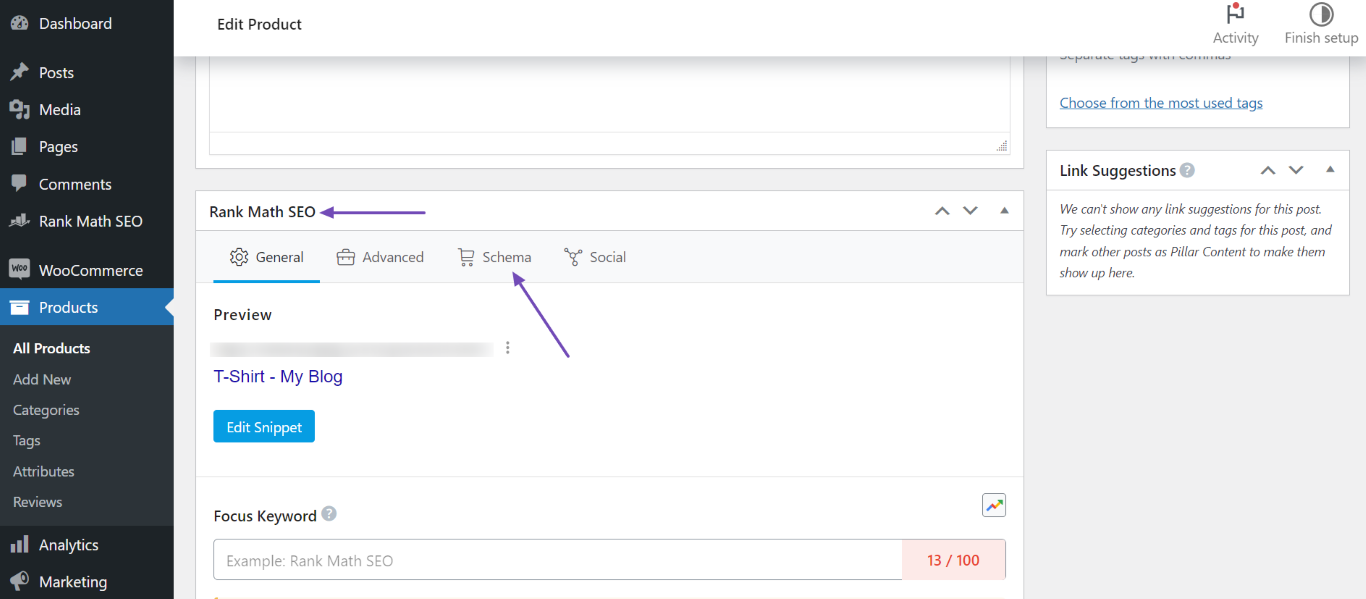
Review Schema Markup: After creating your variants, you can review your Schema Markup by heading to the Rank Math SEO metabox and clicking on Schema. Then navigate to the WooCommerce Product Schema and click the View icon to see the details of your variants.
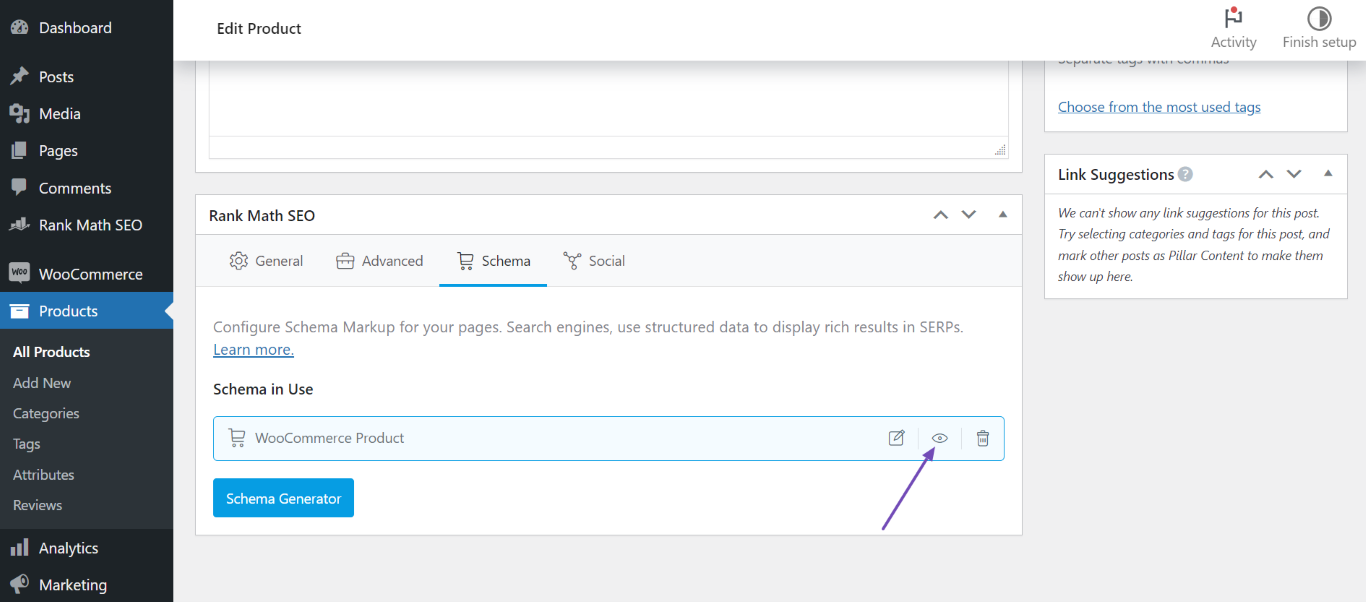
-
Check Variant Properties: Use Ctrl+F to search for productgroup in the Schema Markup to find properties like productGroupID, variesBy, and hasVariant for each variant.
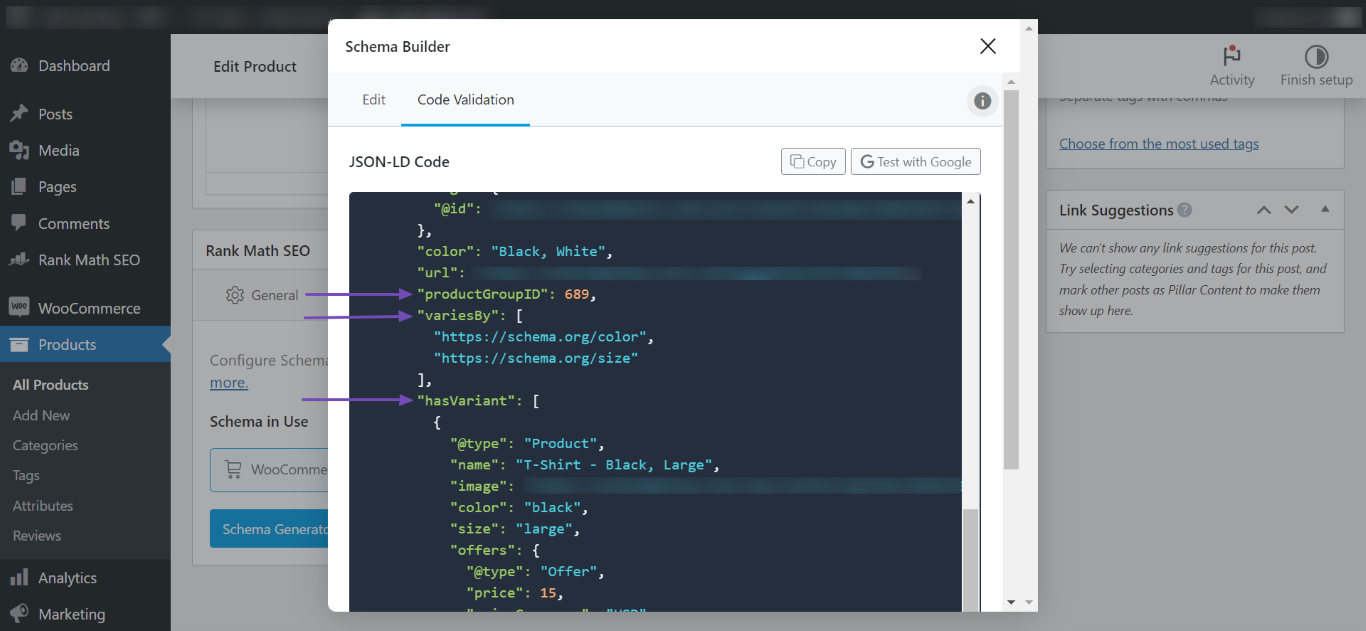
By following these steps, you can ensure that each variant has its own Schema markup with the respective price. Thank you for raising this concern! If you have any further questions or need assistance, feel free to reply to this ticket.
Sources:
How to Use Product Schema for WooCommerce Products » Rank Math
This is an automated reply from Rank Math Support Bot. If you need further assistance, please reply to this topic and a human support agent will reply to you shortly.
Hello,
Since we did not hear back from you for 15 days, we are assuming that you found the solution. We are closing this support ticket.
If you still need assistance or any other help, please feel free to open a new support ticket, and we will be more than happy to assist.
Thank you.


