Question

#853724
  • Resolved Tfarrah Elmoussaoui
    Rank Math free

    Hi Rank Math Support Team,

    I hope you’re doing well.

    I’m encountering an issue with the Schema Markup on my website http://www.ecodomi.pl, where the Google Rich Results Test is showing errors related to missing “name” and “image”and “adres” fields for some items. knowing I don’t have a real adres my store is just en ligne,

    Could you please assist me in ensuring that the settings in Rank Math are correctly configured for these fields, and that the information is captured and displayed properly in search engines? I want to make sure that my site is eligible for rich results in Google.

    Any guidance or instructions to resolve this issue would be greatly appreciated.

    Thank you very much for your help.

Viewing 2 replies - 1 through 2 (of 2 total)

  • Hello,

    We apologize for the issue you are facing with the Schema Markup on your website. Thank you for raising this concern.

    To resolve the errors related to the missing "name," "image," and "address" fields, please follow these steps:

    1. Check Your Product Pages: Ensure that each product has a featured image set. Rank Math automatically adds the featured image to the Product Schema markup, so it’s essential that this is configured correctly.

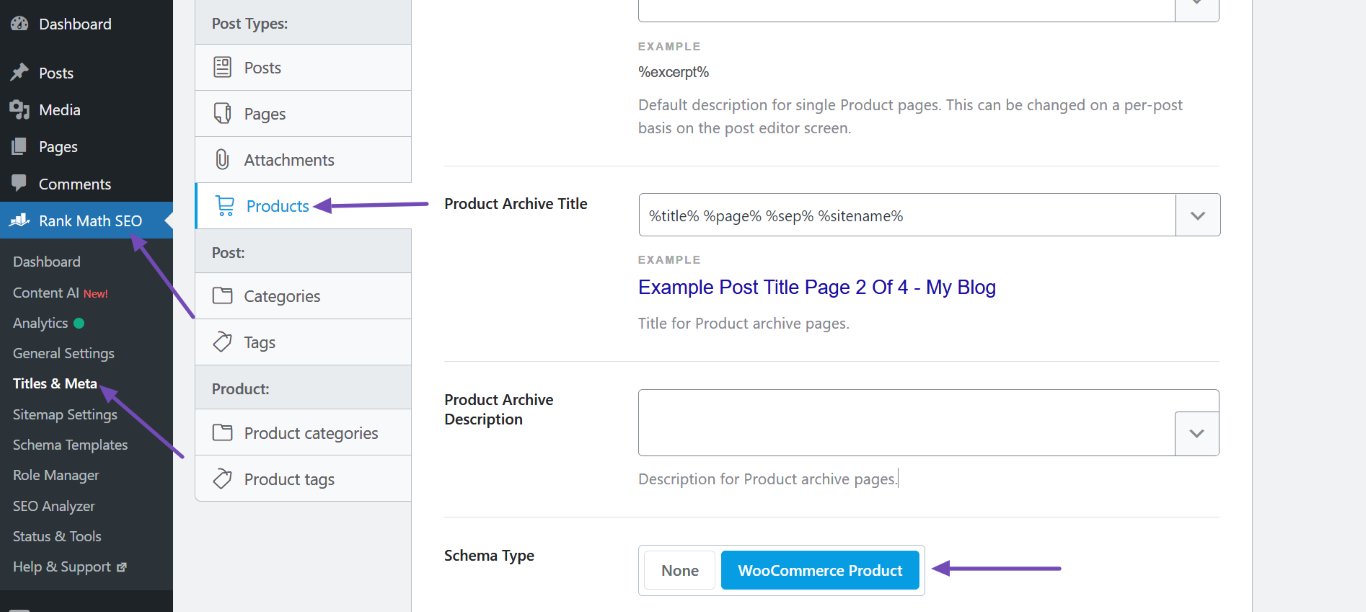
    2. Set the Schema Type: Navigate to WordPress DashboardRank Math SEOTitles & MetaProducts and set the Schema Type to WooCommerce Product. After making this change, scroll down and click Save Changes.
      Set the Schema Type to WooCommerce Product

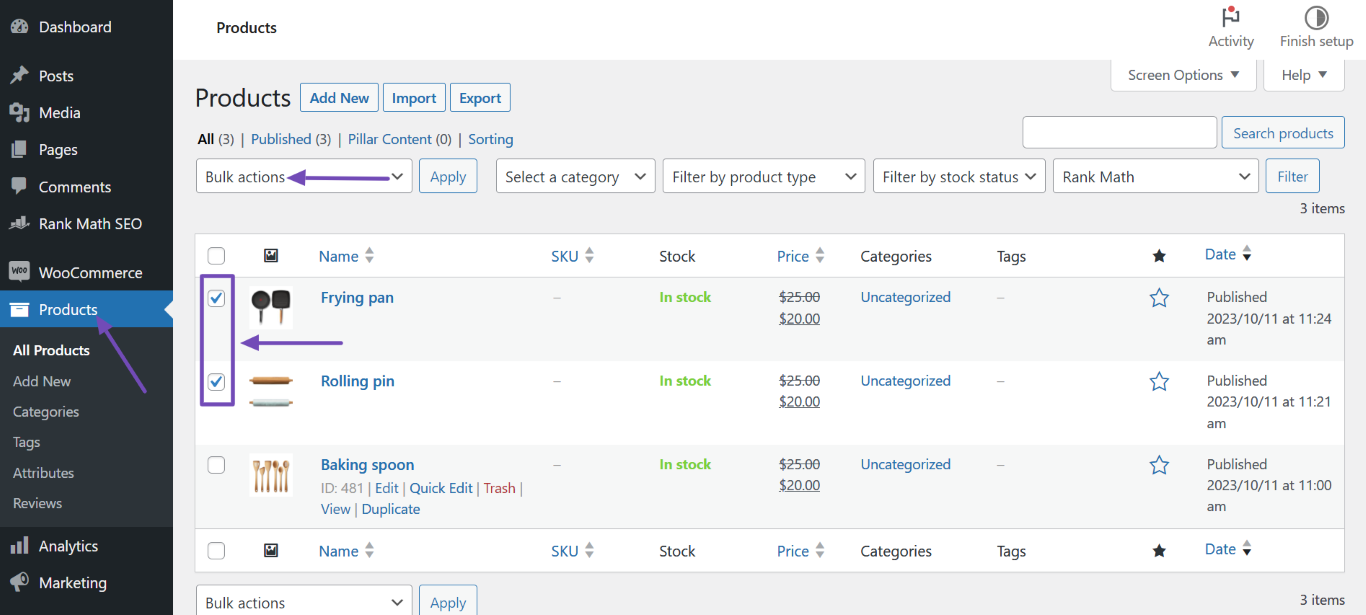
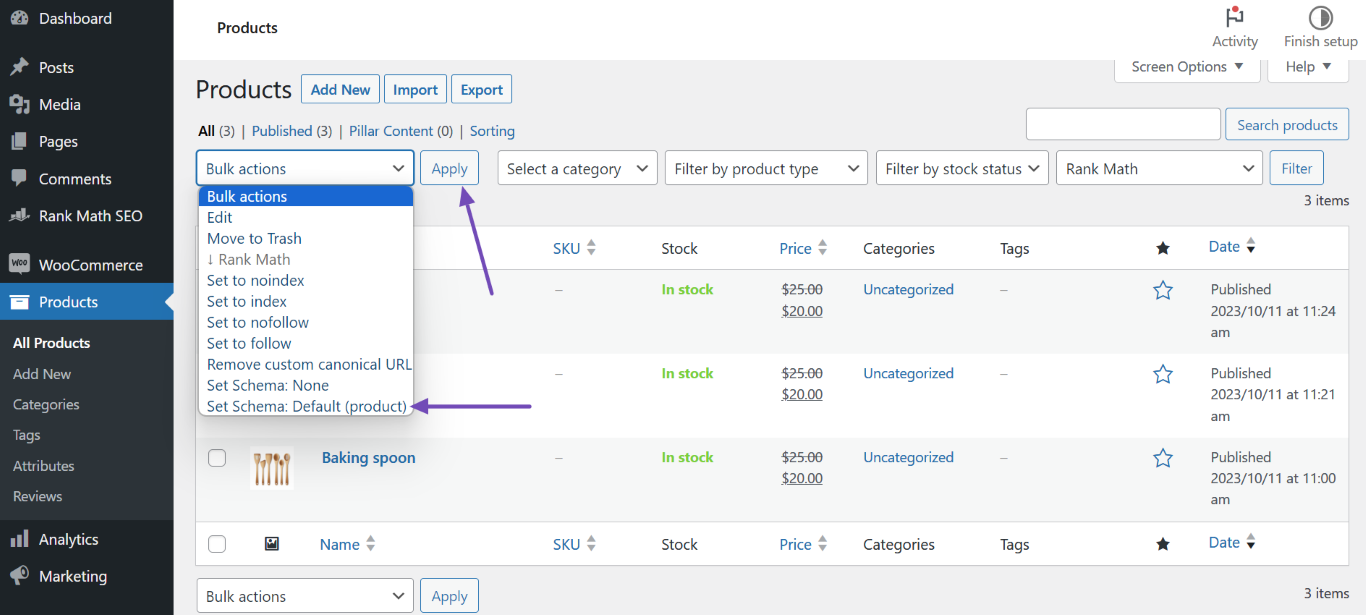
    3. Update Products Using Bulk Actions: Go to WordPress DashboardProducts, select the affected products, and in the Bulk actions dropdown, select Set Schema: Default (product), then click Apply. This will ensure that the WooCommerce Product Schema is applied to your products.
      Select the affected products
      Select Set Schema default product

    4. Addressing Missing Fields: Since your store is online only and does not have a physical address, you can leave the address field blank or provide a general service area if applicable. However, ensure that the "name" field is filled out correctly for each product.

    5. Testing Your Changes: After making these changes, use Google’s Rich Results Testing Tool to check if the errors have been resolved.

    If you continue to experience issues or have further questions, please reply to this ticket, and a human agent from our support team will assist you further.

    We hope this helps you resolve the Schema markup issues on your website!

    Sources:
    Resolving Rank Math Schema Markup Related Issues
    Configuring “Schema Markup” in Rank Math » Rank Math

    Hello,

    Thank you for contacting us and sorry for any inconvenience that might have been caused due to that.

    We can see the issues are coming from the LocalBusiness and Organization schema. Please note that our plugin automatically adds the Organization and LocalBusiness Schema to your site using the information you add in WordPress Dashboard > Rank Math > Titles & Meta > Local SEO .

    Please try to add all the information there in order to fix these issues: https://rankmath.com/kb/local-seo/

    We can also see you’ve set the Country Code Poland. Please note that the country code should be in two capital letters. For example, the country code of Poland is PL.

    You can change the country code in WP Dashboard > Rank Math > Titles & Meta > Local SEO > Address field:

    Let us know how it goes. Looking forward to helping you.

    Thank you.

    Hello,

    Since we did not hear back from you for 15 days, we are assuming that you found the solution. We are closing this support ticket.

    If you still need assistance or any other help, please feel free to open a new support ticket, and we will be more than happy to assist.

    Thank you.

Viewing 2 replies - 1 through 2 (of 2 total)
The ticket ‘Question’ is closed to new replies.