Hello,
Thank you for bringing this to our attention and apologies for the inconvenience caused.
Can you please make sure the following steps are followed to migrate from All in One SEO to Rank Math?
1. If this is the first time you’re installing Rank Math, the Rank Math Setup Wizard will be automatically initiated to set up and import data from other SEO plugins. If it doesn’t start on its own, you can always start it from WordPress Dashboard > Rank Math > Setup Wizard.
The Setup Wizard will look like this.
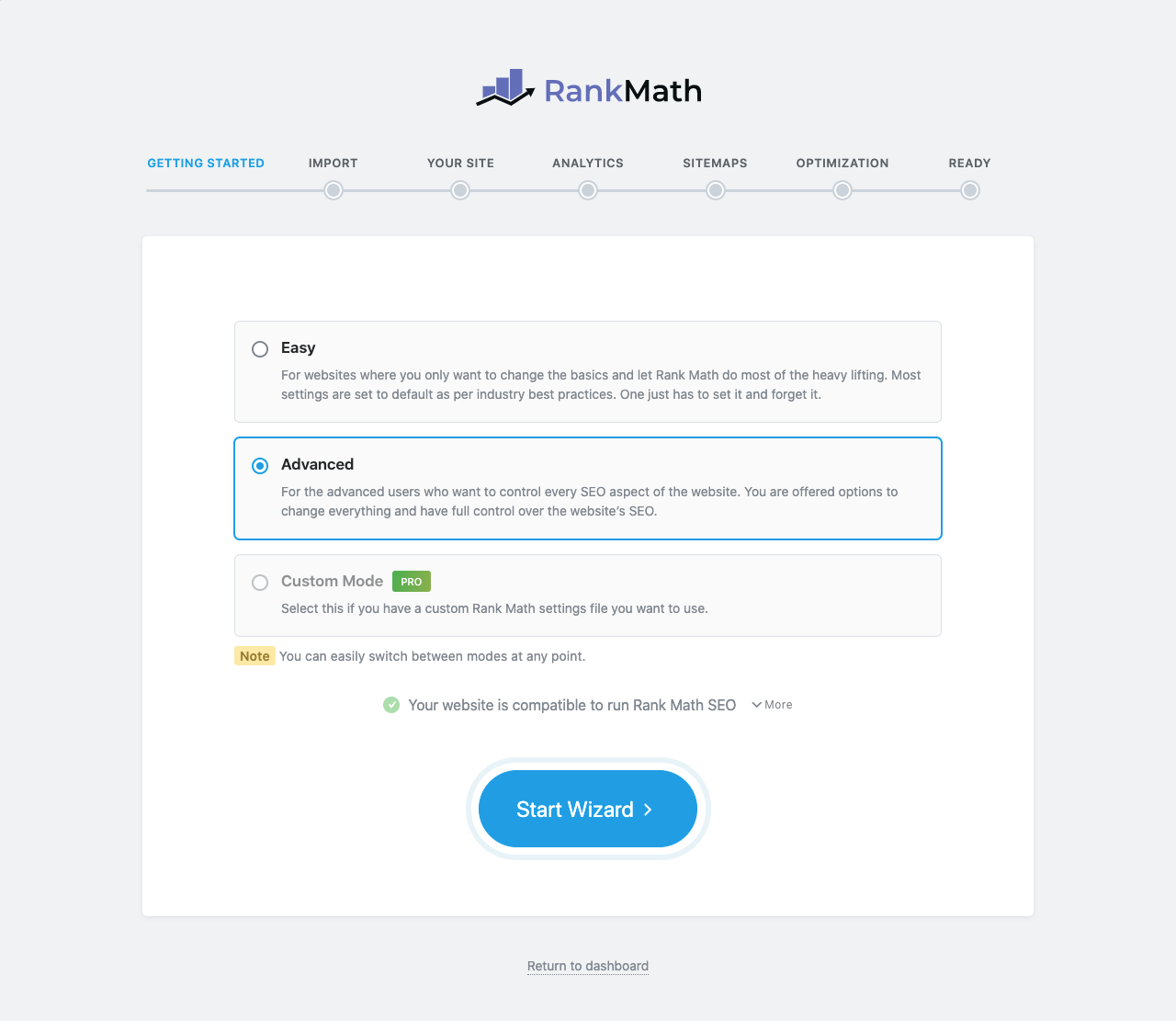
2. When you scroll down a bit, you can notice Rank Math checking for compatibility issues, and when you click More, you can find the other SEO plugins installed on your website that would conflict with Rank Math.

You can click the Deactivate Plugin button to safely deactivate the All In One SEO Pack here — so that we don’t end up optimizing your website 2x for search engines.
3. Once you’ve deactivated the plugin, click on Start Wizard so that we can import data from the All In One SEO Pack in the next step.

4. You can choose the settings you wanted to import to Rank Math — however, we recommend selecting all the data and then click the Start Import button.
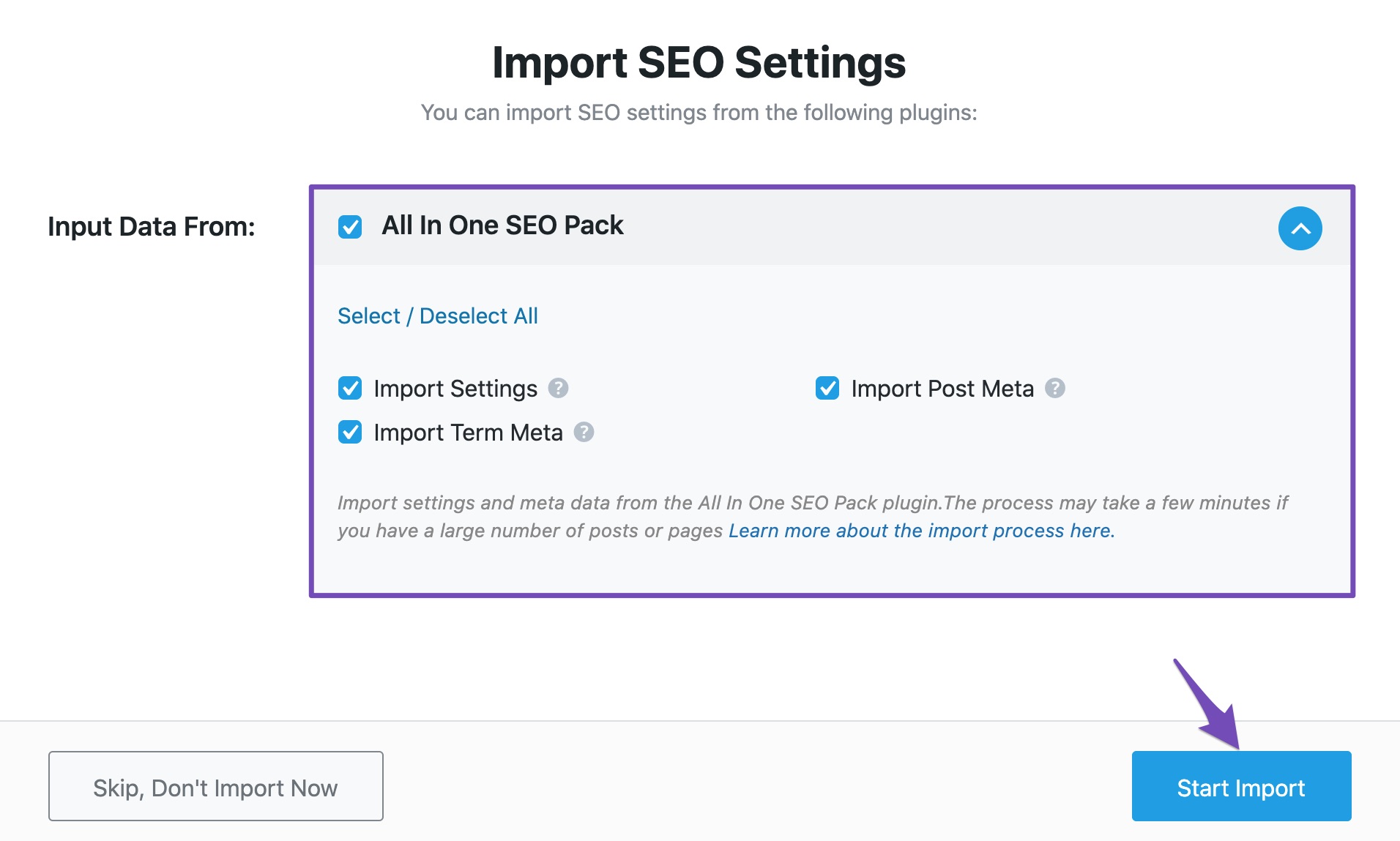
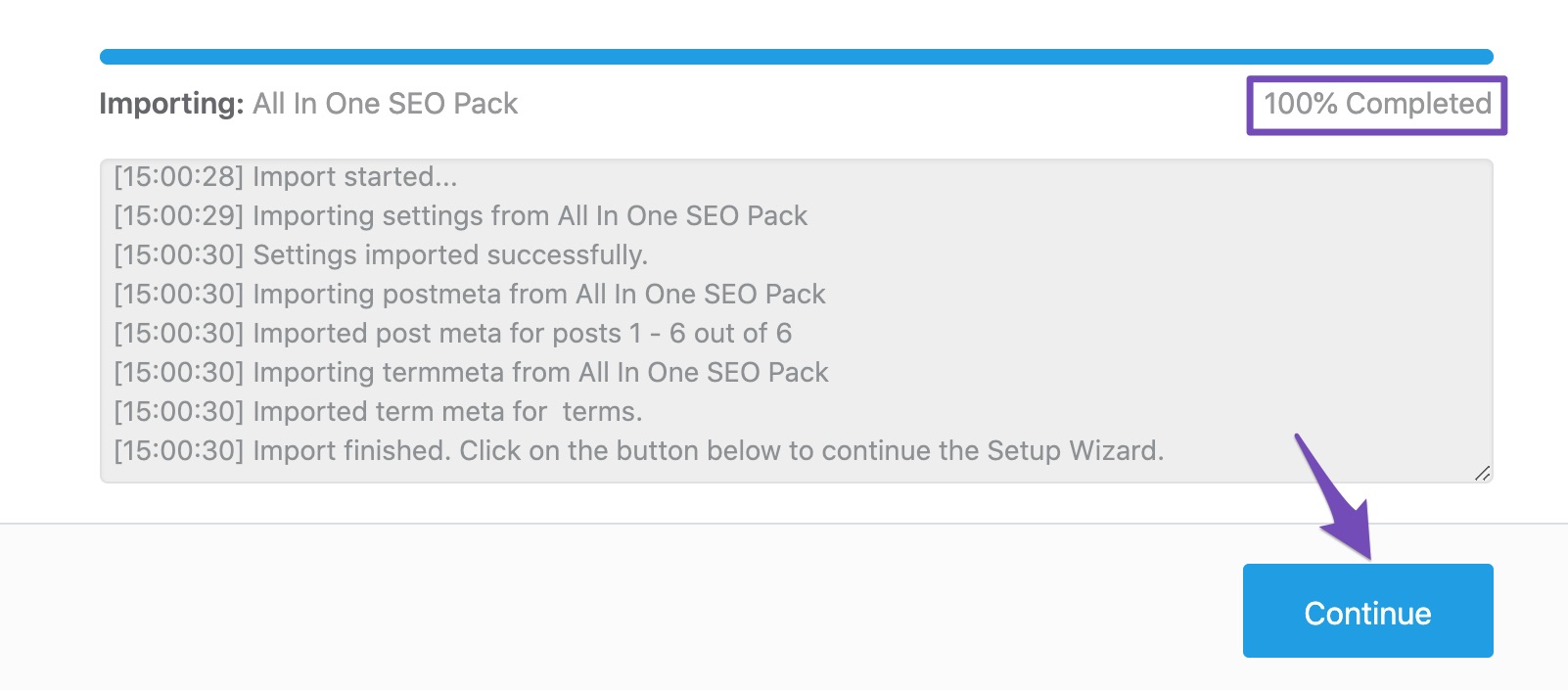
5. When the importing is completed, you can see the progress bar showing 100% completed. Now click Continue to proceed with the other optimizations for your website, for which you can refer to this tutorial.
Using Rank Math Import & Export
If you’ve missed or skipped importing data during the setup Wizard — no issues, you can always import your data with our Import & Export feature:
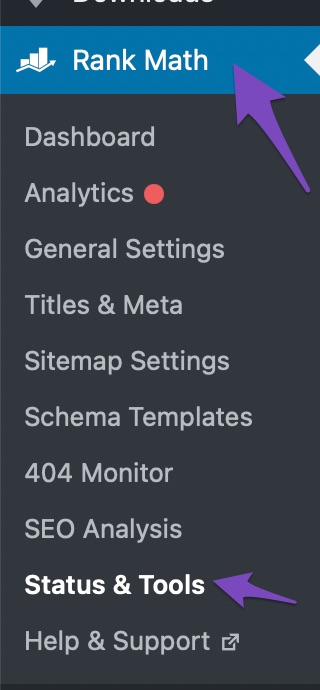
1. At first head over to Rank Math > Status & Tools inside your WordPress Dashboard as shown below:
2. The Import & Export Dashboard will then be displayed. In the dashboard click on Import & Export tab.
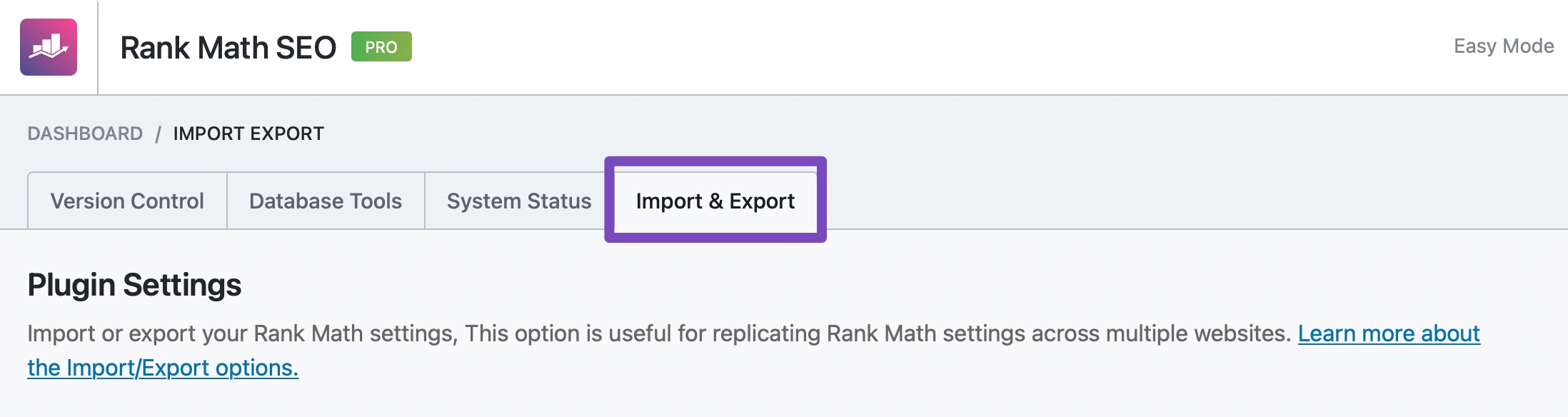
3. Scroll down a bit and find the Other Plugins section. You can find the All in One SEO tab here.
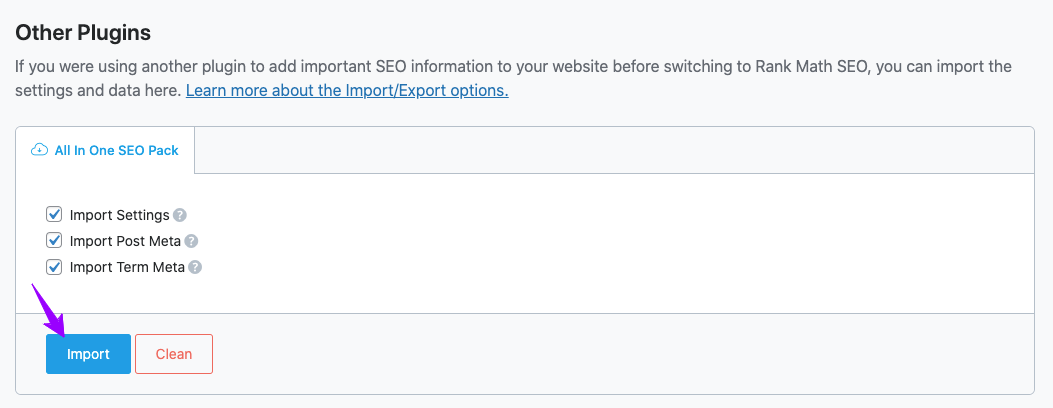
4. Click on Import. Once you click on Import, a small message will be displayed on the screen that requires your confirmation to import the settings. Click on OK.
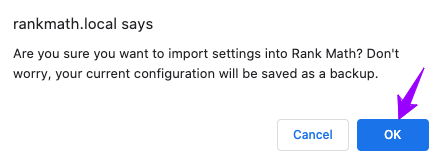
The import will then start within a fraction of seconds, and all your data will be successfully imported in Rank Math SEO.
I hope that helps and please do not hesitate to contact us back anytime if you require further assistance.
Happy to help!
Cheers,



