Hello,
I apologize for the issue you are facing with connecting your Analytics account to Rank Math. It seems like you’ve already taken some good steps by trying to reconnect and checking the permissions.
To connect your Google Analytics account with Rank Math, please ensure that you have enabled the Analytics module in Rank Math. Here’s a quick guide:
-
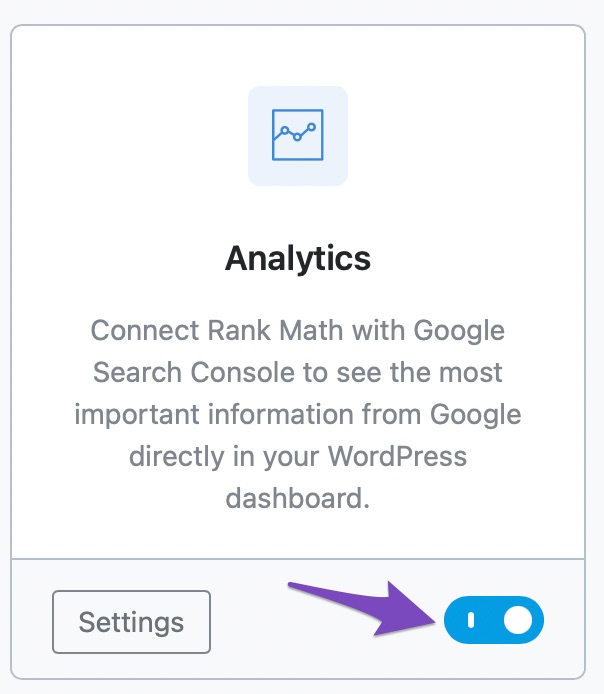
Enable the Analytics Module: Go to Rank Math SEO → Dashboard → Analytics and make sure the module is activated.
-
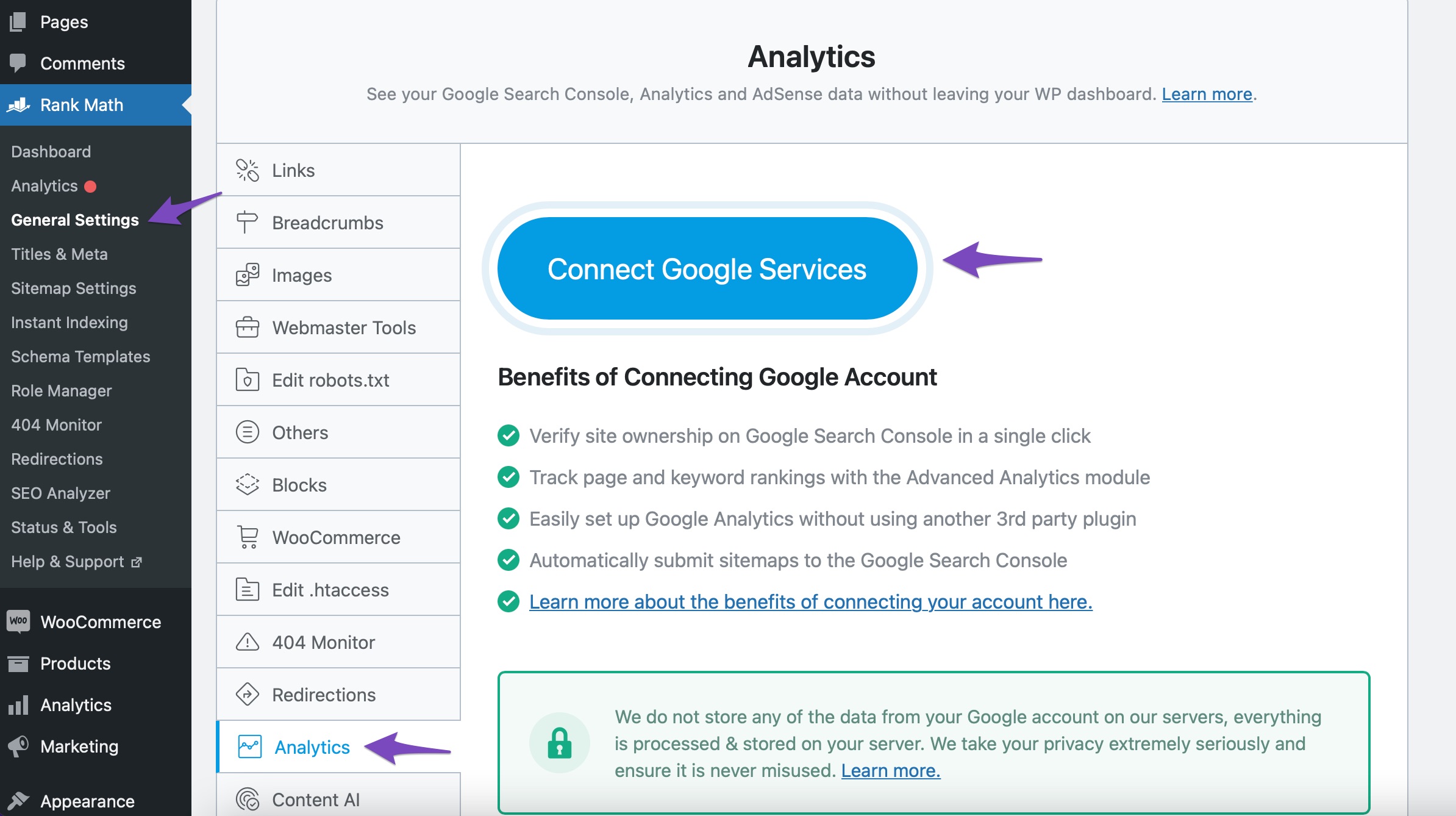
Connect Your Google Account: Navigate to Rank Math SEO → General Settings → Analytics and click on Connect Google Services. You should then select your Google account and grant the necessary permissions.
-
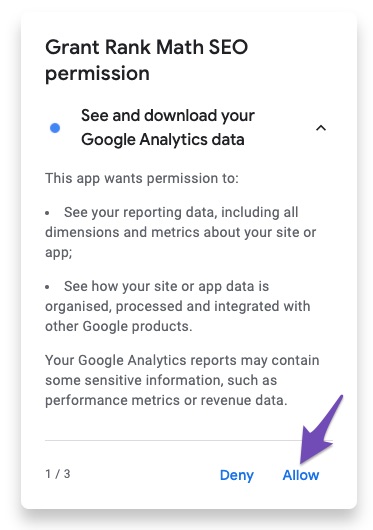
Permissions: Make sure you allow all permissions requested by Rank Math, including access to Google Analytics and Search Console data.
If you still cannot find your account or property after following these steps, it might be helpful to check if your Google Analytics account is properly set up and that you have the correct permissions on that account.
If the problem persists, please reply to this ticket with your site URL so that a human agent from our support team can assist you further. Thank you for raising this concern!
Sources:
How to Install Google Analytics With Rank Math SEO » Rank Math
Rank Math General Settings
I followed this steps. The analytics is enabled in the dashboard. Google account is connected. I don’t receive the permissions windows. I cannot find my account or property in the analytics section, down the search console one from the general settings tab.
I found the account and property, but it is still not connecting? Why? This is the status now:
https://imgur.com/a/U2sKE7c
Hello,
Please make sure to save the settings to complete the configuration.
If the issue persists, try reconnecting your Google account. Remove RankMath’s app from your Google apps permissions: https://myaccount.google.com/permissions
Then, head over to your WordPress Dashboard > Rank Math > General Settings > Analytics and reconnect the Google service and this time, ensure that all permissions are checked:


If the issue persists, we might need to take a closer look at the settings. Please edit the first post on this ticket and include your WordPress & FTP logins in the designated Sensitive Data section.
Please do take a complete backup of your website before sharing the information with us.

It is completely secure and only our support staff has access to that section. If you want, you can use the below plugin to generate a temporary login URL to your website and share that with us instead:
https://wordpress.org/plugins/temporary-login-without-password/
You can use the above plugin in conjunction with the WP Security Audit Log to monitor what changes our staff might make on your website (if any):
https://wordpress.org/plugins/wp-security-audit-log/
We really look forward to helping you.
Hello,
Since we did not hear back from you for 15 days, we are assuming that you found the solution. We are closing this support ticket.
If you still need assistance or any other help, please feel free to open a new support ticket, and we will be more than happy to assist.
Thank you.



